
How to Install Virtualbox 5.1.10 in Ubuntu. Virtualbox is a full virtualizer for x86 hardware. Virtualbox 5.1.10 is the latest release which brings various GUI and API changes.
VirtualBox 5.1.10 (released 2016-11-21)
This is a maintenance release. The following items were fixed and/or added:
- GUI: the USB filter settings dialog should allow to specify the USB revision in hexadecimal format (bug #15400)
- GUI: fixed crash on certain hosts when pressing certain key combinations (Windows hosts only; bug #15719)
- GUI: fixed issue with updating the available-geometry on host-screen work-area resize
- GUI: don’t crash / hang on certain environments if accessibility support is enabled
- GUI: fixed various issues in Unscaled HiDPI Output mode (bug #15707)
- GUI: extend the VM Input menu with Print Screen-related actions
- GUI: improved handling of inserting the Guest Additions ISO image by trying all available optical drives rather than only the first one and by not asking the user if he wants to force unmounting (which doesn’t work in most cases anyway)
- API: default to RTC using UTC for Solaris 11 guests
- Settings: be less restrictive when reading a VM configuration containing a host-only adapter without an interface name
- Storage: fixed resizing VDI images resulting in an unbootable image under certain circumstances (bug #15983)
- NAT: fixed several 5.1.8 regressions on Mac OS X and Windows hosts (bug #16084)
- Audio: fixed a few 5.1.x regressions by using the audio code from 5.0.x until the audio overhaul is completed
- VBoxManage: fixed documentation of the storagectl command (bug #15971)
- Build system: another fix for building VirtualBox on systems which default to Python 3
- Windows hosts: hardening fix for Windows 10 build 14971 (bug #16202)
- Windows Additions: properly start the VirtualBox guest services even if the guest user name contains special characters (bug #15982)
- Solaris Additions: fixed preemptible mouse notification callback being executed under a spinlock for Solaris guests
- Linux hosts / guests: Linux 4.9 fixes (bugs #16155 and #16064)
- Linux Additions: fixed Linux kernel module override rule (thanks Mark Furneaux)
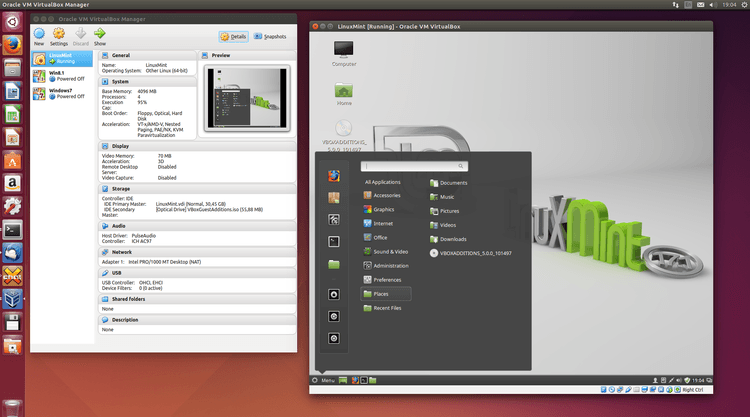
Install Virtualbox 5.1.10 in Ubuntu
Please Note: The VirtualBox 5.1.10 architecture has to match the Linux kernel architecture, that is, if you are running a 64-bit kernel, install the appropriate AMD64 package (it does not matter if you have an Intel or an AMD CPU). Mixed installations (e.g. Debian/Lenny ships an AMD64 kernel with 32-bit packages) are not supported. To install VirtualBox anyway you need to setup a 64-bit chroot environment.
Begin the installation with adding the following line to your /etc/apt/sources.list:
sudo sh -c 'echo "deb http://download.virtualbox.org/virtualbox/debian xenial contrib" >> /etc/apt/sources.list.d/virtualbox.list'
For other Ubuntu versions/distributions, kindly replace ‘xenial’ by ‘vivid’, ‘utopic’, ‘trusty’, ‘raring’, ‘quantal’, ‘precise’, ‘lucid’, ‘jessie’, ‘wheezy’, or ‘squeeze’.
Now setup the key to trusty the updates from that repository:
wget -q https://www.virtualbox.org/download/oracle_vbox_2016.asc -O- | sudo apt-key add -

wget -q https://www.virtualbox.org/download/oracle_vbox.asc -O- | sudo apt-key add -
Finally upgrade Virtualbox by running the following command:
sudo apt-get update

sudo apt-get install virtualbox-5.1
Install DKMS Package on Ubuntu/Debian
Ubuntu/Debian users can install the dkms package to ensure that the VirtualBox host kernel modules (vboxdrv, vboxnetflt and vboxnetadp) are properly updated if the linux kernel version changes during the next apt-get upgrade. The dkms package can be installed through the following command:
sudo apt-get update

sudo apt-get install dkms
Experiencing The following signatures were invalid: BADSIG … when refreshing the packages from the repository? Run the following commands in Terminal
apt-get update

sudo -s -H

apt-get clean

rm /var/lib/apt/lists/*

rm /var/lib/apt/lists/partial/*

apt-get clean

apt-get update