
How to check filesystem in Linux Ubuntu using command. Learn how to check partition type in Linux. There are many commands that can be executed on Linux Systems to determine filesystem type on unmounted or mounted partitions.
Different Types of FileSystems
- ext is an elaborate extension of the minix filesystem. It has been completely superseded by the second version of the extended filesystem (ext2) and has been removed from the kernel (in 2.1.21).
- ext2 is the high performance disk filesystem used by Linux for fixed disks as well as removable media. The second extended filesystem was designed as an extension of the extended filesystem (ext). ext2 offers the best performance (in terms of speed and CPU usage) of the filesystems supported under Linux.
- ext3 is a journaling version of the ext2 filesystem. It is easy to switch back and forth between ext2 and ext3.
- ext4 is a set of upgrades to ext3 including substantial performance and reliability enhancements, plus large increases in volume, file, and directory size limits.
- vfat is an extended DOS filesystem used by Microsoft Windows95 and Windows NT. VFAT adds the capability to use long filenames under the MSDOS filesystem.
- ntfs replaces Microsoft Window’s FAT filesystems (VFAT, FAT32). It has reliability, performance, and space-utilization enhancements plus features like ACLs, journaling, encryption, and so on.
- nfs is the network filesystem used to access disks located on remote computers.
Commands To Check Filesystem In Linux Ubuntu
Let us see about some of the commands to find check filesystem in Linux Ubuntu:
fstab
fstab is a system configuration file on Linux systems that contains information about filesystems on the system. It is located in the /etc directory. The configuration file /etc/fstab contains the necessary information to automate the process of mounting partitions. /etc/fstab can be safely viewed by using the cat command (which is used to read text files) as follows:
$ cat /etc/fstab
Using df Command
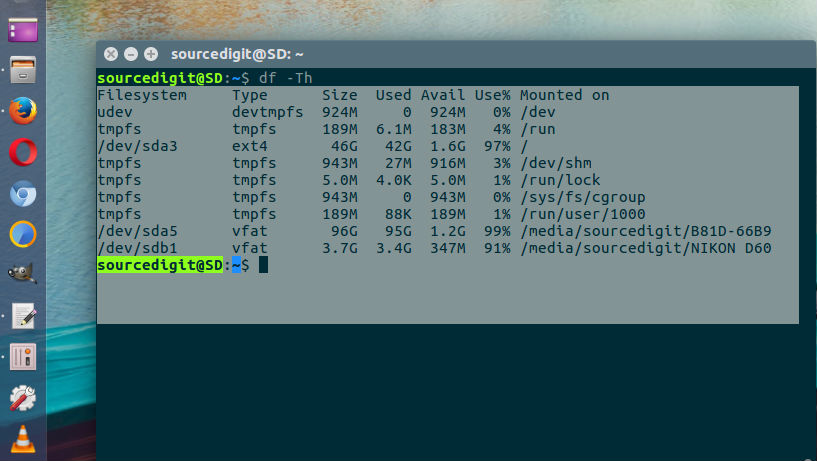
$ df -Th
$ df -Th | grep "^/dev"
Using fsck Command
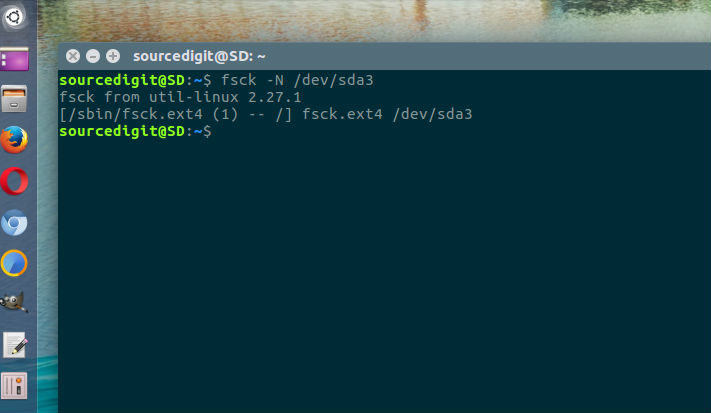
$ fsck -N /dev/sda3
$ fsck -N /dev/sdb1
Using lsblk Command
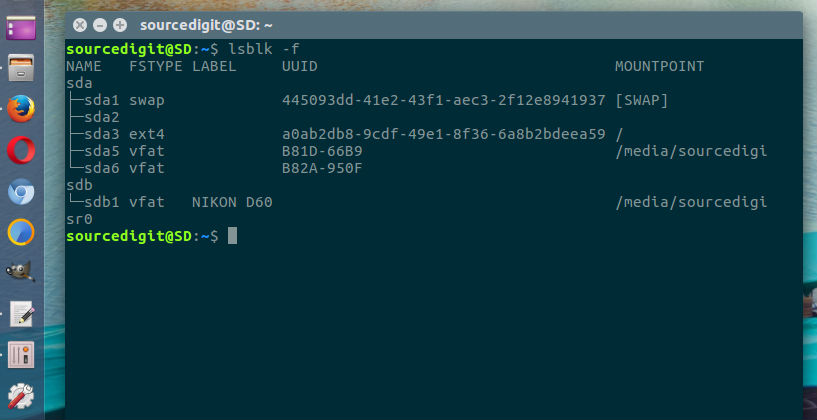
$ lsblk -f
Using mount Command
$ mount | grep "^/dev"
Using file Command
$ sudo file -sL /dev/sda3