
Visual Studio Code is now available as a snap on Ubuntu. Here’s how to install Visual Studio Code IDE Easily via Snap in Ubuntu Systems. Launched in 2015 by Microsoft, Visual Studio Code has imposed itself as one of the preferred code editors in the developer community. Cross-platform (powered by Electron), it features a marketplace of more than 3000 extensions where any language can find its linters, debuggers and test runners.
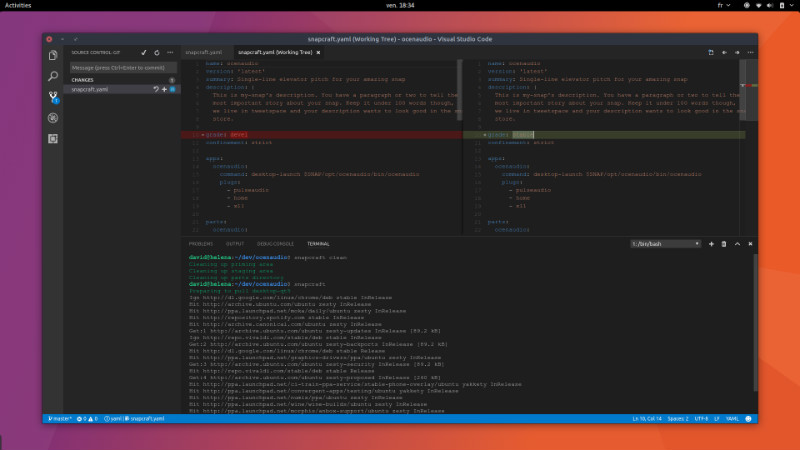
Some notable highlights:
- smart completion based on types and functions
- a versatile integrated debugger
- git built-in support with an approachable user interface for git commands
- and of course, extensions support
To make the experience more familiar, you can emulate keyboard shortcuts of other editors by installing alternative keymaps, such as Vim, Emacs, Sublime, etc.
Install Visual Studio Code Via Snap in Ubuntu
To install Visual Studio Code as a snap:
sudo apt-get update

sudo snap install --classic vscode
Please note that you will need to install snapd, if you’re installing a Snap package in Ubuntu for the first time Use the commands “sudo apt install snapd” to install it on Ubuntu.
This snap makes the latest version of Visual Studio Code easily installable and auto-updatable on Ubuntu 14.04, 16.04 and newer supported releases, goodbye 3rd party PPAs and general package hunting!
Snaps allow developers to release software in different “channels”, that users subscribe to (defaulting to the stable channel), in order to receive automated updates.