
Install Fotoxx image editor on Ubuntu 19.04 and other Ubuntu Derivatives. Fotoxx is a free open source Linux program for image editing and collection management. The goal is to meet the needs of serious photographers while remaining fast and easy to use.
Fotoxx can import RAW images and perform all processing functions. It brings a set of several tools are available to change size and shape: crop, resize, rotate, fix perspective, flatten curved book pages, curve/warp the whole image or selected areas within the image.
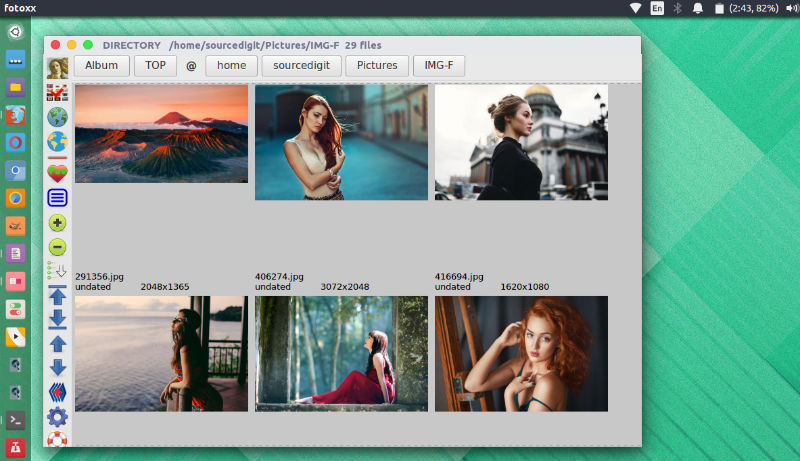
Using Fotoxx, one can navigate a large image collection using a thumbnail browser, click on an image to view or edit. Edit image metadata (tags, geotags, dates, ratings, captions…). Search images using any combination of metadata and file and folder names or partial names. Batch functions are available to rename, add/revise metadata, copy/move, resize, convert format.
Fotoxx Edit and Retouch Functions:
- Internal edit calculations use the ‘float’ number type (24 bits per color).
- Brightness/color/contrast curves: drag curves using the mouse while
- Watching a live image (sub-second response on a strong PC).
- Remove color castes, even if they vary across the image.
- One-click white balance or black level setting.
- Color temperature adjustment with a slider control.
- Sharpen, Blur, Noise reduction (several methods available).
- Red-eye removal: usually 1 click each, with backup method for hard cases.
- Expand and/or flatten brightness distribution to enhance details.
- Tone Mapping (change contrast distribution to enhance details).
- Fix brightness uniformity problems (vignetting and others).
- Smart erase: remove power lines, ground litter, etc. from photos.
- Anti-Alias: suppress pixelation (jagged edges) in low resolution images.
- Remove dark spots on images from dusty scanned slides or old photos.
- Make calibrated color adjustments or match to specific colors.
- Find and fix hot/dark pixels (from camera sensor defects).
- Remove chromatic aberration (color fringes) by rescaling RGB color layers.
- Edit individual pixels or small areas using the mouse.
- Clone: paint over unwanted objects with background taken from elsewhere.
- Retouch functions can be amplified/attenuated by brightness/color/contrast.
- “Paint” most retouch functions locally and gradually using the mouse.
Install Fotoxx Image Editor
Run the following commands in Terminal to install Fotoxx image editing and collection management application on Ubuntu Linux Systems:
$ sudo add-apt-repository ppa:dhor/myway

$ sudo apt-get update

$ sudo apt-get install fotoxx
Once installed, open the Fotoxx application from Ubuntu Dash.