
• Skip to primary navigation
  • Skip to main content
  • Skip to primary sidebar
Source Digit

Source Digit

Linux, Ubuntu Tutorials & News, Technology, Gadgets & Gizmos

  • Home
  • How To
  • Ubuntu
  • Instagram
  • Blogging
  • Android
  • WordPress
  • +More
    • Cloud Computing
    • Gadgets
    • Social Media
    • Technology
  • Write for Us
Home / How To / Opera 56 Released – Install Opera 56 in Ubuntu 18

Opera 56 Released – Install Opera 56 in Ubuntu 18

By Sourabh / September 28, 2018 Category: How To, Ubuntu

Opera 56 released. Install Opera 56 in Ubuntu 18 and Ubuntu Linux Derivatives. Opera 56 brings some feature that lets you multitask more easily and customize the browsing experience to make it even better.

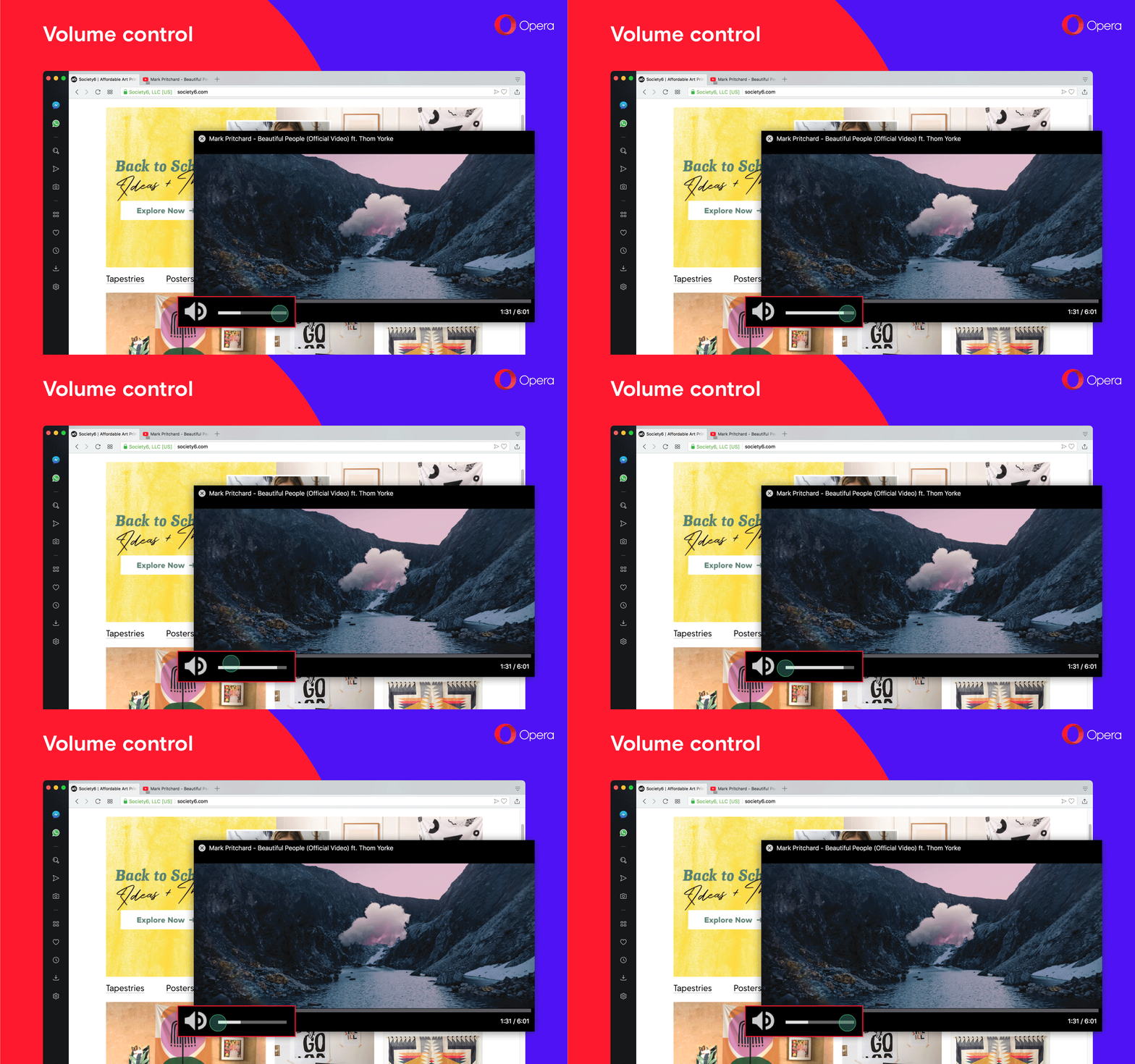
It comes with volume control for the improved video pop out player. In addition, we have added a page zoom indicator in the address and search bar and have tidied up the settings and About Opera pages. New options in settings for the scroll to the top of the page feature and sponsored content are available, too. Finally, Windows and Linux users have a quicker way to report any bugs or issues in Opera.
For a complete description of the new changes and features, visit https://blogs.opera.com/desktop/2018/09/opera-56-stable/

How to Install Opera 56 in Ubuntu

Run the following commands in terminal to install Opera 56 in Ubuntu Systems:

sudo apt update
sudo sh -c 'echo "deb http://deb.opera.com/opera-stable/ stable non-free" >> /etc/apt/sources.list.d/opera.list'
wget -O - http://deb.opera.com/archive.key | sudo apt-key add -
sudo apt update
sudo apt install opera-stable

Tags: Download Opera Web Browser, Install Opera Web Browser, Linux Opera Web Browser, Opera 56, Opera 56 Web Browser, Opera Ubuntu 18, Opera Web Browser, Opera Web Browser Linux, Opera Web Browser Ubuntu, Ubuntu Opera Web Browser

Primary Sidebar

Latest Posts

Delete Directory And Contents Recursively Without Prompt On Linux

Check User Login History In Ubuntu Linux Command Line

Use Locate Command To Find File In Linux Terminal By Name

How To Change Terminal Color In Ubuntu Command Line

How To Run Fsck Manually In Linux To Fix Unexpected Inconsistency

How To Fix Broken Packages On Ubuntu From Terminal

Re Execute The Previous Command In Linux Ubuntu Command Line

How Much RAM Is Needed For Ubuntu PC

How To Find Large Files And Directories In Linux Command Line

How To Use Clear Command History In Linux Terminal

© 2026 Source Digit • Linux, Ubuntu Tutorials & News, Technology, Gadgets & Gizmos

  • Home
  • About
  • Privacy Policy
  • Terms & Conditions
  • Contact Us
  • Sitemap