
CPU and memory utilization command in Linux to check process memory usage in Linux Ubuntu. This post is all about how to check which process is using more memory in Linux system.
top
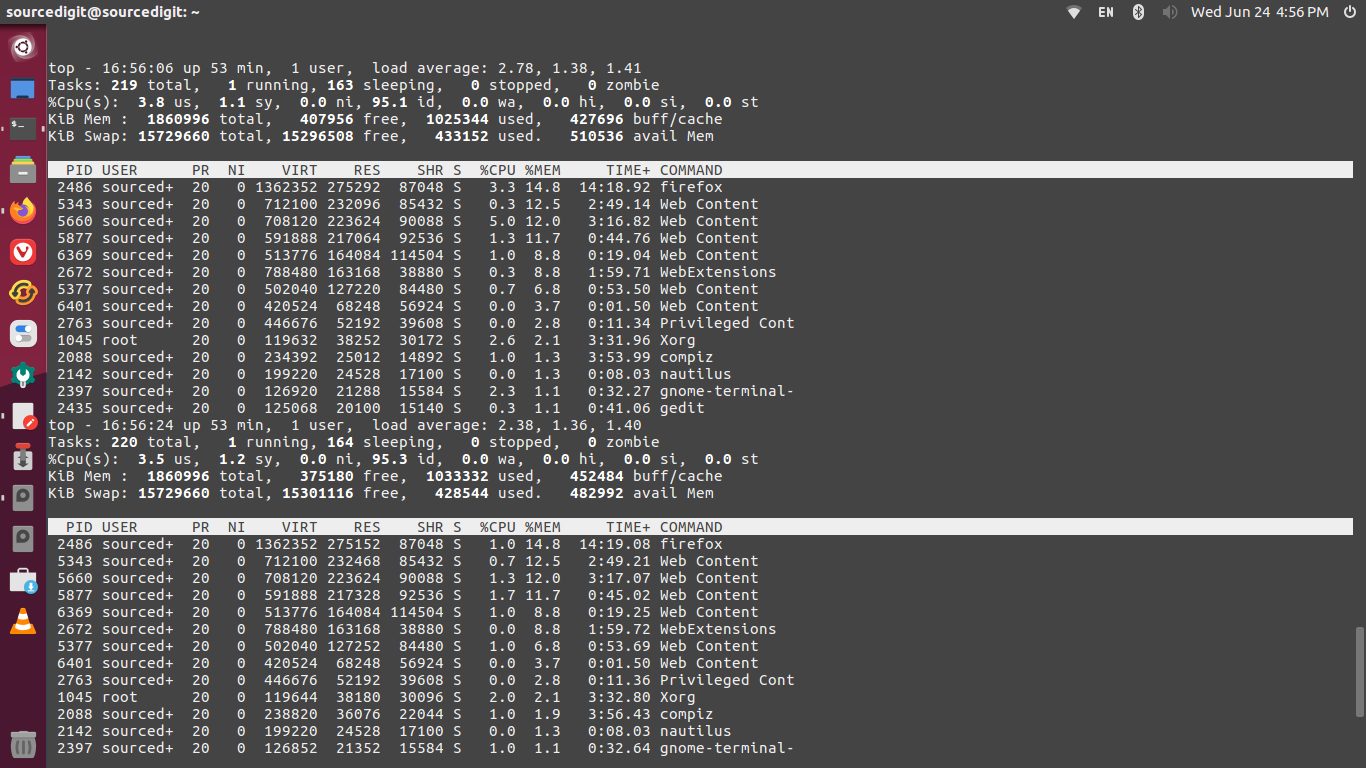
top is used to display Linux processes. It provides a dynamic real-time view of a running system. It displays system summary information as well as a list of processes or threads currently being managed by the Linux kernel. The top command provides a limited interactive interface for process manipulation as well as a much more extensive interface for personal configuration.
Two of the most important factors displayed by the top command are:
- %CPU — CPU Usage: The task’s share of the elapsed CPU time since the last screen update, expressed as a percentage of total CPU time. In a true SMP environment, if a process is multi-threaded and top is not operating in Threads mode, amounts greater than 100% may be reported.
- %MEM — Memory Usage (RES): A task’s currently used share of available physical memory.
If you want to make top a bit more memory-friendly, issue the command top -o %MEM, which will cause top to sort all processes by memory used (see figure below).
free
The free command is used to display amount of free and used memory in the system. The command also displays the total amount of swap memory in the system and buffers and caches used by the Linux kernel. The information is gathered by parsing /proc/meminfo.
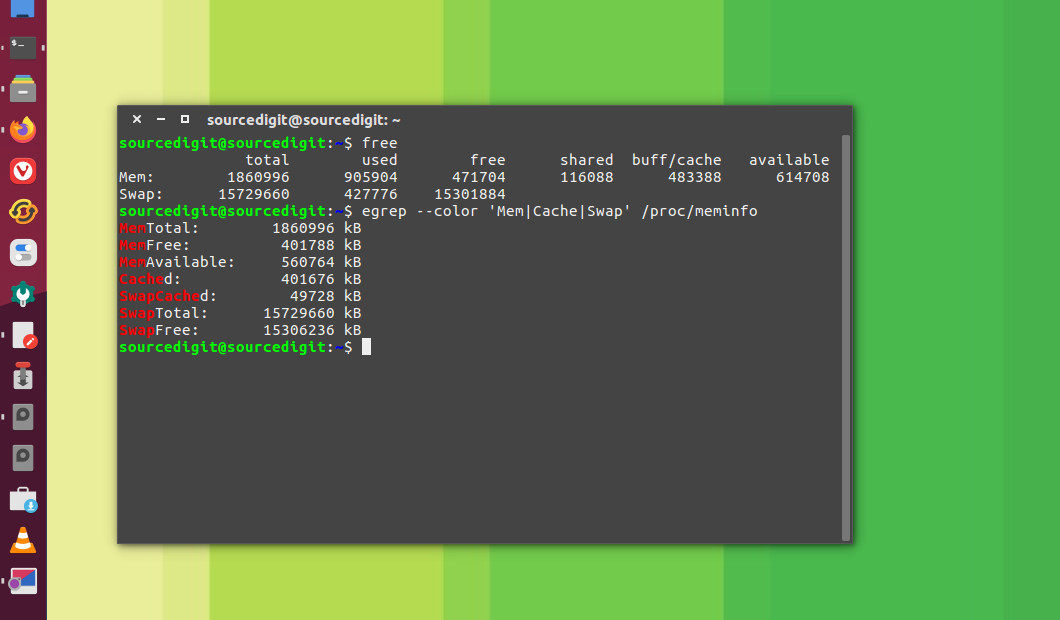
The command option displays:
- total: Total installed memory (MemTotal and SwapTotal in /proc/meminfo)
- used: Used memory (calculated as total – free – buffers – cache)
- free: Unused memory (MemFree and SwapFree in /proc/meminfo)
- shared: Memory used (mostly) by tmpfs (Shmem in /proc/meminfo, available on kernels 2.6.32, displayed as zero if not available)
- buffers: Memory used by kernel buffers (Buffers in /proc/meminfo)
- cache: Memory used by the page cache and slabs (Cached and Slab in /proc/meminfo)
- buff/cache: Sum of buffers and cache
- available: Estimation of how much memory is available for starting new applications, without swapping. Unlike the data provided by the cache or free fields, this field takes into account page cache and also that not all reclaimable memory slabs will be reclaimed due to items being in use (MemAvailable in /proc/meminfo, available on kernels 3.14, emulated on kernels 2.6.27+, otherwise the same as free)
/proc/meminfo
Much of the information in /proc/meminfo is used by the free, top, and ps commands. In fact, the output of the free command is similar in appearance to the contents and structure of /proc/meminfo. However, /proc/meminfo itself has more details:
MemTotal— Total amount of usable RAM, in kibibytes, which is physical RAM minus a number of reserved bits and the kernel binary code.MemFree— The amount of physical RAM, in kibibytes, left unused by the system.Buffers— The amount, in kibibytes, of temporary storage for raw disk blocks.Cached— The amount of physical RAM, in kibibytes, used as cache memory.SwapCached— The amount of memory, in kibibytes, that has once been moved into swap, then back into the main memory, but still also remains in the swapfile. This saves I/O, because the memory does not need to be moved into swap again.Active— The amount of memory, in kibibytes, that has been used more recently and is usually not reclaimed unless absolutely necessary.Inactive— The amount of memory, in kibibytes, that has been used less recently and is more eligible to be reclaimed for other purposes.
and many more info.