
How to install ScudCloud on Ubuntu 16.04. ScudCloud is the Linux Client app for Slack on Ubuntu 16.04 Systems. ScudCloud is a non official desktop client app for Slack. Slack (http://slack.com) is a platform for team communication.
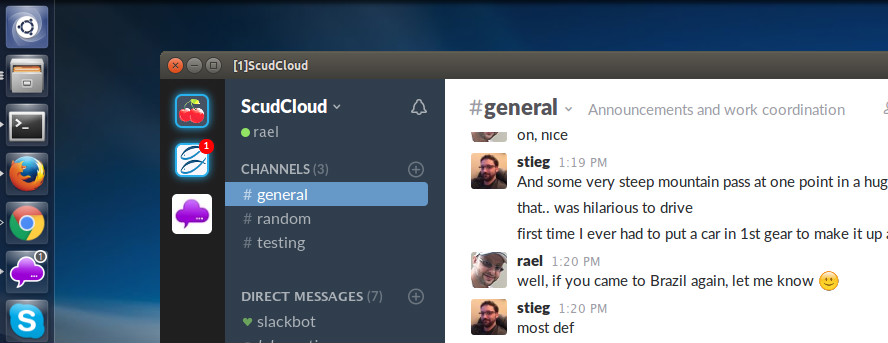
Slack messaging app offers IRC-like features: messaging chat rooms (known as channels) organized by topic and support for private groups and direct messaging. Not just your messages, but all your files, images, PDFs, documents, and spreadsheets can be dropped right into Slack and shared with anyone you want. It also features integration with services like Google Drive and Dropbox. Everything in Slack—messages, notifications, files, and all—is automatically indexed and archived.
Read More – Install Slack Messaging App On Ubuntu 16.04
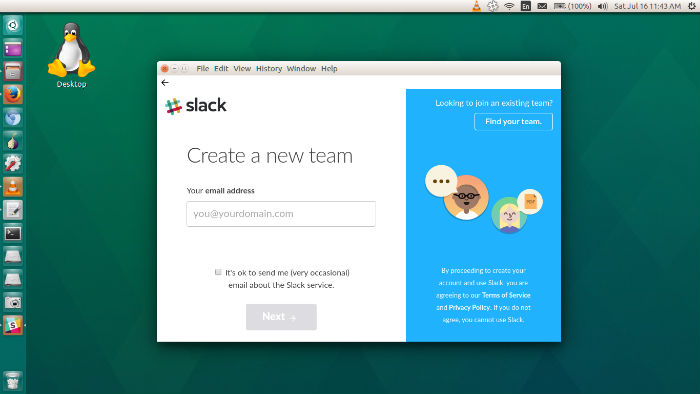
ScudCloud improves the Slack integration with Linux desktops featuring:
- multiple teams support
- native system notifications
- count of unread direct mentions at launcher/sytray icon
- alert/wobbling on new messages
- channels quicklist (Unity only)
- optional tray notifications and “Close to Tray”
- follow your desktop activity and will stay online while you’re logged in (if correct packages are installed)
Install ScudCloud on Ubuntu 16.04
Run the following commands in Terminal to install ScudCloud – Linux Client app for Slack on Ubuntu Systems:
sudo apt-add-repository -y ppa:rael-gc/scudcloud

echo ttf-mscorefonts-installer msttcorefonts/accepted-mscorefonts-eula select true | sudo debconf-set-selections

sudo apt-get update

sudo apt-get install scudcloud
Once installed, open ScudCloud from Ubunu Dash.
Optional Settings
If you want spell checking, add the hunspell dictionary for your language and make sure dependencies are installed. For en-us run the following commands:
sudo apt-get install hunspell-en-us libqtwebkit-qupzillaplugins python3-hunspell
If you want to use a Slack icon instead of ScudCloud, download any 128px Slack icon to your home folder saving as scudcloud.png and run the following commands:
sudo dpkg-divert --add --rename --divert /usr/share/pixmaps/scudcloud.png.real /usr/share/pixmaps/scudcloud.png

sudo cp ~/scudcloud.png /usr/share/pixmaps/

sudo chmod +r /usr/share/pixmaps/scudcloud.png