
How to enable low graphics mode on Ubuntu 16.10 and Ubuntu 16.04 Systems. Enable low graphics mode in Ubuntu. Unity 7 low graphics mode can be enables and speed up Ubuntu Systems. Running system on low graphics mode can make Ubuntu faster.
Low graphics mode can bring various improvements to reduce the amount of visual effects. At a high level this includes things like:
- Reducing the amount of animation in elements such as the window switcher, launcher and menus (in some cases down to zero)
- Removing blur and fade in/out
- Reducing shadows
Ubuntu 16.04 and Ubuntu 16.10 Systems automatically enables low graphics mode for the Unity Desktop when software rendering is active. When Ubuntu detects certain GL features are not available the low graphics mode should enable itself. But if not, Ubuntu users can easily force enable the low graphics mode on Ubuntu. Here’s how to enable it:
Method 1: Using CompizConfig Settings Manager
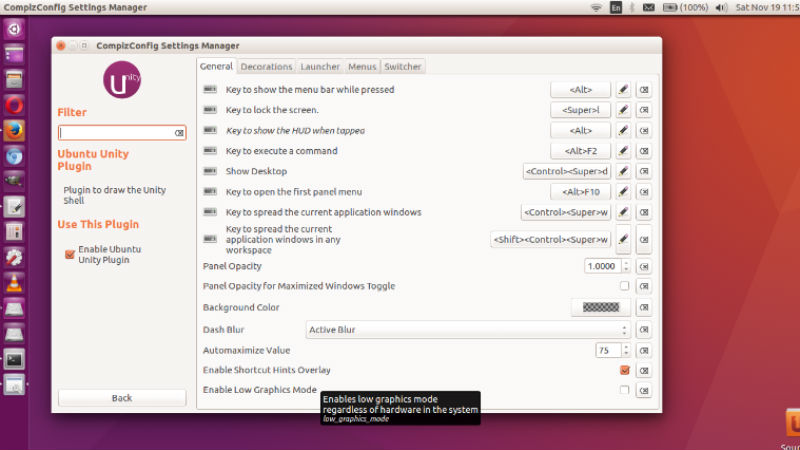
CompizConfig Settings Manager (CCSM) is a configuration tool for Compiz Fusion. The application is used to configure the many plugins included in Compiz and Compiz Fusion, as well as the use of various profiles and integrating better with existing desktop settings.
CompizConfig Settings Manager can be used to enable Unity low-graphics mode on Ubuntu Systems. To use the tool, install CompizConfig Settings Manager and follow the steps given below:
- Open CompizConfig Settings Manager from Ubuntu Dash or Terminal.
- Click the Ubuntu Unity Plugin option.
- Scroll down and select the Enable Low Graphics Mode option.
- Close CCSM and restart the system to apply the changes.
Method 2: Creating Configuration File
1. Open Terminal and run the following command to edit the low mode configuration file:
nano ~/.config/upstart/lowgfx.conf
2. Once the file is open, paste the following lines into it:
start on starting unity7

pre-start script

initctl set-env -g UNITY_LOW_GFX_MODE=1

end script
3. Save the file and exit.
4. Restart the system.
5. Once the system gets start, update and upgrade the system:
sudo apt-get update

sudo apt-get upgrade
If you want to stop using low graphics comment out the initctl line by placing a ‘#’ at the start of the line. So the code becomes:
start on starting unity7

pre-start script

#initctl set-env -g UNITY_LOW_GFX_MODE=1

end script