
How to shutdown Ubuntu from terminal. This posts explains how to shutdown Ubuntu at specific time; schedule shutdown via Ubuntu terminal. Linux Ubuntu users can use “shutdown” command to shutdown or restart Ubuntu from command line. The command “shutdown” can be used to shutdown, restart, halt, power-off or reboot the system.
Shutdown Command
The shutdown command brings the system down in a secure way. All logged-in users are notified that the system is going down, and login operations are blocked. It is possible to shut the system down immediately, or after a specified delay.
Shutdown Command Format
shutdown [OPTIONS…] [TIME] [WALL…] shutdown [-akrhPHfFnc] [-t sec] time [message]
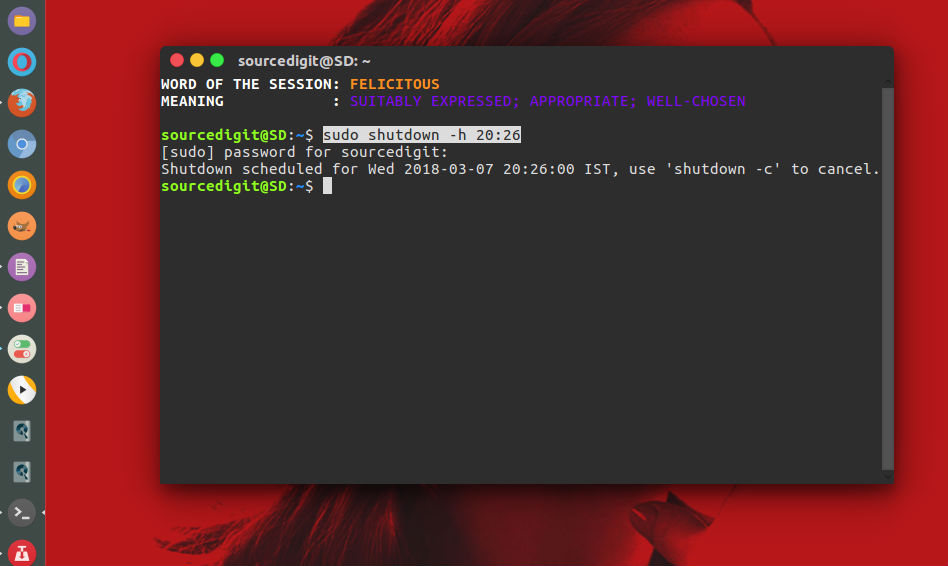
Please note that
- shutdown – Shutdown the computer.
- restart – Restart the computer.
- halt — Stop the computer.
- poweroff — Stop the computer.
- reboot — Stop the computer.
- wall — Sends message to all logged-in users for notification.
The first argument may be a time string (which is usually “now”). Optionally, this may be followed by a wall message to be sent to all logged-in users before going down. The time string may either be in the format “hh:mm” for hour/minutes specifying the time to execute the shutdown at, specified in 24h clock format. Alternatively it may be in the syntax “+m” referring to the specified number of minutes m from now. “now” is an alias for “+0”, i.e. for triggering an immediate shutdown. If no time argument is specified, “+1” is implied. Note that to specify a wall message you must specify a time argument, too.
If the time argument is used, 5 minutes before the system goes down the /run/nologin file is created to ensure that further logins shall not be allowed.
Command Options
-H, –halt : Halt the machine.
-P, –poweroff : Power-off the machine (the default).
-r, –reboot : Reboot the machine.
-h : Equivalent to –poweroff, unless –halt is specified.
-k : Do not halt, power-off, reboot, just write wall message.
–no-wall : Do not send wall message before halt, power-off, reboot.
-c : Cancel a pending shutdown. This may be used cancel the effect of an invocation of shutdown with a time argument that is not “+0” or “now”.
Command Example
To shutdown a machine call the shutdown command like this
$ sudo shutdown -h now
The h option is for halt which means to stop. The second parameter is the time parameter. “now” means that shutdown the system right away.
The time parameter can be specified in minutes or hours also. For example
$ sudo shutdown -h +5 "System will shutdown. Please save your work."
Restart
The shutdown command can be used to restart a system with the r option instead of the h option. Usage is same as before. Just replace the h option with r option.
$ sudo shutdown -r +5 "System will shutdown in 5 minutes. Please save your work."
Cancel Shutdown Command Operation
At this point a shutdown can be cancelled by calling shutdown with “c” option.
$ sudo shutdown -c