
• Skip to primary navigation
  • Skip to main content
  • Skip to primary sidebar
Source Digit

Source Digit

Linux, Ubuntu Tutorials & News, Technology, Gadgets & Gizmos

  • Home
  • How To
  • Ubuntu
  • Instagram
  • Blogging
  • Android
  • WordPress
  • +More
    • Cloud Computing
    • Gadgets
    • Social Media
    • Technology
  • Write for Us
Home / How To / How To Install The Gnome Classic Menu Indicator 0.09 in Ubuntu 14.10

How To Install The Gnome Classic Menu Indicator 0.09 in Ubuntu 14.10

By Sourabh / March 26, 2015 Category: How To, Ubuntu

How to install Gnome Classic Menu Indicator 0.09 in Ubuntu 14.10 Utopic Unicorn. You can also install Gnome Classic Menu Indicator for Ubuntu 14.04 and Ubuntu 12.04.

Classic Menu Indicator is a notification area applet or top panel indicator of Ubuntu’s Unity desktop environment. The Gnome Classic Menu Indicator provides the classic GNOME-style application menu. It’s a powerful indicator which will customize Ubuntu 14.10 and you can use a menu rather than searching application from Unity Dash.

Install Gnome Classic Menu Indicator

Method 1

GNome Flashback Menu Ubuntu 14 04 Screen-Shot


Open the Terminal and run the following commands:


sudo add-apt-repository ppa:diesch/testing
sudo apt-get update
sudo apt-get install classicmenu-indicator

Once installed you can start the classic Gnome Menu from the Unity Dash, or restart the system to open automatically.

If you want to remove the classicmenu-indicator, run the following command in the terminal:


sudo apt-get remove classicmenu-indicator

Method 2

You may also install Classic Menu Indicator (Unity like global menu) from Ubuntu Software Center. To install, open Ubuntu Software Center and type Classic Menu Indicator and click the installer package to install the Classic Menu Indicator.
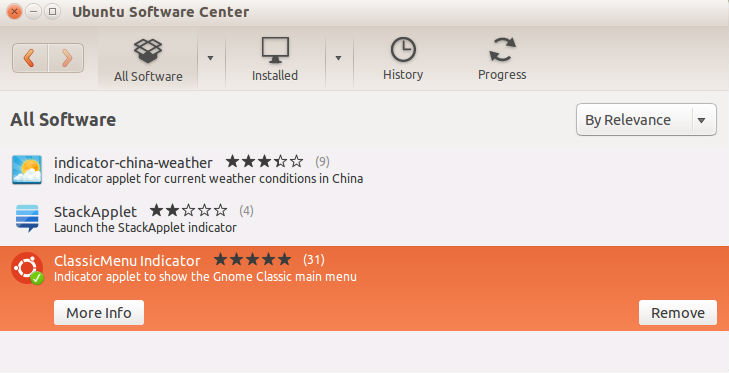
Classic Indicator Menu
Once installed, click the Classic Menu Indicator and when you do so, you can see a Ubuntu icon on the Panel Bar. Clicking this Ubuntu menu will show you the various menu options just like Classic Menu.

Method 3

You can also install the Gnome Classic Menu Indicator using the PPA. You can download the .deb package from the link below:

Download classicmenu-indicator_xxx_all.deb

Once the download is finished, double-click the deb package in file browser to open it with Ubuntu Software Center and click the install button.

Tags: Customize Ubuntu 14.04, Customize Ubuntu 14.10, Gnome Classic Desktop Menu in Ubuntu 14.10, Gnome Classic Menu Indicator Ubuntu, How To Install The Gnome Classic Menu Indicator 0.09 in Ubuntu 14.10, Install Classic Menu Panel Indicator Ubuntu, Install The Gnome Classic Menu Indicator Ubuntu 12.04, Install The Gnome Classic Menu Indicator Ubuntu 14.04, Ubuntu 14.04, Ubuntu 14.10

Primary Sidebar

Latest Posts

Job Scheduling Using At Command In Linux With Examples

How To Check Permissions Of A Directory In Linux Command

Delete Directory And Contents Recursively Without Prompt On Linux

Check User Login History In Ubuntu Linux Command Line

Use Locate Command To Find File In Linux Terminal By Name

How To Change Terminal Color In Ubuntu Command Line

How To Run Fsck Manually In Linux To Fix Unexpected Inconsistency

How To Fix Broken Packages On Ubuntu From Terminal

Re Execute The Previous Command In Linux Ubuntu Command Line

How Much RAM Is Needed For Ubuntu PC

© 2026 Source Digit • Linux, Ubuntu Tutorials & News, Technology, Gadgets & Gizmos

  • Home
  • About
  • Privacy Policy
  • Terms & Conditions
  • Contact Us
  • Sitemap