
• Skip to primary navigation
  • Skip to main content
  • Skip to primary sidebar
Source Digit

Source Digit

Linux, Ubuntu Tutorials & News, Technology, Gadgets & Gizmos

  • Home
  • How To
  • Ubuntu
  • Instagram
  • Blogging
  • Android
  • WordPress
  • +More
    • Cloud Computing
    • Gadgets
    • Social Media
    • Technology
  • Write for Us
Home / How To / Install LSwitcher 0.9.9 On Ubuntu – Pin Apps From Unity Launcher

Install LSwitcher 0.9.9 On Ubuntu – Pin Apps From Unity Launcher

By Sourabh / May 1, 2015 Category: How To, Ubuntu

Customize Unity Launcher on Ubuntu System – Pin apps from the Unity Launcher. Install LauncherSwitcher (LSwitcher 0.9.9) on Ubuntu 15.04, Ubuntu 14.10 and Ubuntu 14.04.

  • The easiest way to add the application to Unity Launcher is to go to the Dash and type the Application name. Then from the Dash, drag the application and drop it in Unity Launcher.

Luckily, there is another way to pin apps from the Unity Launcher. Install LauncherSwitcher (LSwitcher), an open-source tool that allows the users to pin the apps from the Unity Launcher. LSwitcher is a great tool to  organize the Unity Launcher based on the current workspace.
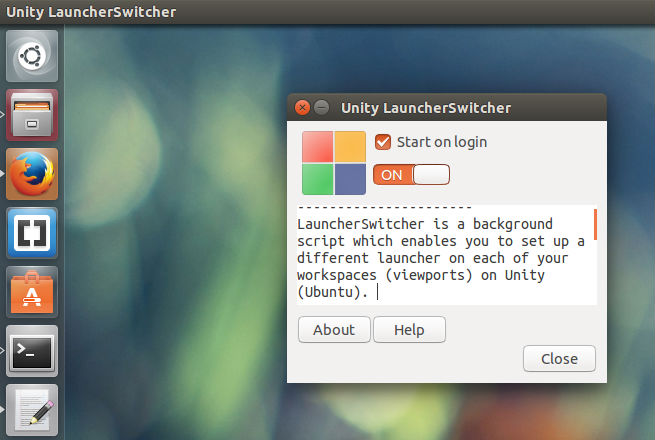
unity-launcherswitcher

Image via

LSwitcher is a powerful tool that provides two options:

  • Enable/disable saving the Unity Launcher
  • Adding apps to the startup list

Unity LauncherSwitcher allows users to set up different viewports (workspaces) for different task categories. It makes the Unity Launcher remember the content of the Unity Launcher, corresponding to the specific workspace, and changes the Launcher automatically when the user switches to another viewport.

Please note that in order to use this app, you will have to enable the multiple workspaces. The enable, go to System Settings > Appearance > Behavior > Enable Workspaces.

Once done, install the latest version of LauncherSwitcher – LSwitcher 0.9.9.

Open Terminal and run the following command to install LauncherSwitcher 0.9.9 on Ubuntu 15.04, Ubuntu 14.10 and Ubuntu 14.04:

sudo add-apt-repository ppa:vlijm/lswitcher
sudo apt-get update
sudo apt-get install lswitcher

To uninstall and remove LSwitcher from Linux Ubuntu Systems, run:

sudo apt-get remove lswitcher

Tags: Add the application to Unity Launcher, How to pin apps from the Unity Launcher, Install LauncherSwitcher (LSwitcher) on Ubuntu, Install LauncherSwitcher (LSwitcher) Ubuntu 14.04, Install LauncherSwitcher (LSwitcher) Ubuntu 14.10, Install LauncherSwitcher (LSwitcher) Ubuntu 15.04, Install LauncherSwitcher Ubuntu, Install LSwitcher 0.9.9 On Ubuntu, Pin Apps From Unity Launcher, Ubuntu 14.04, Ubuntu 14.10, Ubuntu 15.04, Ubuntu LauncherSwitcher (LSwitcher), Unity Launcher Config, Unity Launcher Customize, Unity Launcher Edit, Unity Launcher Settings, Unity Launcher Ubuntu, Unity LauncherSwitcher, Unity LauncherSwitcher Linux Ubuntu, Unity LauncherSwitcher Ubuntu, Unity LauncherSwitcher Ubuntu 14.04, Unity LauncherSwitcher Ubuntu 14.10, Unity LauncherSwitcher Ubuntu 15.04

Primary Sidebar

Latest Posts

How To Check User Permissions In Linux Using Command

Check Which Folder Is Taking More Space In Ubuntu Linux

How to Install Claude Desktop App in Ubuntu Linux

Job Scheduling Using At Command In Linux With Examples

How To Check Permissions Of A Directory In Linux Command

Delete Directory And Contents Recursively Without Prompt On Linux

Check User Login History In Ubuntu Linux Command Line

Use Locate Command To Find File In Linux Terminal By Name

How To Change Terminal Color In Ubuntu Command Line

How To Run Fsck Manually In Linux To Fix Unexpected Inconsistency

© 2026 Source Digit • Linux, Ubuntu Tutorials & News, Technology, Gadgets & Gizmos

  • Home
  • About
  • Privacy Policy
  • Terms & Conditions
  • Contact Us
  • Sitemap