
Invisible and anonymous Internet surfing on Linux Ubuntu Systems. Browse Internet (anonymous web surfing) using TOR and Invisible Internet Project (I2P) on Ubuntu 15.04, Ubuntu 14.04 and Ubuntu 14.10 Systems.
Invisible Internet Project (I2P)
The I2P stands for “Invisible Internet Project.” It can be used to send messages, anonymous Web surfing, chatting, blogging and file transfers to each other securely.
The I2P network provides strong privacy protections for communication over the Internet. Many activities that would risk your privacy on the public Internet can be conducted anonymously inside I2P. I2P network protects the communication from dragnet surveillance and monitoring any kind of ISPs.
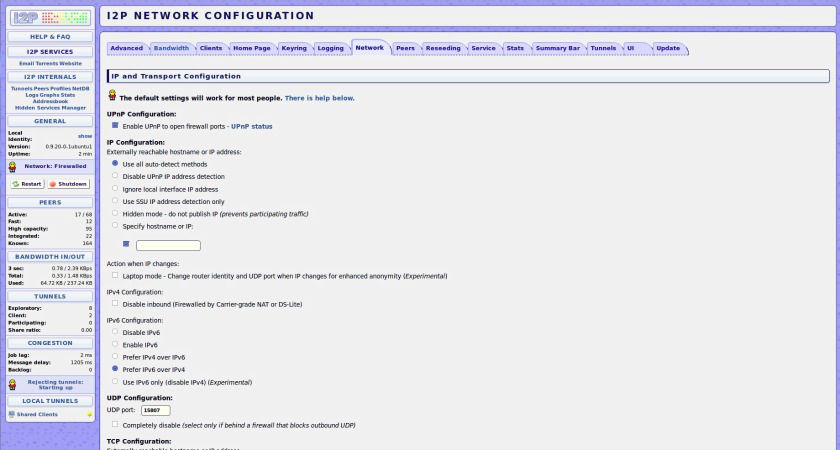
Install I2P On Ubuntu
Invisible Internet Project (I2P) can be installed on Ubuntu 15.04, Ubuntu 14.10, Ubuntu 14.04, Ubuntu 12.04, Linux Mint and Ubuntu Derivatives.
Open Terminal and run the following commands to install Invisible Internet Project (I2P) on Linux Ubuntu Systems:
$ sudo add-apt-repository ppa:i2p-maintainers/i2p

$ sudo apt-get update

$ sudo apt-get install i2p i2p-router i2pd
Once installed, you can open and run I2P via Ubuntu Dash or by using the following command:
$ i2prouter start
If you get an error and web browser doesn’t open, then simply run the address “http://localhost:7657” in your browser’s URL.
Tor Browser
The Tor browser allows people to improve their privacy and security on the Internet. Tor is an effective tool to reach otherwise blocked Internet destinations or content. Individuals use Tor to keep websites from tracking them and their family members, or to connect to news sites, instant messaging services, or the like when these are blocked by their local Internet providers.
Tor’s hidden services let users publish web sites and other services without needing to reveal the location of the site. Individuals also use Tor for socially sensitive communication: chat rooms and web forums for rape and abuse survivors, or people with illnesses.

Install Tor Browser on 32 Bit Linux Systems
$ cd ~

$ wget https://www.torproject.org/dist/torbrowser/4.5.2/tor-browser-linux32-4.5.2_en-US.tar.xz

$ tar -xJvf tor-browser-linux32-4.5.2_en-US.tar.xz

$ cd tor-browser_en-US/

$ ./start-tor-browser.desktop
Install Tor Browser on 64 Bit Linux Systems
$ cd ~

$ wget https://www.torproject.org/dist/torbrowser/4.5.2/tor-browser-linux64-4.5.2_en-US.tar.xz

$ tar -xJvf tor-browser-linux64-4.5.2_en-US.tar.xz

$ cd tor-browser_en-US/

$ ./start-tor-browser.desktop
Once installed, please run the following command for easier usage of Tor on Linux Systems:
$ sudo ln -sf ~/tor-browser_en-US/start-tor-browser /usr/bin/tor
Once installed, you can open and run Tor from Ubuntu Dash or Terminal (type tor and hit enter).