
Install Komodo Edit 9.2 in Ubuntu 15.04 and Ubuntu 14.04 Systems. Komodo Edit a free, fast and multi-language code editor. Komodo Edit text editor is the free and Open-Source counterpart of Komodo IDE for coding in various web languages such as Python, PHP, Ruby, Perl, HTML, CSS and JavaScript. Komodo IDE/Edit 9.2 also comes with Shell Integration features. It can easily run shell commands right from inside Komodo.
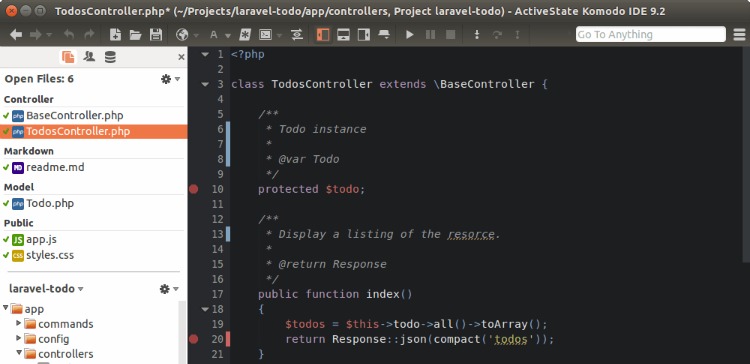
Komodo Edit 9.2 is the latest version available. The official release statement reads:
“This release is the result of another huge bugs triage on KDE bugzilla where more than 145 files have been closed. Thanks to Maik Qualmann who maintain KDE4 version while KF5 port and GSoC 2015 projects are in progress. Both are planned to be completed before end of this year,” is noted in the announcement made by digiKam devs.”
What’s new in Komodo Edit 9.2:
- Docker and Vagrant Integration (IDE only) – You can now interact with Docker and Vagrant using Commando (under Commando > Shell).
- Collaboration Overhaul (IDE only) – Collaboration has been given a significant face-lift and is now a joy to work with!
- Code better with your teams with our updated collab tool.
- Real-time (in-line) spell checking (IDE Only) – Komodo will now check your code for spelling errors in real-time, and allow you to easily address spelling errors right within the editor.
- Package Installer – We are introducing an all new way to install addons, color schemes, skins, keybindings, languages, etc.
- Simply by using Commando, you can now install all your favourite “Packages” (previously called “Resources” or “Extensions”).
- EditorConfig Integration – Komodo now checks for .editorconfig files in your path, you can read more about this here.
- Focus Mode (aka Distraction Free Mode) – Clean up your IDE: easily hide non-essential UI with a keystroke, you can read more about this here.
- CSS3 Autocompletions – We already supported a ton of CSS3 in our autocompletions, but thanks to Defman we now support all of CSS3.
- Crisper UI – Particularly when using dark color schemes, the UI could feel a little bit “fuzzy” in the past, but no longer is that the case!
- A boatload of Commando enhancements and fixes.
Install Komodo Edit 9.2
Komodo Edit 9.2, the latest version can be installed on Ubuntu Systems. To install, run the following commands in Terminal:
$ sudo add-apt-repository ppa:mystic-mirage/komodo-edit

$ sudo apt-get update

$ sudo apt-get install komodo-edit
If you wish to uninstall and remove Komodo-Edit 9.2 from Linux Systems, run the command given below:
$ sudo apt-get remove komodo-edit