
Download and install the official Telegram Desktop Client for Ubuntu Systems. Terminal commands to install Telegram (via PPA) in Ubuntu 15.04, Ubuntu 14.04 and Linux Mint.
Telegram Desktop is an open-source Telegram client for Linux Ubuntu Systems. It is a powerful messaging client which can be used to send messages and files/media. It also supports notification and emoji.
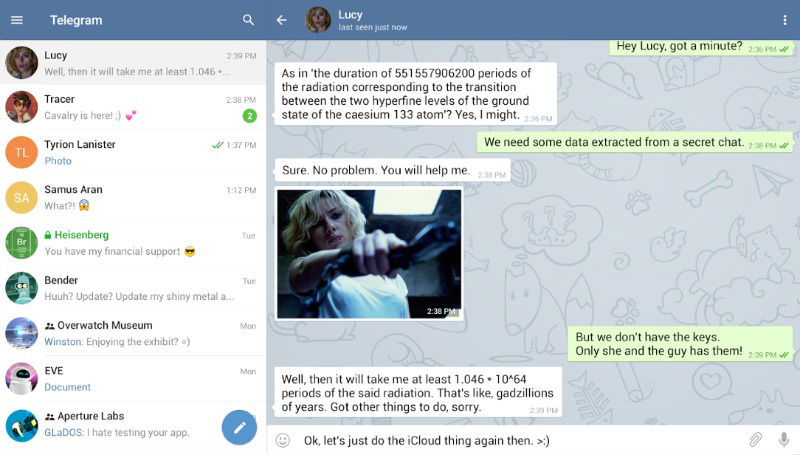
The Telegram Desktop client allows the Linux Ubuntu users to send and receive messages from the Unity desktop. It also features auto-synchronisation feature and hence all the systems can be read from computer or mobile devices.
Telegram 0.8.52 is the latest release of the Telegram messaging app and it comes with the following changes:
- Block users from their profile page
- Added support for Windows toast notifications
- Fixed input methods on Linux (Fcitx and IBus)
- Ask support team a question from Settings
- Bug fixes and other minor improvements
Install Telegram On Ubuntu 15.04 & Ubuntu 14.04
Open Terminal and run the following commands to install Telegram on Ubuntu 15.04 and Ubuntu 14.04:
$ sudo add-apt-repository ppa:atareao/telegram

$ sudo apt-get update

$ sudo apt-get install telegram
You can also download the Telegram app’s official binary package from the following source:
Download Telegram Desktop for Linux Ubuntu
Please note the system architecture before you download the installer package. (32-bit or 64-bit)? If you are not sure, click on the top-right corner (Ubuntu Settings/Shutdown menu gear button) and select “About This Computer”.
Once downloaded, extract the installer package and run the file. If you have trouble running the exe file, click Edit > Preferences > Behavior tab > and select “Run executable text file when they are opened.” The option is written under Executable Text Files menu option.
If you wish to remove and uninstall the Telegram app from Ubuntu Systems, run the command given below:
$ sudo apt-get remove telegram
Install Telegram Desktop on 32 Bit Linux Systems
$ wget https://tdesktop.com/linux32

$ tar -xJvf tsetup*.tar.xz

$ sudo mv Telegram /opt/telegram

$ sudo ln -sf /opt/telegram /usr/bin/telegram
Install Telegram Desktop on 64 Bit Linux Systems
$ wget https://tdesktop.com/linux

$ tar -xJvf tsetup*.tar.xz

$ sudo mv Telegram /opt/telegram

$ sudo ln -sf /opt/telegram /usr/bin/telegram
Once installed, you can start the app via Ubuntu Dash..