
• Skip to primary navigation
  • Skip to main content
  • Skip to primary sidebar
Source Digit

Source Digit

Linux, Ubuntu Tutorials & News, Technology, Gadgets & Gizmos

  • Home
  • How To
  • Ubuntu
  • Instagram
  • Blogging
  • Android
  • WordPress
  • +More
    • Cloud Computing
    • Gadgets
    • Social Media
    • Technology
  • Write for Us
Home / How To / How To Install Gimp In Ubuntu Using Terminal

How To Install Gimp In Ubuntu Using Terminal

By Sourabh / August 4, 2016 Category: How To, Ubuntu

How to install Gimp in Ubuntu using terminal commands. GNU Image Manipulation Program (GIMP), open source image editor for Linux Ubuntu Systems. The current stable release of GIMP is 2.8.18. GIMP features high quality photo manipulation tools. It can do everything – from retouching to restoring to creative composites. GIMP provides top-notch color management features to ensure high-fidelity color reproduction across digital and printed media.
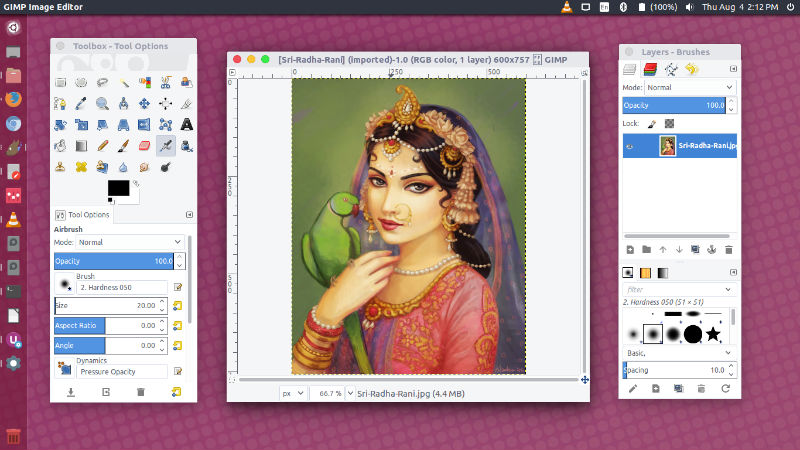
gimp-2-ubuntu

GIMP 2.8.18 Changelog (GUI)

  • Disable color picker buttons on OS X to prevent a GUI lockup
  • Disable “new-style” full-screen mode on OS X to prevent a crash
  • Pulsing progress bar in splash screen to indicate unknown durations
  • Fix gamut warning color for lcms display filter
  • Fix unbolding of bold font on edit
  • Prevent accidental renaming of wrong adjacent item

The release also brings various general updates such as documentation updates, translation updates and bug fixes.

Install GIMP 2.8 On Ubuntu

Run the following commands in Terminal to install GIMP 2.8.18 on Ubuntu:

sudo add-apt-repository ppa:otto-kesselgulasch/gimp
sudo apt-get update
sudo apt-get install gimp

Install GIMP 2.9 (Development) On Ubuntu

Run the following commands in Terminal to install GIMP 2.8.18 on Ubuntu:

sudo add-apt-repository ppa:otto-kesselgulasch/gimp-edge
sudo apt-get update
sudo apt-get install gimp

Once installed, open Gimp from Ubuntu Dash or Terminal.

If you wish to remove and uninstall Gimp from Ubuntu Systems, run:

sudo apt-get install ppa-purge
sudo ppa-purge ppa:otto-kesselgulasch/gimp

Tags: How To Install Gimp In Linux, How To Install Gimp In Ubuntu, How To Install Gimp In Ubuntu 16.04, How To Install Gimp In Ubuntu 16.10, Install Gimp In Ubuntu 16.04, Install Gimp In Ubuntu 16.10, Install Gimp Ubuntu, Install Gimp Ubuntu Commandline, Install Gimp Ubuntu Terminal, Ubuntu 16.04 Install Gimp, Ubuntu 16.10 Install Gimp, Ubuntu Terminal Install Gimp, Uninstall Gimp Commandline Terminal, Uninstall Gimp Terminal, Uninstall Gimp Terminal Commandline

Primary Sidebar

Latest Posts

Delete Directory And Contents Recursively Without Prompt On Linux

Check User Login History In Ubuntu Linux Command Line

Use Locate Command To Find File In Linux Terminal By Name

How To Change Terminal Color In Ubuntu Command Line

How To Run Fsck Manually In Linux To Fix Unexpected Inconsistency

How To Fix Broken Packages On Ubuntu From Terminal

Re Execute The Previous Command In Linux Ubuntu Command Line

How Much RAM Is Needed For Ubuntu PC

How To Find Large Files And Directories In Linux Command Line

How To Use Clear Command History In Linux Terminal

© 2026 Source Digit • Linux, Ubuntu Tutorials & News, Technology, Gadgets & Gizmos

  • Home
  • About
  • Privacy Policy
  • Terms & Conditions
  • Contact Us
  • Sitemap