• Skip to primary navigation
  • Skip to main content
  • Skip to primary sidebar
Source Digit

Source Digit

Linux, Ubuntu Tutorials & News, Technology, Gadgets & Gizmos

  • Home
  • How To
  • Ubuntu
  • Instagram
  • Blogging
  • Android
  • WordPress
  • +More
    • Cloud Computing
    • Gadgets
    • Social Media
    • Technology
  • Write for Us
Home / How To / uGet 2.0.10 Released – Install uGet Download Manager On Ubuntu

uGet 2.0.10 Released – Install uGet Download Manager On Ubuntu

By Sourabh / August 28, 2017 Category: How To, Ubuntu

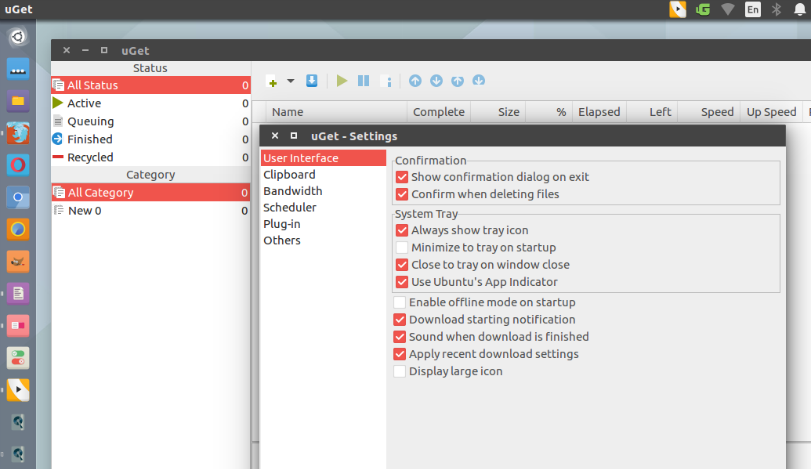
uGet 2.0.10 released. Install uGet download manager on Ubuntu Linux. uGet is a Powerful download manager for Linux Ubuntu with a large inventory of features but is still very light-weight and low on resources.

Below is the impressive list of features:

  • Downloads Queue
  • Resume Downloads
  • Advanced Download Categories
  • Clipboard Monitor
  • Batch Downloads
  • Multi-Protocol
  • Multi-Connection
  • FTP Login & Anonymous FTP
  • Scheduler
  • Quiet Mode
  • Computer Shutdown After Completion
  • CLI / Terminal Usage Support
  • Download History Management
  • Multi-Language Support
  • Aria2 Plugin

uGet 2.0.10

1. User can use sorting in any category and status.
2. curl plug-in: It can use ftruncate() to create large file.
3. Fix: uGet doesn’t close File Descriptor when saving config file.
4. Fix: category functions can’t work correctly. (2017-08-27)
5. add translation files.

uGet 2.0.9

1. Use character ↓/↑ to replace D:/U: to display speed.
2. avoid configure file corrupted on sudden shutdown.
3. curl plug-in: crashes when download file > 4GB.
4. Fix: program will move download to incorrect position if user switch to offline mode.
5. Fix: Segmentation fault after pressing delete key on gtk window.
6. Fix: Wayland hidden tray.
7. update translation files.

Install uGet In Ubuntu

Install uGet by running the following commands:

sudo apt-get update
sudo add-apt-repository ppa:plushuang-tw/uget-stable
sudo apt-get update
sudo apt-get install uget

Once installed, open the uGet download manager from Ubuntu Dash.

Uninstall and Remove uGet

If you wish to uninstall and remove uGet from Linux Ubuntu Systems, run the following command:

sudo apt-get install ppa-purge
sudo ppa-purge ppa:plushuang-tw/uget-stable

Tags: Download Manager Linux, Download Manager Ubuntu, Download Manager Ubuntu 14.04, Download Manager Ubuntu 14.10, Download Manager Ubuntu 15.04, Download Manager Ubuntu 15.10, Download Manager Ubuntu 16.04, Download Manager Ubuntu 16.10, Download Manager Ubuntu 17.04, Download Manager Ubuntu 17.10, Install Uget Download Manager on Ubuntu, Linux Download Manager, Linux Uget Download Manager, Ubuntu 14.04 Download Manager, Ubuntu 14.10 Download Manager, Ubuntu 15.04 Download Manager, Ubuntu 15.10 Download Manager, Ubuntu 16.04 Download Manager, Ubuntu 16.10 Download Manager, Ubuntu 17.04 Download Manager, Ubuntu 17.04 uGet, Ubuntu 17.10 Download Manager, Ubuntu Download Manager, Ubuntu Uget Download Manager, uGet 2.0.10, uGet 2.0.10 Released, Uget Download Manager, Uget Download Manager Linux, UGet Download Manager Ubuntu, uGet download manager Ubuntu 17.04, uGet Ubuntu 17.04

Primary Sidebar

Latest Posts

How Much RAM Is Needed For Ubuntu PC

How To Find Large Files And Directories In Linux Command Line

How To Use Clear Command History In Linux Terminal

Linux Command To Check RAM Size In Ubuntu Terminal In GB

How To Install Proprietary Drivers In Linux Ubuntu Using Terminal

How To Shutdown Linux With A 15 Minute Delay And Message

Free AI Courses With Certificate For Beginners In India

Best AI Plugins For WordPress To Use In 2026

3 Commands To Check USB Connection In Linux Terminal

Linux Terminal Commands for Beginners With Examples

© 2026 Source Digit • Linux, Ubuntu Tutorials & News, Technology, Gadgets & Gizmos

  • Home
  • About
  • Privacy Policy
  • Terms & Conditions
  • Contact Us
  • Sitemap