
• Skip to primary navigation
  • Skip to main content
  • Skip to primary sidebar
Source Digit

Source Digit

Linux, Ubuntu Tutorials & News, Technology, Gadgets & Gizmos

  • Home
  • How To
  • Ubuntu
  • Instagram
  • Blogging
  • Android
  • WordPress
  • +More
    • Cloud Computing
    • Gadgets
    • Social Media
    • Technology
  • Write for Us
Home / How To / Stress Terminal UI: s-tui for CPU monitoring in Linux Ubuntu

Stress Terminal UI: s-tui for CPU monitoring in Linux Ubuntu

By Sourabh / October 3, 2017 Category: How To, Ubuntu

Stress Terminal UI: s-tui for CPU monitoring in Linux Ubuntu; performance monitor CPU usage by process. The tool monitors Linux CPU usage per process. It allows to map the CPU utilization in Linux by a process.

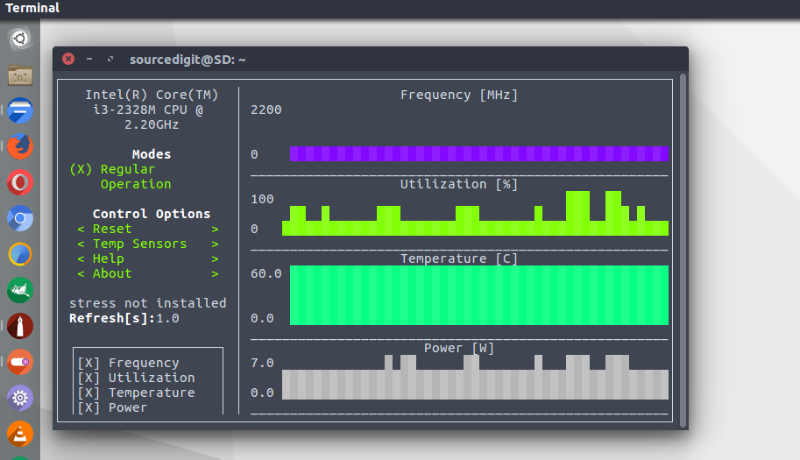
s-tui is a terminal UI for monitoring your computer. s-tui allows to monitor CPU temperature, frequency, power and utilization in a graphical way from the terminal.

The s-tui monitors CPU temperature/utilization/frequency/power and shows performance dips caused by thermal throttling. It requires minimal resources as it doesn’t requires X-server.

Install Stress Terminal UI: s-tui
Run the following commands in Terminal to install Stress Terminal UI: s-tui on Ubuntu Linux Systems:

sudo add-apt-repository ppa:amanusk/python-s-tui
sudo apt-get update
sudo apt-get install python-s-tui

Install stress (optional) and libraries to run s-tui.py via the following commands:

sudo pip install urwid
sudo pip install psutil
sudo apt-get install stress

Please note that s-tui is a great tool for monitoring. If you would like to stress your computer, install stress. Stress options will then show up in s-tui (optional).

Using s-tui

Once installed, simply run the command s-tui or sudo s-tui in Terminal.

TUI Interface

The side bar houses the controls for the displayed grahps.
At the bottom of the side bar, more information is presented in text form.

Use the arrow keys or ‘hjkl’ to navigate the side bar
Toggle between stressed and regular operation using the radio buttons in ‘Modes’.
If you wish to alternate stress defaults, you can do it in ‘Stress options’
Select a different temperature sensors from the ‘Temp Sensors’ menu
Change time between updates using the ‘Refresh’ field
Use the ‘Reset’ button to reset graphs and statistics
Toggle displayed graphs by selecting the [X] check box
If a sensor is not available on your system, N/A is presented
If your system supports it, you can use the utf8 button to get a smoother graph
Press ‘q’ or the ‘Quit’ button to quit

When in doubt, run `s-tui –help` to get this message and additional cli options

Tags: check cpu usage ubuntu, Cpu Usage Command In Unix, cpu usage monitor in game, cpu usage monitor linux, cpu usage monitor mac, cpu usage monitor windows 10, cpu utilization in linux by a process, Debian Monitor CPU Utilization, how to get cpu utilization report in windows server, linux cpu load average, linux cpu usage per core, Linux Cpu Usage Per Process, Linux Monitor CPU Utilization, Linux s-tui, linux top cpu usage, Memory Utilization In Linux, Monitor CPU Utilization, Monitor CPU Utilization Debian, Monitor CPU Utilization Linux, Monitor CPU Utilization Ubuntu, perfmon high cpu usage, performance monitor cpu usage by process, s-tui Linux, s-tui Stress Terminal UI, s-tui Ubuntu, sql server cpu usage query, Stress Terminal UI, Stress Terminal UI s-tui, Ubuntu Monitor CPU Utilization, Ubuntu s-tui

Primary Sidebar

Latest Posts

Delete Directory And Contents Recursively Without Prompt On Linux

Check User Login History In Ubuntu Linux Command Line

Use Locate Command To Find File In Linux Terminal By Name

How To Change Terminal Color In Ubuntu Command Line

How To Run Fsck Manually In Linux To Fix Unexpected Inconsistency

How To Fix Broken Packages On Ubuntu From Terminal

Re Execute The Previous Command In Linux Ubuntu Command Line

How Much RAM Is Needed For Ubuntu PC

How To Find Large Files And Directories In Linux Command Line

How To Use Clear Command History In Linux Terminal

© 2026 Source Digit • Linux, Ubuntu Tutorials & News, Technology, Gadgets & Gizmos

  • Home
  • About
  • Privacy Policy
  • Terms & Conditions
  • Contact Us
  • Sitemap