
PyCharm 2017.3 is out now. Here’s how to install PyCharm 2017.3 Python IDE in Ubuntu and Linux Derivative Systems. PyCharm Python IDE JetBrains 2017.3 is much faster, more usable, and better for data science.
PyCharm 2017.3
PyCharm 2017.3 brings many performance improvements: Python indexing is twice as fast, JavaScript indexing is up to 40% faster, configuring SSH interpreters is much faster (in some cases over 100x), and more.
- It brings a brand new scientific mode, which puts all the tools you need for data science at your fingertips (Scientific mode is only available in PyCharm Professional Edition)
- They have it easier – making creating and selecting Python interpreters easier. For example, PyCharm 2017.3 will remember if you prefer to put your virtualenv in your project folder, or in a separate folder (like your WORKON_HOME folder).
- Built an all new HTTP client for those of you who build (REST) APIs. You can now write a request in a .http file, and then run it straight from the editor (Web development features are only available in PyCharm Professional Edition)
- Django 2.0 will be out soon, and we’re happy to announce that PyCharm 2017.3 fully supports the new version (Django support is only available in PyCharm Professional Edition)
- PyCharm 2017.3 supports running Python modules (python -m )
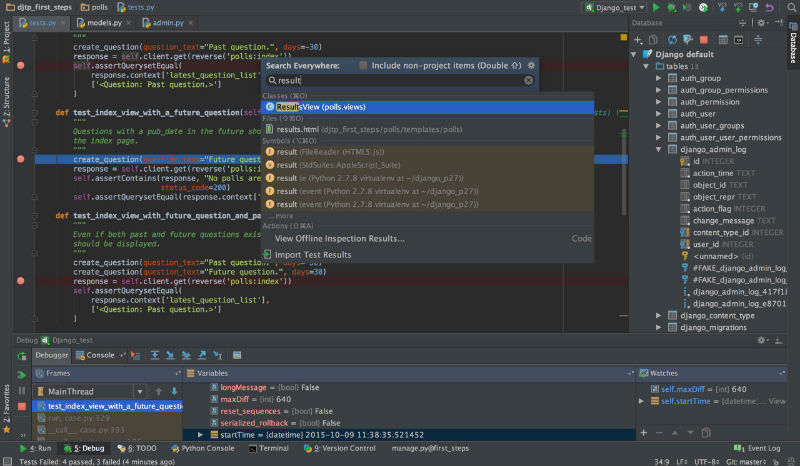
It has also added support for SSH config files: if you’re using a complex setup with jump hosts, you can now connect to your machines effortlessly using the same config that you use on the command line (SSH is only supported in PyCharm Professional Edition)
Download PyCharm Python IDE
Ubuntu users can download and use the PyCharm Python IDE JetBrains. No need to install. Simply download, extract and run the executable file to launch the PyCharm Python IDE.
Download PyCharm Python IDE
https://jetbrains.com/pycharm/download
For more info, visit https://blog.jetbrains.com/pycharm/2017/11/pycharm-2017-3-is-out-now/