
• Skip to primary navigation
  • Skip to main content
  • Skip to primary sidebar
Source Digit

Source Digit

Linux, Ubuntu Tutorials & News, Technology, Gadgets & Gizmos

  • Home
  • How To
  • Ubuntu
  • Instagram
  • Blogging
  • Android
  • WordPress
  • +More
    • Cloud Computing
    • Gadgets
    • Social Media
    • Technology
  • Write for Us
Home / How To / SMPlayer 18.6 Released – Install SMPlayer On Linux Ubuntu

SMPlayer 18.6 Released – Install SMPlayer On Linux Ubuntu

By Sourabh / June 26, 2018 Category: How To, Ubuntu

SMPlayer 18.6 has been released. Install SMPlayer media player for Linux Ubuntu Systems. SMPlayer music player comes with with built-in codecs that can play virtually all video and audio formats. It can also play Youtube videos, search and download subtitles, and includes other features like a thumbnail generator and audio and video filters.

One of the most interesting features of SMPlayer: it remembers the settings of all files you play. SMPlayer supports the most known formats and codecs: avi, mp4, mkv, mpeg, mov, divx, h.264… you can play all of them, thanks to its built-in codecs. You don’t need to find and install third party codecs

SMPlayer is a graphical user interface (GUI) for the award-winning MPlayer, which is capable of playing almost all known video and audio formats.
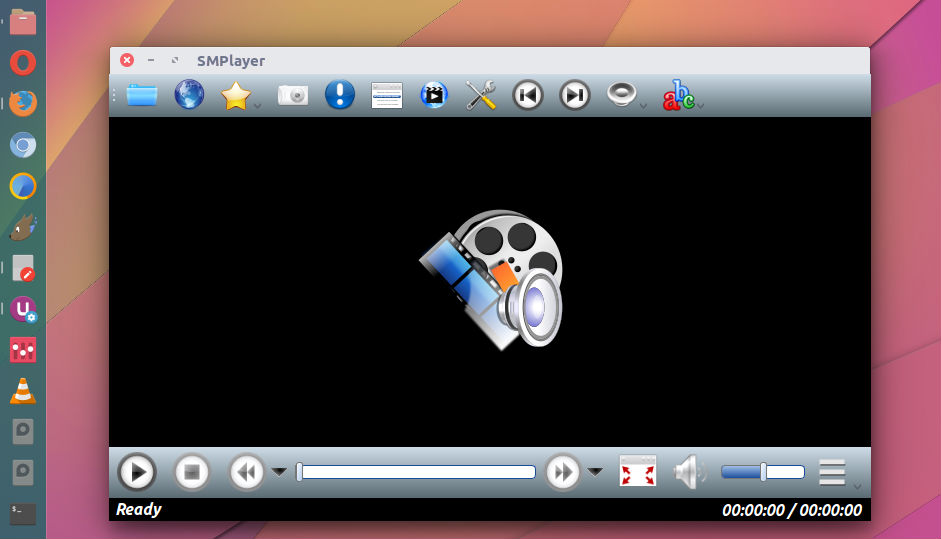
SMPlayer changes

SMPlayer 18.6 brings an update to the library used by the web server for the chromecast feature. It also has now an option to choose type of the playlist window: dockable (as before) or just a normal window.

Install SMPlayer

Run the following commands in Terminal to install SMPlayer media player for Linux Ubuntu Systems:

sudo add-apt-repository ppa:rvm/smplayer
sudo apt-get update
sudo apt-get install smplayer smtube smplayer-themes

Once installed, open SMPlayer from Ubuntu Dash.

To open a file, just click on the first button in the toolbar or select

Tags: SMPlayer, SMPlayer 18.6, SMPlayer Linux, SMPlayer PPA, SMPlayer Ubuntu, SMPlayer Ubuntu 18, Ubuntu 18 SMPlayer

Primary Sidebar

Latest Posts

Delete Directory And Contents Recursively Without Prompt On Linux

Check User Login History In Ubuntu Linux Command Line

Use Locate Command To Find File In Linux Terminal By Name

How To Change Terminal Color In Ubuntu Command Line

How To Run Fsck Manually In Linux To Fix Unexpected Inconsistency

How To Fix Broken Packages On Ubuntu From Terminal

Re Execute The Previous Command In Linux Ubuntu Command Line

How Much RAM Is Needed For Ubuntu PC

How To Find Large Files And Directories In Linux Command Line

How To Use Clear Command History In Linux Terminal

© 2026 Source Digit • Linux, Ubuntu Tutorials & News, Technology, Gadgets & Gizmos

  • Home
  • About
  • Privacy Policy
  • Terms & Conditions
  • Contact Us
  • Sitemap