
• Skip to primary navigation
  • Skip to main content
  • Skip to primary sidebar
Source Digit

Source Digit

Linux, Ubuntu Tutorials & News, Technology, Gadgets & Gizmos

  • Home
  • How To
  • Ubuntu
  • Instagram
  • Blogging
  • Android
  • WordPress
  • +More
    • Cloud Computing
    • Gadgets
    • Social Media
    • Technology
  • Write for Us
Home / Uncategorized / Install OverGrive – Google Drive Desktop Client For Linux Ubuntu 15.04

Install OverGrive – Google Drive Desktop Client For Linux Ubuntu 15.04

By Sourabh / July 23, 2015 Category: Uncategorized

Install OverGrive – Google Drive desktop client for Linux Ubuntu 15.04, Ubuntu 14.04 and Ubuntu 14.10. OverGrive is a complete Google Drive desktop client solution for Linux Ubuntu Systems.

overGrive 3 can Sync Multiple Accounts, Auto Sync Local Files, Auto Sync Google Files, Select Google Drive Folder, Select Google Drive Folders to Sync, Convert Google Docs to Office File Formats for offline editing, Convert Office Files back to Google Docs formats.

Sync Multiple Accounts needs license for each account. Convert Office Files back to Google Docs formats. The conversion to Google Docs format is only meant for original Google Documents.
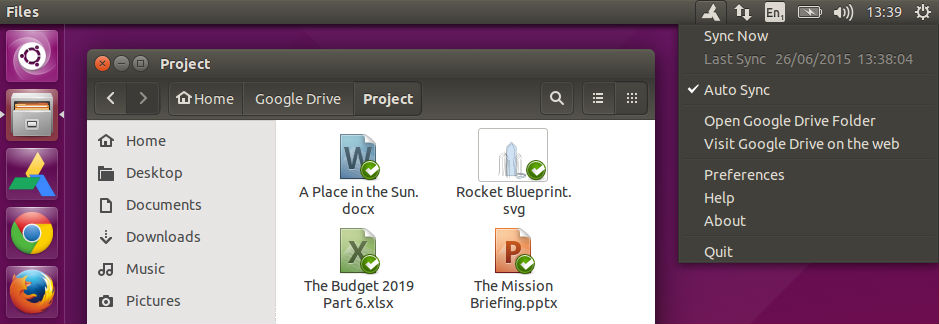
overgrive-00

Supported Linux Distributions : Ubuntu, Debian, Mint, Fedora and openSUSE
Supported Linux Desktops : Unity, Gnome, KDE, Xfce, Cinnamon and LXDE
Supported languages : Afrikaans, Arabic, Chinese, Czech, English, French, Hindi, Korean, Polish, Spanish, Swedish, Russian

 Installation

  • Download the latest version of overGrive DEB here.
  • To install the downloaded DEB file just double click on the file to install via the Ubuntu Software Center, or use GDebi as root, or via a terminal window with: sudo dpkg -i overgrive_3.0_all.deb

Run the following commands in Terminal to install overGrive 3 in Ubuntu Systems:

$ sudo apt-get install gdebi
$ wget https://www.thefanclub.co.za/sites/default/files/public/overgrive/overgrive_3.0.9_all.deb
$ sudo gdebi overgrive_3.0.9_all.deb

Once installed, open the overGrive application from Ubuntu Dash.
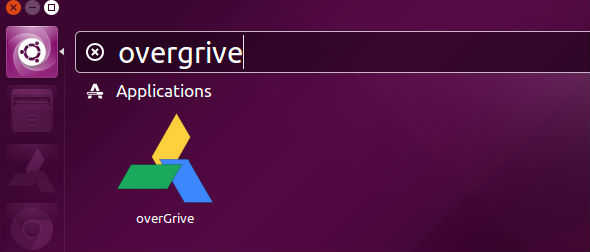
overgrive-02

 Un-Install

  • To un-install overGrive simply remove via the Ubuntu Software Center or from command line with : sudo apt-get remove overgrive

If you wish to uninstall and remove overGrive 3 from Ubuntu Systems, run the command given below:

$ sudo apt-get remove overgrive

Limitations

  • Symbolic links are not supported yet.
  • Google Drawings converted to SVG or other local file formats cannot be edited and converted back to Google Drawings format. This does not apply for the other Google Docs formats.
  • Google Maps and Google Forms are not supported.

Tags: Download Google Drive Desktop Client, Google Drive Desktop Client Ubuntu 14.04, Google Drive Desktop Client Ubuntu 14.10, Google Drive Desktop Client Ubuntu 15.04, Google Drive Desktop Client Ubuntu PPA, Install Google Drive Desktop Client, Install OverGrive - Google Drive Desktop Client For Linux Ubuntu 15.04, Install OverGrive Google Drive Desktop Client Ubuntu 14.04, Install OverGrive Google Drive Desktop Client Ubuntu 14.10, Install OverGrive Google Drive Desktop Client Ubuntu 15.04, Install OverGrive Linux Ubuntu 15.04, Linux OverGrive Google Drive Desktop Client, OverGrive Google Drive Desktop Client Linux, OverGrive Google Drive Desktop Client Linux Ubuntu 15.04, OverGrive Google Drive Desktop Client Ubuntu, Ubuntu 14.04 Google Drive Desktop Client, Ubuntu 14.10 Google Drive Desktop Client, Ubuntu 15.04 Google Drive Desktop Client, Ubuntu Google Drive Desktop Client, Ubuntu OverGrive Google Drive Desktop Client

Primary Sidebar

Latest Posts

Delete Directory And Contents Recursively Without Prompt On Linux

Check User Login History In Ubuntu Linux Command Line

Use Locate Command To Find File In Linux Terminal By Name

How To Change Terminal Color In Ubuntu Command Line

How To Run Fsck Manually In Linux To Fix Unexpected Inconsistency

How To Fix Broken Packages On Ubuntu From Terminal

Re Execute The Previous Command In Linux Ubuntu Command Line

How Much RAM Is Needed For Ubuntu PC

How To Find Large Files And Directories In Linux Command Line

How To Use Clear Command History In Linux Terminal

© 2026 Source Digit • Linux, Ubuntu Tutorials & News, Technology, Gadgets & Gizmos

  • Home
  • About
  • Privacy Policy
  • Terms & Conditions
  • Contact Us
  • Sitemap