
Install flat theme on Linux Ubuntu. Install Arc GTK Theme on Ubuntu 15.04 and Ubuntu 14.04. Arc is a flat theme with transparent elements for GTK 3, GTK 2 and Gnome-Shell. It supports GTK 3 and GTK 2 based desktop environments like Gnome, Unity, Budgie, Pantheon, etc.
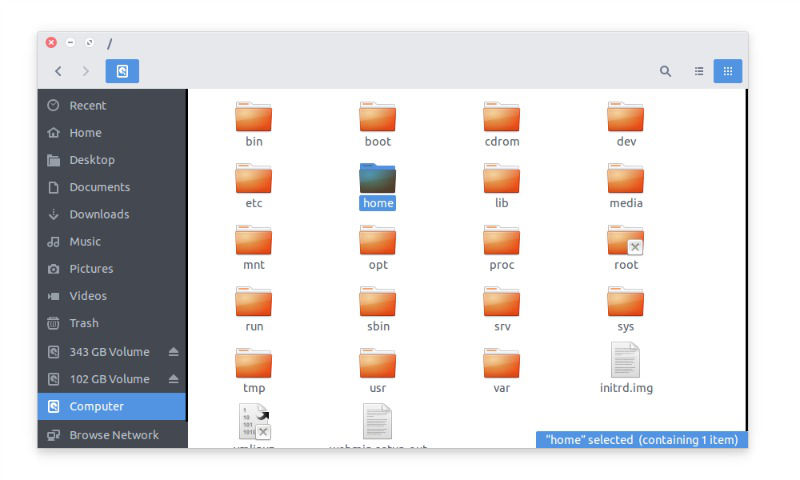
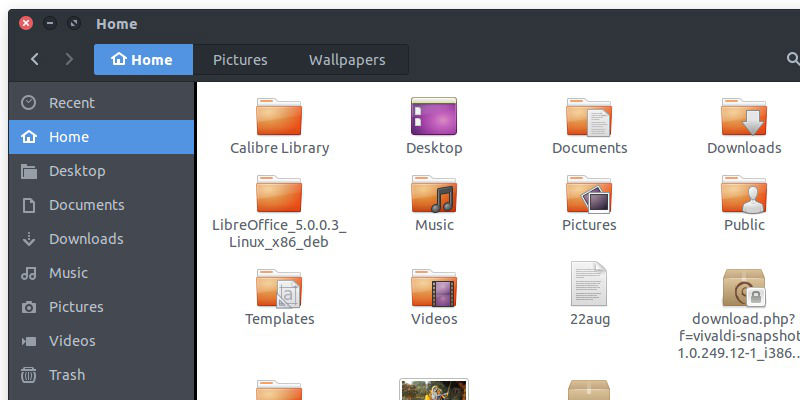
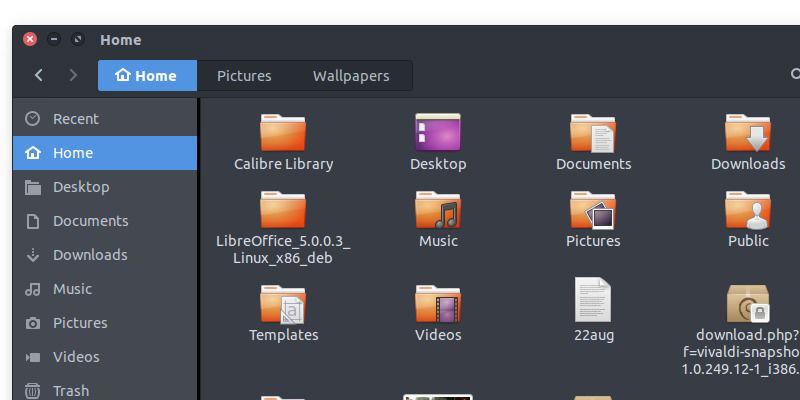
Arc GTK Theme is available in three variants
-
Arc
-
Arc-Darker
-
Arc-Dark
Requirements
- Gnome/GTK 3.14 or 3.16
- The gnome-themes-standard package
- The murrine engine. This has different names depending on your distro.
- gtk-engine-murrine (Arch Linux)
- gtk2-engines-murrine (Debian, Ubuntu, elementary OS)
- gtk-murrine-engine (Fedora)
- gtk2-engine-murrine (openSUSE)
- gtk-engines-murrine (Gentoo)
Main distributions that meet these requirements are
- Arch Linux and Arch Linux based distros
- Ubuntu 15.04
- elementary OS Freya
- Debian Jessie, Testing or Unstable
- Gentoo
- Fedora 21 and 22
- OpenSuse 13.2 and Tumbleweed
- Derivatives of these distributions
Installation
Install the them via .deb installer. Click on the link given below and install the theme via .deb file (via Ubuntu Software Center).
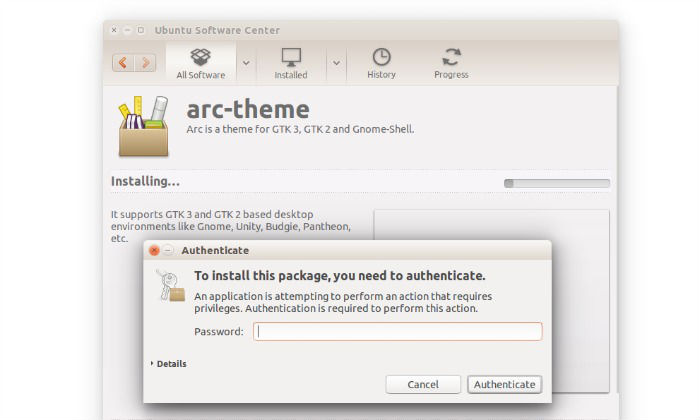
You can also install the them via commands. Before installing the Arc Theme, remove all older versions of the theme from the system. Run the following commands in Terminal:
sudo rm -rf /usr/share/themes/{Arc,Arc-Darker,Arc-Dark}

rm -rf ~/.local/share/themes/{Arc,Arc-Darker,Arc-Dark}

rm -rf ~/.themes/{Arc,Arc-Darker,Arc-Dark}
After the installation is complete you can activate the theme with gnome-tweak-tool, Ubuntu-tweak-tool or another customization program by selecting Arc, Arc-Darker or Arc-Dark as Window/GTK+ theme and Arc as Gnome-Shell and Xfce-Notify theme.
If you get artifacts like black or invisible backgrounds under Unity, disable overlay scrollbars with the following command:
gsettings set com.canonical.desktop.interface scrollbar-mode normal
If you want to uninstall and remove the theme, run the command given below:
sudo make uninstall

sudo rm -rf /usr/share/themes/{Arc,Arc-Darker,Arc-Dark}
If still you are unable to remove the theme, delete the theme manually from the themes folder.