
• Skip to primary navigation
  • Skip to main content
  • Skip to primary sidebar
Source Digit

Source Digit

Linux, Ubuntu Tutorials & News, Technology, Gadgets & Gizmos

  • Home
  • How To
  • Ubuntu
  • Instagram
  • Blogging
  • Android
  • WordPress
  • +More
    • Cloud Computing
    • Gadgets
    • Social Media
    • Technology
  • Write for Us
Home / How To / Automatically Shutdown Or Hibernate Ubuntu 15.04 & Ubuntu 14.04

Automatically Shutdown Or Hibernate Ubuntu 15.04 & Ubuntu 14.04

By Sourabh / September 21, 2015 Category: How To, Ubuntu

Automatically shutdown or hibernate the Ubuntu System when laptop lid is closed. Enable auto shutdown (poweroff) and hibernate for Ubuntu laptop. It is an useful Ubuntu tip that will automatically shutdown the system when laptop lid is closed. You can enable this option using built-in Power utility.

The Ubuntu built-in Power utility allows to select what to do when the laptop lid is closed. By default, there are only “Suspend” and “Do nothing” options available. But, you can customize this and enable Shutdown or Hibernate options in Ubuntu 15.04 and Ubuntu 14.04 Utopic Unicorn. Which means, you can automatically shutdown the Ubuntu 15.04 and Ubuntu 14.04 system when laptop lid is closed.
ubuntu-laptop

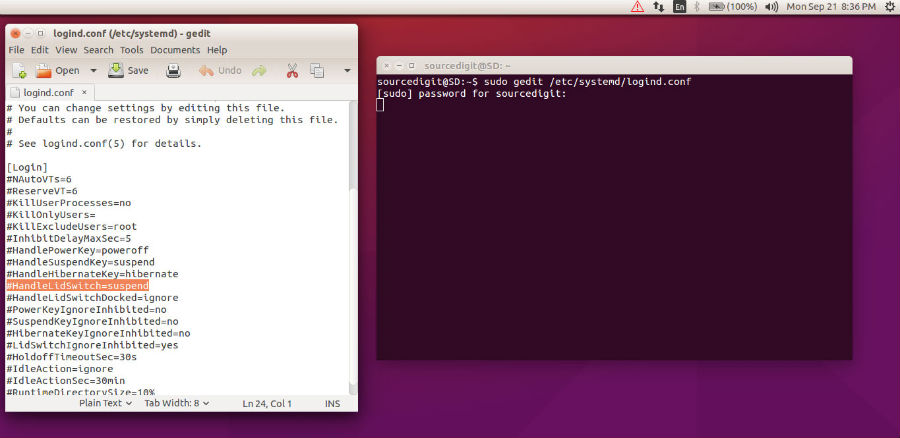
Open Terminal, press Ctrl+Alt+T and the following command and hit enter. This command will edit the systemd-logind settings configuration file:

sudo gedit /etc/systemd/logind.conf

When the file opens, you can edit the file to auto hibernate and shutdown (poweroff).

Shutdown Ubuntu 15.04 & Ubuntu 14.04

Once the systemd-logind settings file is opened, find out the line #HandleLidSwitch=suspend. Remove the # and change the value (given below) and save the file.

HandleLidSwitch=poweroff

This option will shutdown the system’s power off when laptop lid is closed.

Hibernate Ubuntu 15.04 & Ubuntu 14.04

This option will enable hibernate option for the system when laptop lid is closed. Once you have made the changes, save the file and exit.

HandleLidSwitch=hibernate

If you could not find the above text strings in the config file, you can simply add one of following lines at the end of the file and click save.

HandleLidSwitch=hibernate – To hibernate Ubuntu System when lid closed
HandleLidSwitch=poweroff – To shutdown Ubuntu System when lid closed

Once you have made the changed and saved the file, restart systemd-logind service by running the following command. You can also restart the system:

sudo service systemd-logind restart

Tags: Auto Hibernate Ubuntu 14.04, Auto Hibernate Ubuntu 15.04, Auto Shutdown Ubuntu 14.04, Auto Shutdown Ubuntu 15.04, Automatically Hibernate Ubuntu 14.04 When Laptop Lid is Closed, Automatically Hibernate Ubuntu 15.04 When Laptop Lid is Closed, Automatically Shutdown Or Hibernate Ubuntu 15.04 & Ubuntu 14.04, Automatically Shutdown Ubuntu 14.04 When Laptop Lid is Closed, Automatically Shutdown Ubuntu 15.04 When Laptop Lid is Closed, Ubuntu 14.04, Ubuntu 14.04 Auto Hibernate When Laptop Lid Closed, Ubuntu 14.04 Auto Shutdown When Laptop Lid Closed, Ubuntu 15.04, Ubuntu 15.04 Auto Hibernate When Laptop Lid Closed, Ubuntu 15.04 Auto Shutdown When Laptop Lid Closed

Primary Sidebar

Latest Posts

Delete Directory And Contents Recursively Without Prompt On Linux

Check User Login History In Ubuntu Linux Command Line

Use Locate Command To Find File In Linux Terminal By Name

How To Change Terminal Color In Ubuntu Command Line

How To Run Fsck Manually In Linux To Fix Unexpected Inconsistency

How To Fix Broken Packages On Ubuntu From Terminal

Re Execute The Previous Command In Linux Ubuntu Command Line

How Much RAM Is Needed For Ubuntu PC

How To Find Large Files And Directories In Linux Command Line

How To Use Clear Command History In Linux Terminal

© 2026 Source Digit • Linux, Ubuntu Tutorials & News, Technology, Gadgets & Gizmos

  • Home
  • About
  • Privacy Policy
  • Terms & Conditions
  • Contact Us
  • Sitemap