
• Skip to primary navigation
  • Skip to main content
  • Skip to primary sidebar
Source Digit

Source Digit

Linux, Ubuntu Tutorials & News, Technology, Gadgets & Gizmos

  • Home
  • How To
  • Ubuntu
  • Instagram
  • Blogging
  • Android
  • WordPress
  • +More
    • Cloud Computing
    • Gadgets
    • Social Media
    • Technology
  • Write for Us
Home / Ubuntu / Sudo Apt-Get Command To Install Tor Browser On Linux Ubuntu

Sudo Apt-Get Command To Install Tor Browser On Linux Ubuntu

By Sourabh / August 19, 2016 Category: How To, Ubuntu

Tor Browser 6.0.4 is released. Install Tor Browser 6.0.4 on Ubuntu Linux Systems, via WebUpd8 PPA. Apt-get command to download and install Tor Browser on Ubuntu 16.04/16.10.

The Tor software protects you by bouncing your communications around a distributed network of relays run by volunteers all around the world: it prevents somebody watching your Internet connection from learning what sites you visit, it prevents the sites you visit from learning your physical location, and it lets you access sites which are blocked.

Tor 6.0.4
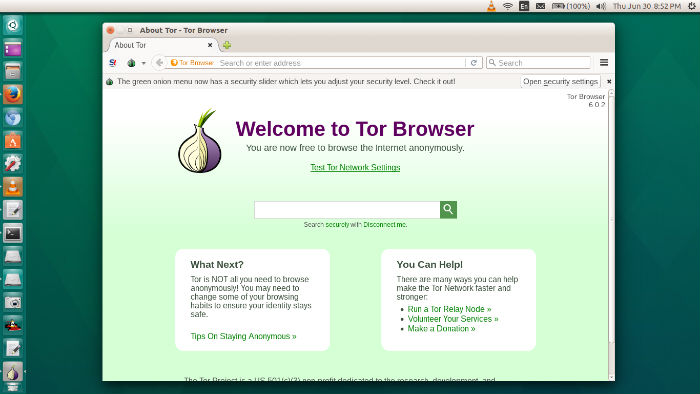
tor-ubuntu-16

This release finally brings Tor Browser users the latest Tor stable, 0.2.8.6, and avoids pinging Mozilla’s servers for system extensions. It also features an update to NoScript to 2.9.0.14 version. Bug 19890 has also been fixed and corrected – Disable installation of system addons.

Install Tor Browser 6.0.4 on Ubuntu

To install Tor Browser on Ubuntu 32Bit Systems run the following commands in Terminal:

wget https://www.torproject.org/dist/torbrowser/6.0.4/tor-browser-linux32-6.0.4_en-US.tar.xz
tar -xvf tor-browser-linux32-6.0.4_en-US.tar.xz
cd tor-browser_en-US/
./start-tor-browser.desktop

To install Tor Browser on Ubuntu 64Bit Systems run the following commands in Terminal:

wget https://www.torproject.org/dist/torbrowser/6.0.4/tor-browser-linux64-6.0.4_en-US.tar.xz
tar -xvf tor-browser-linux64-6.0.4_en-US.tar.xz
cd tor-browser_en-US/
./start-tor-browser.desktop

Once installed, open Tor from Ubuntu Dash or Terminal. Execute the start-tor-browser.desktop file in a terminal:

./start-tor-browser.desktop

This will launch Tor browser network setting. From here you can either configure or connect to Tor network. Click on connect button to enable Tor connection. Tor browser will then connect to the most secure connection. Once it’s done you can see “Welcome to Tor Browser” message.

connect-tor

For the most secure browsing, open and edit security setting.

Tags: Apt-Get Install Tor-Browser, How To Use Tor On Ubuntu, How To Use Tor On Ubuntu 16.04, How To Use Tor On Ubuntu 16.10, Install Tor Browser Linux, Install Tor Browser Ubuntu, Install Tor Browser Ubuntu 16.04, Install Tor Browser Ubuntu 16.10, Install Tor On Linux Mint, Run Tor Browser In Ubuntu, Sudo Apt-Get Install Tor, Sudo Apt-Get Install Tor-Browser, Tor Browser Apt-Get, Ubuntu 16.04 How To Use Tor, Ubuntu 16.04 Install Tor Browser, Ubuntu 16.10 How To Use Tor, Ubuntu 16.10 Install Tor Browser, Ubuntu How To Use Tor, Ubuntu Install Tor Browser

Primary Sidebar

Latest Posts

Delete Directory And Contents Recursively Without Prompt On Linux

Check User Login History In Ubuntu Linux Command Line

Use Locate Command To Find File In Linux Terminal By Name

How To Change Terminal Color In Ubuntu Command Line

How To Run Fsck Manually In Linux To Fix Unexpected Inconsistency

How To Fix Broken Packages On Ubuntu From Terminal

Re Execute The Previous Command In Linux Ubuntu Command Line

How Much RAM Is Needed For Ubuntu PC

How To Find Large Files And Directories In Linux Command Line

How To Use Clear Command History In Linux Terminal

© 2026 Source Digit • Linux, Ubuntu Tutorials & News, Technology, Gadgets & Gizmos

  • Home
  • About
  • Privacy Policy
  • Terms & Conditions
  • Contact Us
  • Sitemap