
• Skip to primary navigation
  • Skip to main content
  • Skip to primary sidebar
Source Digit

Source Digit

Linux, Ubuntu Tutorials & News, Technology, Gadgets & Gizmos

  • Home
  • How To
  • Ubuntu
  • Instagram
  • Blogging
  • Android
  • WordPress
  • +More
    • Cloud Computing
    • Gadgets
    • Social Media
    • Technology
  • Write for Us
Home / How To / Change Minimum Password Length in Ubuntu

Change Minimum Password Length in Ubuntu

By Sourabh / November 27, 2015 Category: How To, Ubuntu

Change minimum password length in Ubuntu. How to set password length in Ubuntu Linux and change the minimum password length in Ubuntu 15.10, Ubuntu 15.04, Ubuntu 14.04, Ubuntu 14.10 and Derivatives.

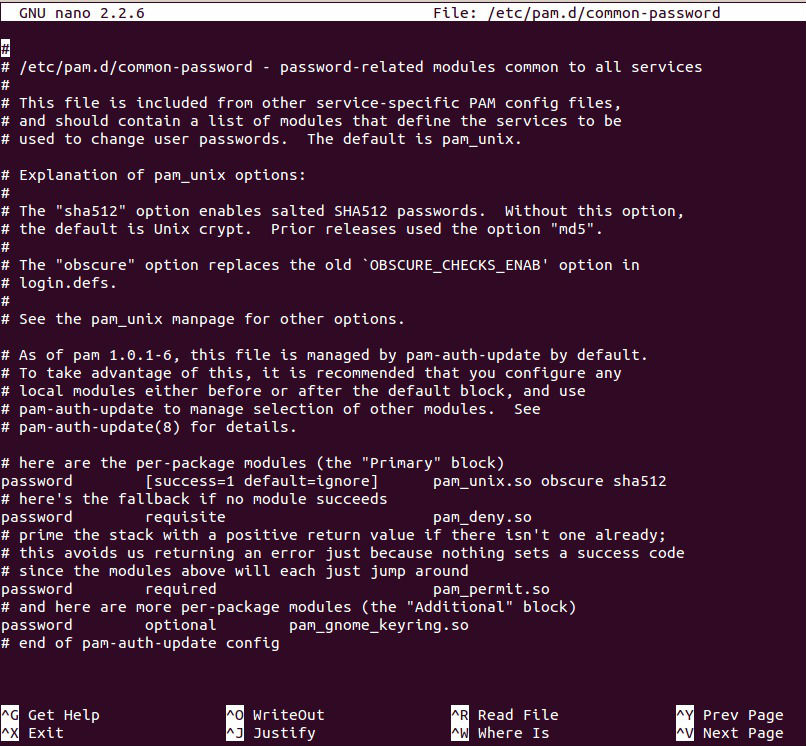
By default, Ubuntu requires a minimum password length of 6 characters, as well as some basic entropy checks. These password values are controlled and stored in the file /etc/pam.d/common-password. Look below.
Linux-Password-Screenshot-06


password [success=1 default=ignore] pam_unix.so obscure sha512

If you would like to adjust the minimum length to 8 characters, change the appropriate variable to min=8. The modification is outlined below.


password [success=1 default=ignore] pam_unix.so obscure sha512 minlen=8

Please note that the basic password entropy checks and minimum length rules do not apply to the administrator using sudo level commands to setup a new user.

Steps To Change Minimum Password Length

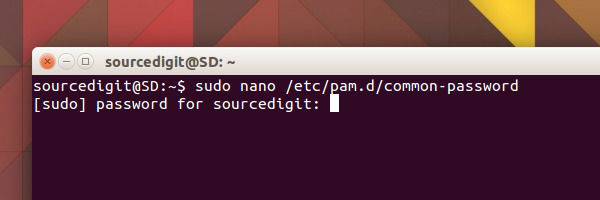
1. Open Terminal and launch “/etc/pam.d/common-password” file by running the below command to edit the file:


$ sudo nano /etc/pam.d/common-password
Linux-Password-Screenshot

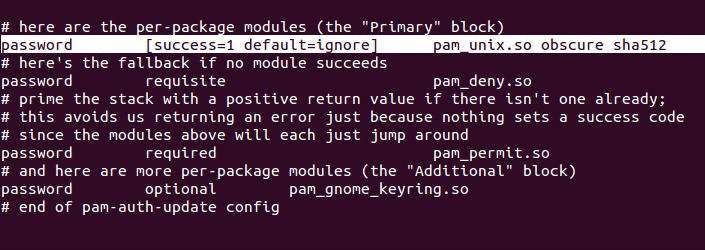
2. The file will open in the Terminal screen. Scroll down and find out the line which says “password [success=1 default=ignore] pam_unix.so obscure sha512.”

  • To set the minimum password length, add minlen=N (N is a number) to the end of this line after “sha512”.
  • To disable complexity check, delete and remove “obscure” from the above line.
Screenshot-38

3. Once done, press Ctrl+X and type Y to save changes and press Enter to exit.

  • Type passwd command as follows to change your own password:

    $ passwd
  • To change password for other user account, login as root user and type the following command to change password for user:

    $ passwd USERNAME

You will be prompted to enter your old password for verification, and then a new password.

Tags: Change Minimum Password Length in Linux Ubuntu, Change Minimum Password Length in Ubuntu, Change Minimum Password Length in Ubuntu 14.04, Change Minimum Password Length in Ubuntu 14.10, Change Minimum Password Length in Ubuntu 15.04, Change the Minimum Password Length in Ubuntu 14.04, How to set a short password on Ubuntu, How to set Password Length in Ubuntu Linux, Linux Ubuntu Change Minimum Password Length, Minimum Password Length in Ubuntu Change, Modify Minimum Password Length in Ubuntu, Modify Password Length in Ubuntu Linux, Reset Minimum Password Length in Ubuntu

Primary Sidebar

Latest Posts

Delete Directory And Contents Recursively Without Prompt On Linux

Check User Login History In Ubuntu Linux Command Line

Use Locate Command To Find File In Linux Terminal By Name

How To Change Terminal Color In Ubuntu Command Line

How To Run Fsck Manually In Linux To Fix Unexpected Inconsistency

How To Fix Broken Packages On Ubuntu From Terminal

Re Execute The Previous Command In Linux Ubuntu Command Line

How Much RAM Is Needed For Ubuntu PC

How To Find Large Files And Directories In Linux Command Line

How To Use Clear Command History In Linux Terminal

© 2026 Source Digit • Linux, Ubuntu Tutorials & News, Technology, Gadgets & Gizmos

  • Home
  • About
  • Privacy Policy
  • Terms & Conditions
  • Contact Us
  • Sitemap