
Enable WiFi in Ubuntu 16.04. How to enable WiFi in Ubuntu, using Terminal (command line). Fix “Ubuntu WiFi is disabled by hardware switch” on Ubuntu 16.04 and other Ubuntu Derivative Systems.
How To Enable WiFi In Ubuntu 16.04
- Open Systems Settings and navigate to “Software and Updates” under System tab.
- Once you are there, click on the “Additional Drivers” tab.

- Here, click on the “Network Driver” in the first row. By default, “Do not use the device” is selected and active.
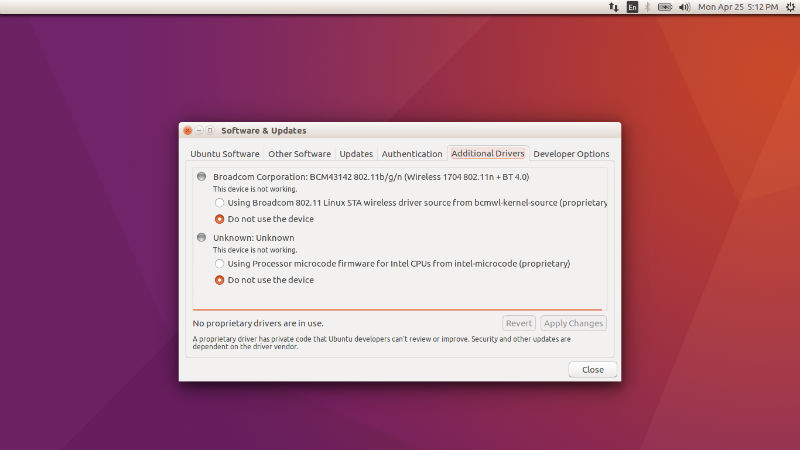
- Once you click on the Network Driver (Broadcom 802.11 Linux STA Wireless Driver”) and click Apply Changes.
- You will be asked to authenticate the process. Enter the password to continue.
- Wait for few seconds (you can see the progress in the bar at the bottom).
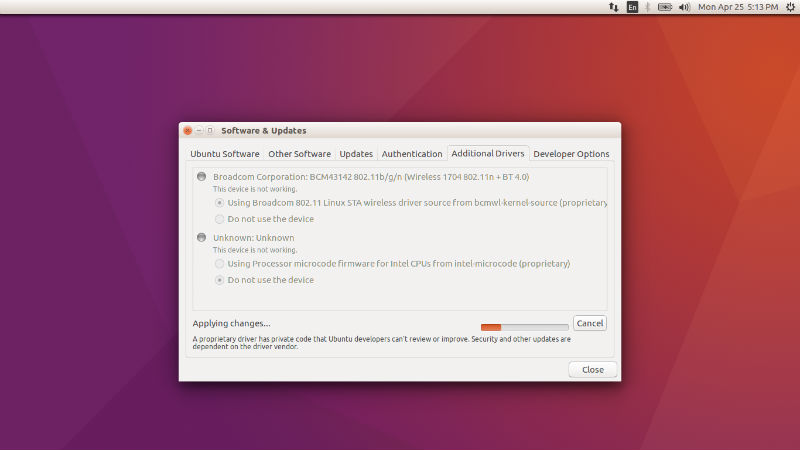
- Once the Wireless Driver is enabled, it will automatically get selected and active.
- Exit the window.
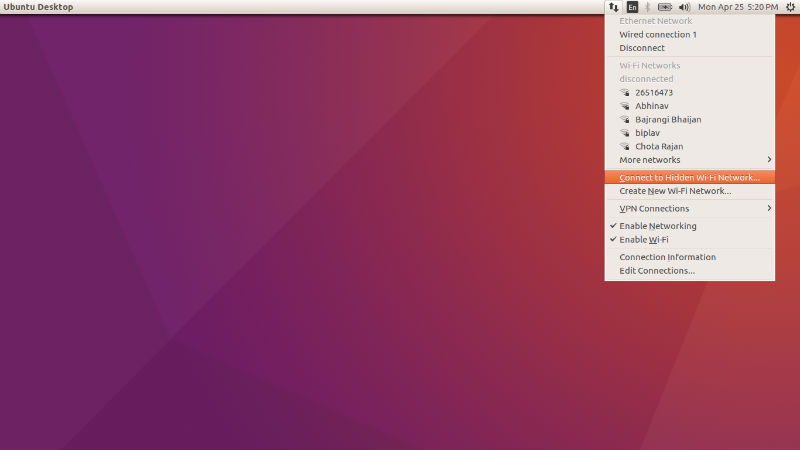
Now click on the Connection icon on the Panel Bar and you can see the WiFi options. Please note that you will have to enable WiFi, if not enabled by default. You can see the option in the same down-menu option tab.
Connect to a Wireless Network [Official Ubuntu Help]
- If you have a wireless hardware switch on your computer, make sure that it is turned on. Click the network menu in the menu bar, and click the name of the network you want to connect to.
- If the name of the network isn’t in the list, select More Networks to see if the network is further down the list. If you still don’t see the network, you may be out of range or the network might be hidden.
- If the network is protected by a password (encryption key), enter the password when prompted and click Connect.
- If you do not know the key, it may be written on the underside of the wireless router or base station, in its instruction manual, or you may have to ask the person who administers the wireless network.
- The network icon will change appearance as the computer attempts to connect to the network.
- If the connection is successful, the icon will change to a dot with several bars above it. More bars indicate a stronger connection to the network. If there aren’t many bars, the connection is weak and might not be very reliable.