
Install MOC command line music player in Ubuntu Linux. MOC (music on console) is a console audio player for LINUX/UNIX Systems. It is designed to be powerful and easy to use. Once installed, all you have to do is select a file from some directory using the menu and MOC will start playing all files in this directory beginning from the chosen file.
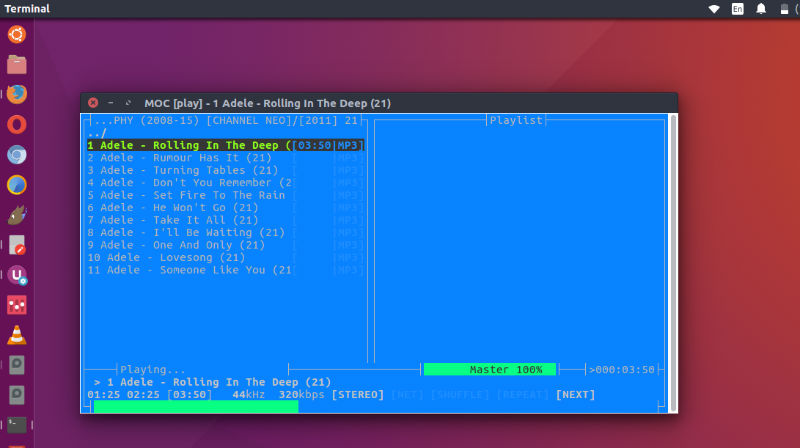
The MOC supports many audio file formats including MP3, Ogg Vorbis, FLAC, Musepack, Speex, WAVE (and other less popular formats supported by Sndfile), MOD, WavPack, AAC, SID, MIDI. Moreover most audio formats recognized by FFMpeg/LibAV are also supported (e.g. MP4, Opus, WMA, APE, AC3, DTS – even embedded in video files). Please note that Internet streams (Icecast, Shoutcast) are supported and key mapping is also fully customizable.
Playing music is super easy. You don’t have to create playlists as in other players. However if you want to combine some files from one or more directories on one playlist, you can still do it. The playlist will be remembered between runs or you can save it as an m3u file and load it whenever you want.
Install MOC on Linux Ubuntu
Run the following commands in Terminal to install MOC in Ubuntu Systems:
$ sudo apt-get update

$ sudo apt-get install moc moc-ffmpeg-plugin
Using
Once installed, open MOC from terminal using the following command:
$ mocp
MOC keyboard shortcuts:
p – plat music
b – previous track
n – next track
q – hide MOC interface
For any help, press “h”.
If you need to use Terminal, you don’t have to stop listening to the music. Just press q and the interface will be detached leaving the server running. You can reattach it later, or you can attach one interface in the console, and another in the X terminal emulator, no need to switch just to play another file.