
This tutorial explains how to install Brightness Indicator in Ubuntu 14.10, Ubuntu 14.04 & others. Brightness Indicator can be used to set your screen brightness in Unity.
You can easily set the screen brightness by using the Brightness Indicator menu or the scroll wheel of your mouse over the indicator icon. The Brightness Indicator is inspired by the original Gnome brightness applet.
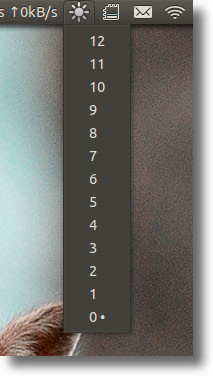
Brightness Indicator Features:
- Clicking the icon shows you all the possible brightness values, to a maximum of 15 steps.
- The current value is indicated with a dot.
- Clicking a menu item sets the brightness to the desired value.
- Scroll wheel event is enabled on the icon. Scrolling up means higher brightness, scrolling down lower.
- Control screen brightness with custom keyboard shortcuts.
Install Brightness Indicator in Ubuntu Systems
To install it Brightness Indicator in Ubuntu systems, click the link given below to download the .deb installer and install it from the developer’s PPA package repository:
Download indicator-brightness
Select download the “indicator-brightness_0.4~bzr11~ubuntu14.04.1_all.deb”. When downloaded, double-click the package to open it with Ubuntu Software Center and click the “install” button. Follow the on-screen instructions to install Brightness Indicator.
Once installed, you can open the app from the Unity Dash.
Second Method to Install:
To install this indicator add this PPA to your system and execute:
sudo apt-get update

sudo apt-get install indicator-brightness
Add custom shortcuts to control screen brightness
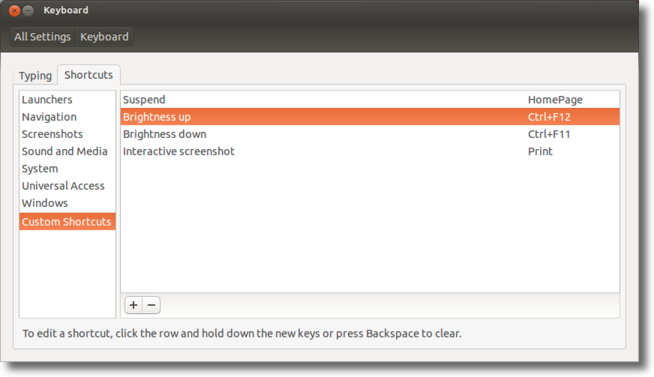
Open System Settings and go to “Keyboard > Shortcuts tab > Custom Shortcuts”. Now click the plus sign to add two new shortcuts with:
To set Brightness up shortcut:
/opt/extras.ubuntu.com/indicator-brightness/indicator-brightness-adjust --up
To set Brightness down shortcut:
/opt/extras.ubuntu.com/indicator-brightness/indicator-brightness-adjust --down
After executing the commands, assign shortcut keys to them.