
• Skip to primary navigation
  • Skip to main content
  • Skip to primary sidebar
Source Digit

Source Digit

Linux, Ubuntu Tutorials & News, Technology, Gadgets & Gizmos

  • Home
  • How To
  • Ubuntu
  • Instagram
  • Blogging
  • Android
  • WordPress
  • +More
    • Cloud Computing
    • Gadgets
    • Social Media
    • Technology
  • Write for Us
Home / Uncategorized / How to Reset Password in Ubuntu Using Terminal Commands

How to Reset Password in Ubuntu Using Terminal Commands

By Sourabh / November 27, 2015 Category: Uncategorized

How to reset password in Ubuntu 14.04 using Terminal. You can change password in Ubuntu, reset lost Root password in Linux Ubuntu 14.04 and other Ubuntu Derivatives.

Follow the steps given below to reset Root password:

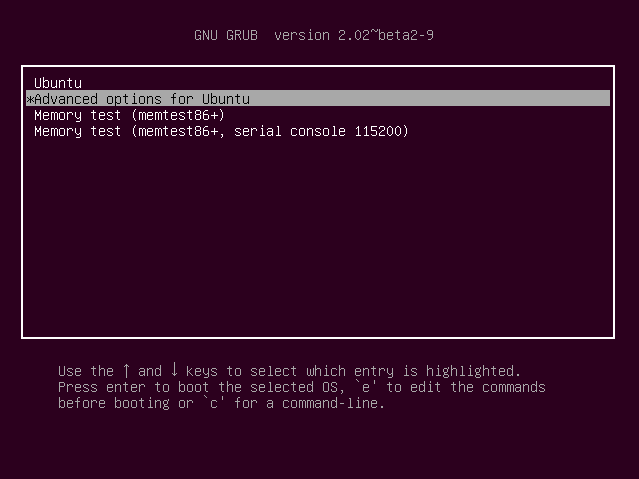
1. Boot your Ubuntu PC and enter into Boot Option. Press ESC key when you see the BIOS screen. On the GNU GRUB menu, select *Advanced options for Ubuntu. Please note that few of the PCs/laptops may use the left Shift key (after the BIOS screen) to enter the boot-options.
Recover-Reset Lost Root Password in Ubuntu -img-01
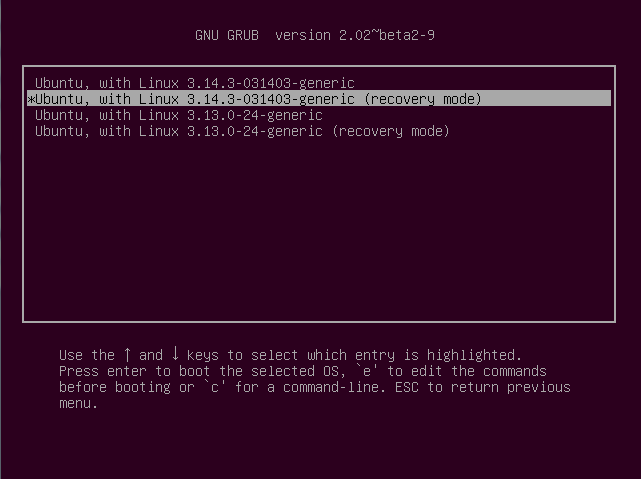
2. On next screen, select select appropriate recovery mode and press Enter.
Recover-Reset Lost Root Password in Ubuntu -img-02
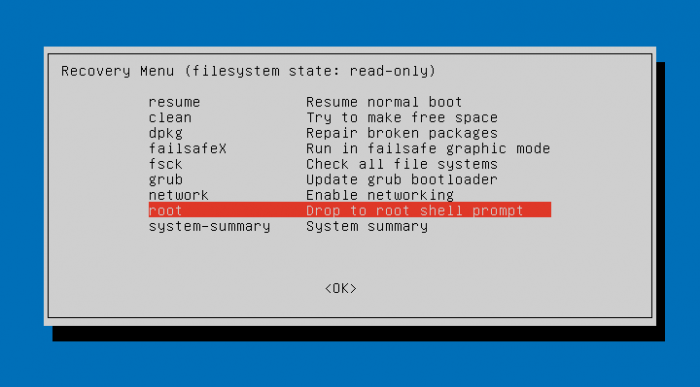
3. In the recovery menu, select ‘root – Drop to root shell prompt’ option.
Recover-Reset Lost Root Password in Ubuntu -img-03
4. Remount the filesystem to have write permission onto it. To do su, run the following command in the Terminal:

mount -o remount,rw /

Once the shell is remounted with read/write permission, you can change the password. Run the following command to change the password (as the root user).

sudo passwd username

Please note that you must replace username with your account name or user name for your Ubuntu system. You will be asked to create and confirm a password. Enter the new password and retype the password. Once you are done, you get on-screen message “password updated successfully.”

Now restart the system and log in with their new password.


Tags: Change Forgotten Password On Ubuntu 14.04, Change Password in Ubuntu, Change Root Password in Ubuntu, How to Change Root Password in Ubuntu, How to Recover Password in Linux Ubuntu, How to Reset a Ubuntu Password, Reset Lost Password in Linux Ubuntu, Reset Lost Root Password in Ubuntu 14.04, Reset Password Linux Ubuntu, Reset Root Password in Linux Ubuntu, Reset Your Forgotten Password in Ubuntu, Ubuntu 14.04, Ubuntu 14.04 Lost Password Recovery, Ubuntu 14.04 Reset Lost Password

Primary Sidebar

Latest Posts

Delete Directory And Contents Recursively Without Prompt On Linux

Check User Login History In Ubuntu Linux Command Line

Use Locate Command To Find File In Linux Terminal By Name

How To Change Terminal Color In Ubuntu Command Line

How To Run Fsck Manually In Linux To Fix Unexpected Inconsistency

How To Fix Broken Packages On Ubuntu From Terminal

Re Execute The Previous Command In Linux Ubuntu Command Line

How Much RAM Is Needed For Ubuntu PC

How To Find Large Files And Directories In Linux Command Line

How To Use Clear Command History In Linux Terminal

© 2026 Source Digit • Linux, Ubuntu Tutorials & News, Technology, Gadgets & Gizmos

  • Home
  • About
  • Privacy Policy
  • Terms & Conditions
  • Contact Us
  • Sitemap