
• Skip to primary navigation
  • Skip to main content
  • Skip to primary sidebar
Source Digit

Source Digit

Linux, Ubuntu Tutorials & News, Technology, Gadgets & Gizmos

  • Home
  • How To
  • Ubuntu
  • Instagram
  • Blogging
  • Android
  • WordPress
  • +More
    • Cloud Computing
    • Gadgets
    • Social Media
    • Technology
  • Write for Us
Home / How To / Add ‘Open As Root/Administrator’ in Right-Click Menu in Ubuntu 14.04/14.10

Add ‘Open As Root/Administrator’ in Right-Click Menu in Ubuntu 14.04/14.10

By Sourabh / February 17, 2015 Category: How To, Ubuntu

Add “Open as Root/Administrator” option in Nautilus. How to add “Open As Root” option in Ubuntu 14.04/14.10. Add “Open As Administrator” option to right menu in Ubuntu 14.04/14.10 and edit and open file/folders as root (super user privilege) in Nautilus file.

First Method – Add ‘Open As Root/Administrator’

You can use Ubuntu Tweak to add “open as root” option to File/Folder Right-Click menu in Ubuntu systems. I assume you have already installed Ubuntu Tweak on your system.

  • Open Ubuntu Tweak and go to Admins > Scripts. (see screenshots below)
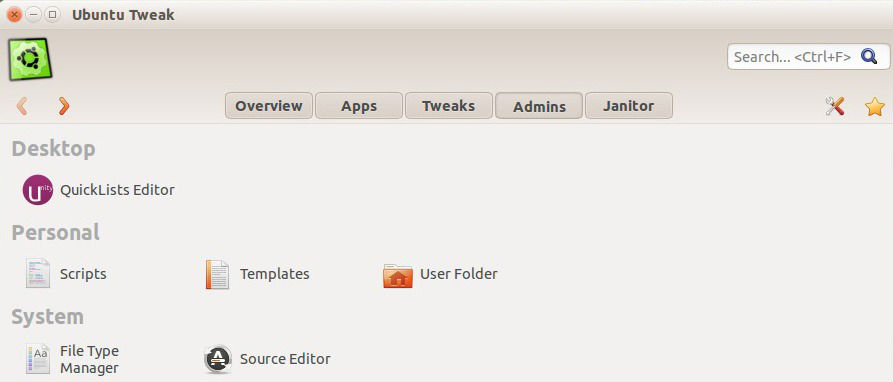
Screenshot-01

  • Under Scripts pane, in left side, select “Browse as root” option from Disabled Scripts area and simply drag and drop into Enabled Scripts area.
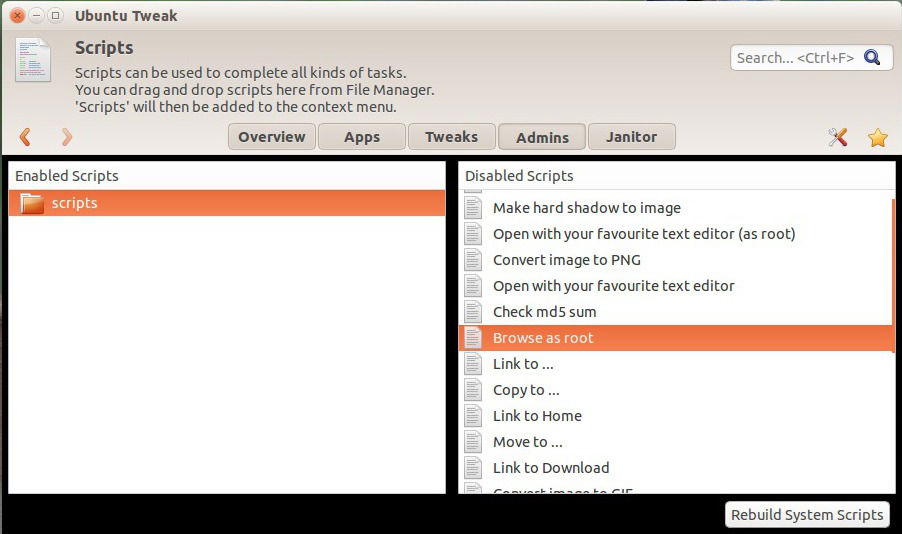
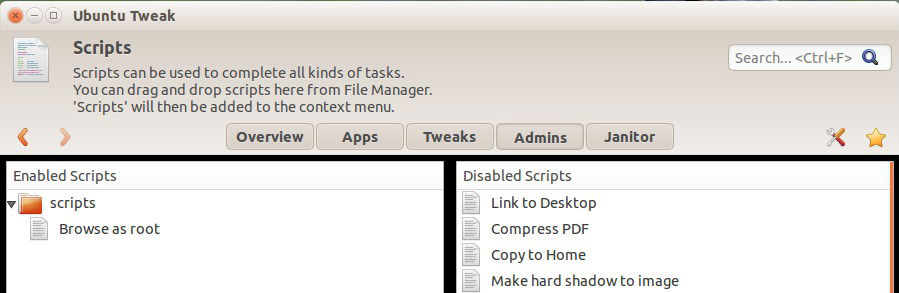
Screenshot-02 Screenshot-03

  • Exit Ubuntu Tweak.
  • Now, open file browser and right click on an file/folder.
  • Select scripts option and you can see the “Browse as root”.

Second Method – Add ‘Open As Root/Administrator’

You can add “Open as Root/Administrator” option in Ubuntu 14.10/14.04/13.10/13.04/12.10/12.04 and other Ubuntu derivatives. After adding this option you can open files/folders as root directly.

You can install Open-as-Administrator option in Ubuntu 14.10/14.04/13.10/13.04/12.10/12.04 and Linux Mint systems. To install, run the following commands in the terminal:

sudo add-apt-repository ppa:noobslab/apps
sudo apt-get update
sudo apt-get install open-as-administrator

Once installed, type the command to restart Nautilus or manually restart it:

nautilus -q

If you are using previous Nautilus version and the above method doesn’t work, then use the following commands:

cd && wget -O open-as-root.deb http://goo.gl/i25xqN
sudo dpkg -i open-as-root.deb
sudo apt-get -f install && rm open-as-root.deb

You can also add “Open as Administrator: option in Ubuntu 14.04/14.10 systems via GKSU Package. You can install the GKSU Package from Ubuntu Software Center. Once installed, the GKSU allows graphical programs to ask a user’s password to run program as root/administrator.

Tags: Add "open as root" to File/Folder Right-Click menu in Ubuntu, Add "Open as Root/Administrator" option in Nautilus, Add "Open as Root/Administrator" option in Ubuntu 14.04, Add "Open as Root/Administrator" option in Ubuntu 14.10, Add Open as Root or Administrator option in Ubuntu, How to open files as root via a right click, Install "Open as Root/Administrator" Option in Ubuntu 14.10, Open file as Administrator in Ubuntu, Open file as root in Ubuntu, Ubuntu 14.04, Ubuntu 14.10, Ubuntu gui open file as root, Ubuntu open file browser as root, Ubuntu open file manager as root, Ubuntu open text file as root

Primary Sidebar

Latest Posts

Delete Directory And Contents Recursively Without Prompt On Linux

Check User Login History In Ubuntu Linux Command Line

Use Locate Command To Find File In Linux Terminal By Name

How To Change Terminal Color In Ubuntu Command Line

How To Run Fsck Manually In Linux To Fix Unexpected Inconsistency

How To Fix Broken Packages On Ubuntu From Terminal

Re Execute The Previous Command In Linux Ubuntu Command Line

How Much RAM Is Needed For Ubuntu PC

How To Find Large Files And Directories In Linux Command Line

How To Use Clear Command History In Linux Terminal

© 2026 Source Digit • Linux, Ubuntu Tutorials & News, Technology, Gadgets & Gizmos

  • Home
  • About
  • Privacy Policy
  • Terms & Conditions
  • Contact Us
  • Sitemap