
• Skip to primary navigation
  • Skip to main content
  • Skip to primary sidebar
Source Digit

Source Digit

Linux, Ubuntu Tutorials & News, Technology, Gadgets & Gizmos

  • Home
  • How To
  • Ubuntu
  • Instagram
  • Blogging
  • Android
  • WordPress
  • +More
    • Cloud Computing
    • Gadgets
    • Social Media
    • Technology
  • Write for Us
Home / How To / Install Ambient Noise Player App on Ubuntu 14.10 & Ubuntu 14.04

Install Ambient Noise Player App on Ubuntu 14.10 & Ubuntu 14.04

By Sourabh / April 8, 2015 Category: How To, Ubuntu

Install Ambient Noise App on Ubuntu 14.10 and Ubuntu 14.04. The Ambient Noise Player for Ubuntu is a wonderful way to relax with natural sounds.

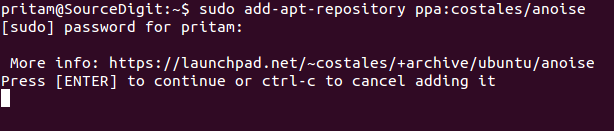
To install Ambient Noise player in Ubuntu Systems, run the following commands in Terminal:
Ambient-Noise-1


sudo add-apt-repository ppa:costales/anoise
sudo apt-get update && sudo apt-get install anoise

Using Ambient Noise
Ambient-Noise-11
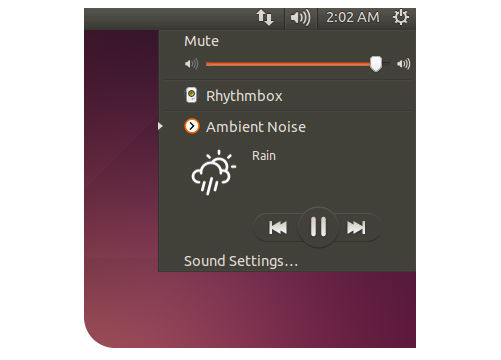
Once installed simply open it from the Unity Dash. To change between the sounds, click the navigation arrows in the sound menu.

By default there are eight natural sounds in Ambient Noise Player: Coffee Shop, Fire, Forest, Night, Rain, Sea, Storm and Wind. But you can add some additional sounds via community extensions. To add the additional sounds, run the following commands in Terminal:

sudo apt-get install anoise-community-extension1

Remove Ambient Noise

To uninstall and remove Ambient Noise Player from Ubuntu Systems, run the following commands:

sudo apt-get remove anoise
sudo add-apt-repository --remove ppa:costales/anoise


To use Ambient Noise in GNOME, you will need to install this extension.

Tags: Ambient Noise Player for Ubuntu, Install Ambient Noise App for Ubuntu, Install Ambient Noise App Ubuntu 14.04, Install Ambient Noise App Ubuntu 14.10, Install Ambient Noise PLayer App, Ubuntu 14.04, Ubuntu 14.10

Primary Sidebar

Latest Posts

Delete Directory And Contents Recursively Without Prompt On Linux

Check User Login History In Ubuntu Linux Command Line

Use Locate Command To Find File In Linux Terminal By Name

How To Change Terminal Color In Ubuntu Command Line

How To Run Fsck Manually In Linux To Fix Unexpected Inconsistency

How To Fix Broken Packages On Ubuntu From Terminal

Re Execute The Previous Command In Linux Ubuntu Command Line

How Much RAM Is Needed For Ubuntu PC

How To Find Large Files And Directories In Linux Command Line

How To Use Clear Command History In Linux Terminal

© 2026 Source Digit • Linux, Ubuntu Tutorials & News, Technology, Gadgets & Gizmos

  • Home
  • About
  • Privacy Policy
  • Terms & Conditions
  • Contact Us
  • Sitemap