
• Skip to primary navigation
  • Skip to main content
  • Skip to primary sidebar
Source Digit

Source Digit

Linux, Ubuntu Tutorials & News, Technology, Gadgets & Gizmos

  • Home
  • How To
  • Ubuntu
  • Instagram
  • Blogging
  • Android
  • WordPress
  • +More
    • Cloud Computing
    • Gadgets
    • Social Media
    • Technology
  • Write for Us
Home / How To / Directly Upgrade Ubuntu 15.04 – Upgrade Ubuntu 14.10 Desktop to Ubuntu 15.04

Directly Upgrade Ubuntu 15.04 – Upgrade Ubuntu 14.10 Desktop to Ubuntu 15.04

By Sourabh / April 22, 2015 Category: How To, Ubuntu

Ubuntu 15.04 Vivid Vervet Download. How to directly upgrade to Ubuntu 15.04. Here’s how to upgrade Ubuntu 14.10 Desktop to Ubuntu 15.04 in easy manner.

  • You can directly upgrade to Ubuntu 15.04 (“Vivid Vervet”) from Ubuntu 14.10 (“Utopic Unicorn”).
  • Be sure that you have all updates applied to your current version of Ubuntu before you upgrade.
  • Before upgrading it is recommended that you read the release notes for Ubuntu 15.04, which document caveats and workarounds for known issues in this version.

Upgrade from 14.10 to 15.04 – Ubuntu Desktops 14.10 to 15.04 (Recommended)

You can easily upgrade over the network with the following procedure.
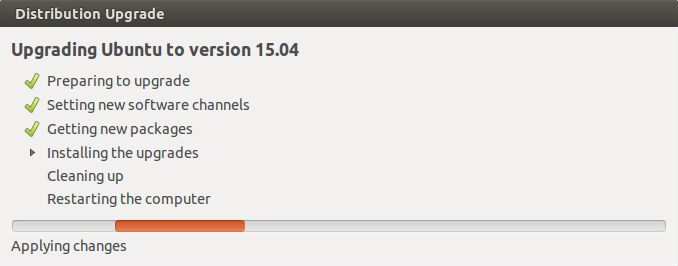
Distribution-Upgrade_006

  • Run the update-manager application from the Unity Dash or a command line

  • In Update Manager, click the Settings… button, and enter your password to start the Software Sources application.

  • Select the sub menu Updates from the Software Sources application.

  • Confirm the “Notify me of a new Ubuntu version:” option is set to “For any new version”, and change it if otherwise.
  • Close the Software Sources application and return to Update Manager.
  • In Update Manager, click the Check button to check for new updates.

  • If there are any updates to install, use the Install Updates button to install them, and press Check again after that is complete.

  • A message will appear informing you of the availability of the new release: “However, Ubuntu 15.04 is available now (you have 14.10)”. Click on the button Upgrade to start upgrading to Ubuntu 14.10.
  • Click Upgrade.

  • Follow the on-screen instructions.

 Screenshot via


Tags: Directly Upgrade Ubuntu 15.04, Download Ubuntu 15.04, How To Install Ubuntu 15.04, How to Upgrade from any Ubuntu version to Ubuntu 15.04, How to Upgrade To Ubuntu 15.04, How to Upgrade to Ubuntu 15.04 From Ubuntu 14.10, Ubuntu 15.04, Upgrade from 14.10 to 15.04 - Official Ubuntu Documentation, Upgrade From Ubuntu 14.04 To Ubuntu 15.04, Upgrade From Ubuntu 14.10 To Ubuntu 15.04, Upgrade to Ubuntu 15.04 From Ubuntu 14.04, Upgrade to Ubuntu 15.04 From Ubuntu 14.10, Upgrade Ubuntu 14.10 Desktop to Ubuntu 15.04, Upgrade Ubuntu 15.04 How To, Upgrading from Ubuntu 14.10

Primary Sidebar

Latest Posts

How To Fix Broken Packages On Ubuntu From Terminal

Re Execute The Previous Command In Linux Ubuntu Command Line

How Much RAM Is Needed For Ubuntu PC

How To Find Large Files And Directories In Linux Command Line

How To Use Clear Command History In Linux Terminal

Linux Command To Check RAM Size In Ubuntu Terminal In GB

How To Install Proprietary Drivers In Linux Ubuntu Using Terminal

How To Shutdown Linux With A 15 Minute Delay And Message

Free AI Courses With Certificate For Beginners In India

Best AI Plugins For WordPress To Use In 2026

© 2026 Source Digit • Linux, Ubuntu Tutorials & News, Technology, Gadgets & Gizmos

  • Home
  • About
  • Privacy Policy
  • Terms & Conditions
  • Contact Us
  • Sitemap