
Convert audio and video files on Ubuntu 15.10, Ubuntu 14.04 and Derivatives. Install Selene Media Encoder on Ubuntu and convert audio-video files on Ubuntu. Selene is a GTK3/Vala media converter tool for Linux Ubuntu Systems. Add and install Selene PPA and convert audio/video files with Selene Media Encoder.
Selene Media Encoder
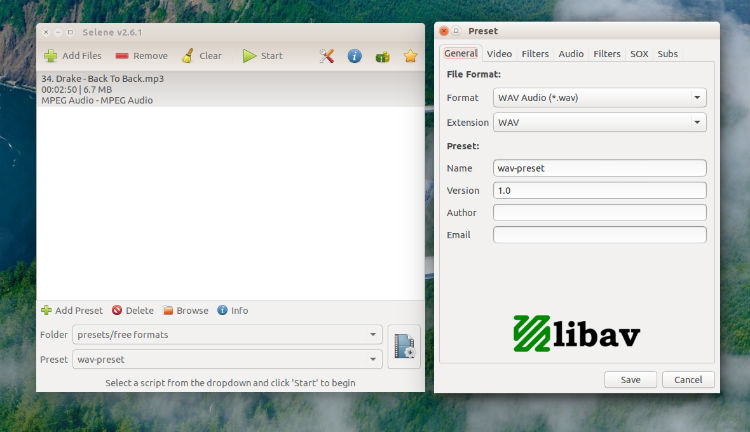
Selene Media Encoder is an audio/video converter for converting files to OGG/OGV/ MKV/MP4/WEBM/OPUS/AAC/FLAC/MP3/WAV formats. It aims to provide a simple GUI for converting files to popular formats along with powerful command-line options for automated/unattended encoding.
Features of Selene Media Encoder
- Encode videos to MKV/MP4/OGV/WEBM formats.
- Encode music to MP3/AAC/OGG/OPUS/FLAC/WAV formats.
- Option to pause/resume encoding
- Option to run in background and shutdown PC after encoding
- Bash scripts can be written to control the encoding process
- Commandline interface for unattended/automated encoding
Selene can also crop, resize or resample videos or embed subtitles into videos. Besides supporting regular audio/video formats, Selene supports JSON presets and Bash script presets.
Install Selene Media Encoder in Ubuntu or Linux Mint
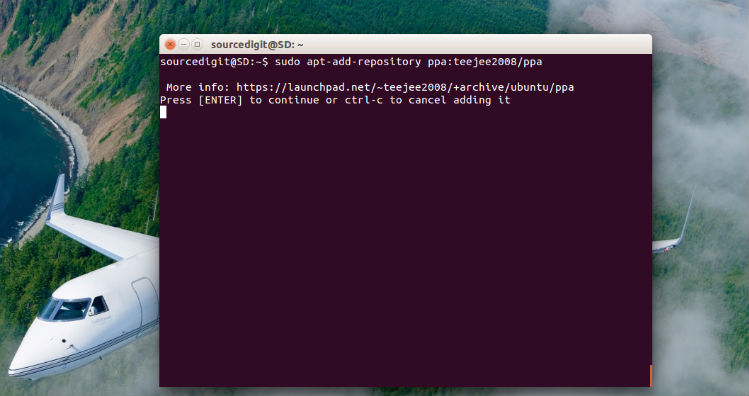
The latest version, Selene v2.5 is now available with VP9 and H265/HEVC encoding support. You can install Selene Media Encoder via its official PPA. To install Selene Media Encoder in Ubuntu or Linux Mint Systems, run the following commands:
sudo apt-add-repository ppa:teejee2008/ppa

sudo apt-get update

sudo apt-get install selene
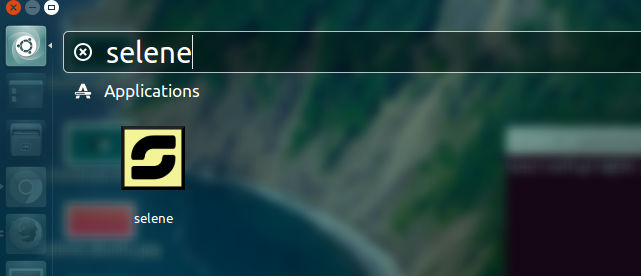
Once installed, the application can be opened via Ubuntu Dash.
To encode AAC/MP4 format, Selene Tool needs NeroAAC encoder. Run the following commands to install NeroAAC encoder:
cd /tmp

wget http://ftp6.nero.com/tools/NeroAACCodec-1.5.1.zip

unzip -j NeroAACCodec-1.5.1.zip linux/neroAacEnc

sudo install -m 0755 neroAacEnc /usr/bin

sudo apt-get install gpac
How To Use Selene Media Encoder
Drag audio/video files to the main window, select a script or preset from the drop-down and click ‘Start’ to begin. The progress window will display the progress for each file along with options to pause/resume encoding. Right-click on files in the main window for more options.
Running the app in admin mode (using sudo or gksu) will enable additional options for running the conversion process with lower priority (background mode) and for shutting down the system after encoding.