
Nomacs 3.0.0 open-source image viewer for Linux Ubuntu Systems. Install Nomacs image viewer on Ubuntu 15.04, Ubuntu 14.04, Ubuntu 15.10 and Ubuntu 14.10 Systems. Nomacs is a free, open source image viewer, which supports multiple platforms. You can use it for viewing all common image formats including RAW and psd images.
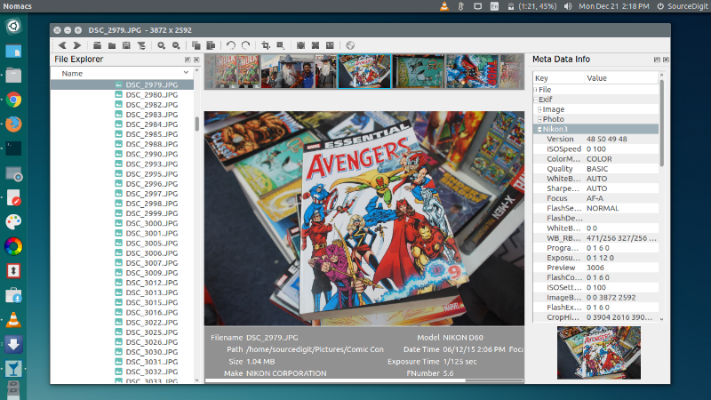
Nomacs features semi-transparent widgets that display additional information such as thumbnails, metadata or histogram. It is able to browse images in zip or MS Office files which can be extracted to a directory. Metadata stored with the image can be displayed and you can add notes to images. A thumbnail preview of the current folder is included as well as a file explorer panel which allows switching between folders. Within a directory you can apply a file filter, so that only images are displayed whose filenames have a certain string or match a regular expression. Activating the cacher allows for instantly switching between images.
Nomacs includes image manipulation methods for adjusting brightness, contrast, saturation, hue, gamma, exposure. It has a pseudo color function which allows creating false color images. A unique feature of Nomacs is the synchronization of multiple instances. With this feature you can easily compare images by zooming and/or panning at the exactly same position or even by overlaying them with different opacities.
Install Nomacs on Ubuntu
Nomacs 3.0 is out. In the past months we updated all nomacs dependencies and build systems. Along with these changes, nomacs ships with a new installer on Windows. In addition to these changes, we worked on these features:
- New online installer – Windowsnomacs-icon3
- Plugins are now available on Linux
- Full SVG support
- Quick Launch added
- Tiny planet option added
- Batch processing improved
- Signed executable – Windows only
- Libraries updated – Qt 5.5, OpenCV 3
- Command line arguments added
- Zoom control improved
- nomacs learned two new languages – Bulgarian and Ukrainian
- new plugin: Page Extraction – detects and/or crops document pages
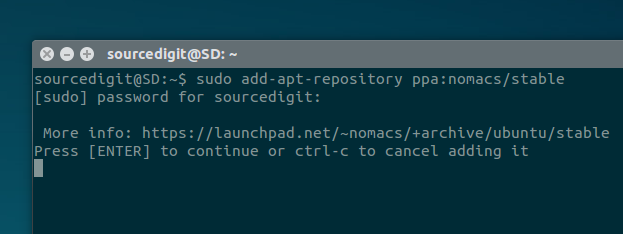 Run the following commands in Terminal to install Nomacs on Ubuntu Systems:
$ sudo add-apt-repository ppa:Nomacs/stable

$ sudo apt-get update

$ sudo apt-get install Nomacs
Once installed, open the Nomacs image viewer form Ubuntu Dash or Menu.
Run the following commands to uninstall and remove Nomacs from Linux Ubuntu Systems:
$ sudo apt-get remove Nomacs
Nomacs is licensed under the GNU General Public License v3 and available for Windows, Linux, FreeBSD, Mac, and OS/2.