
Install GIMP image editor on Ubuntu 16.04. Download GIMP is 2.8.18 (current stable release). GNU Image Manipulation Program (GIMP) is a cross-platform image editor available for Ubuntu/Linux. GIMP 2.8.18 has been released with security fixes.
The release note says:
“We are releasing GIMP 2.8.18 to fix a vulnerability in the XCF loading code (CVE-2016-4994). With special XCF files, GIMP can be caused to crash, and possibly be made to execute arbitrary code provided by the attacker. This release includes additional bug fixes since 2.8.16. An important change has happened to the initial startup experience on Microsoft Windows and OS X platforms – any “GIMP is not responding” errors encountered there should be gone.”
GIMP features high quality photo manipulation tools. It can do everything – from retouching to restoring to creative composites. GIMP provides top-notch color management features to ensure high-fidelity color reproduction across digital and printed media.
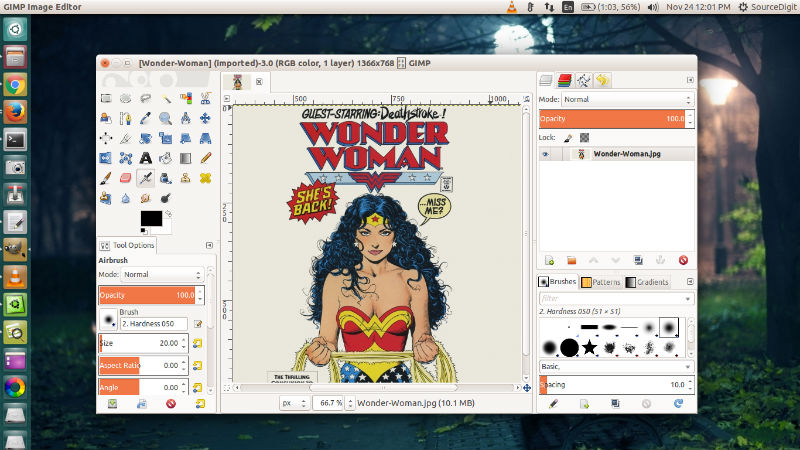
GIMP 2.8.18 Changelog
Core:
- Initialize fontconfig cache in separate thread to keep GUI responsive on first startup
- Properly recognize layer masks as deactivated, e.g. for moving layers
- Create $XDG_DATA_HOME if it doesn’t exist
- (CVE-2016-4994) Multiple Use-After-Free when parsing XCF channel and layer properties
- Fix progress access to prevent crash on rapid sequence of commands
- Fix crash in gimp-gradient-segment-range-move
GUI:
- Disable color picker buttons on OS X to prevent a GUI lockup
- Disable “new-style” full-screen mode on OS X to prevent a crash
- Pulsing progress bar in splash screen to indicate unknown durations
- Fix gamut warning color for lcms display filter
- Fix unbolding of bold font on edit
- Prevent accidental renaming of wrong adjacent item
Installer:
- Change compression settings to decrease size by 20%
- Add Catalan, Danish, French, Dutch
Plug-ins:
- Fix crash on sRGB JPEG image drag & drop
- Fix ambiguous octal-escaped output of c-source
- Fix KISS CEL export
- Fix progress bar for file-compressor
- Make Script-Fu regex match return proper character indexes for Unicode characters
- Fix Script-Fu modulo for large numbers
General:
- Documentation updates
- Bug fixes
- Translation updates
Install GIMP 2.8.18 On Ubuntu

Run the following commands in Terminal to install GIMP 2.8.18 on Ubuntu:
sudo add-apt-repository ppa:otto-kesselgulasch/gimp

sudo apt-get update

sudo apt-get install gimp
Install GIMP 2.9 (Development) On Ubuntu
Run the following commands in Terminal to install GIMP 2.8.18 on Ubuntu:
sudo add-apt-repository ppa:otto-kesselgulasch/gimp-edge

sudo apt-get update

sudo apt-get install gimp
Revert the changes
If you want to uninstall the released version of GIMP and get back the stable GIMP version. Run the commands given below:
sudo apt-get install ppa-purge

sudo ppa-purge ppa:otto-kesselgulasch/gimp-edge