
• Skip to primary navigation
  • Skip to main content
  • Skip to primary sidebar
Source Digit

Source Digit

Linux, Ubuntu Tutorials & News, Technology, Gadgets & Gizmos

  • Home
  • How To
  • Ubuntu
  • Instagram
  • Blogging
  • Android
  • WordPress
  • +More
    • Cloud Computing
    • Gadgets
    • Social Media
    • Technology
  • Write for Us
Home / Ubuntu / Install Rocket Menu Application Indicator On Ubuntu 16.04

Install Rocket Menu Application Indicator On Ubuntu 16.04

By Sourabh / July 30, 2016 Category: How To, Ubuntu

Install Rocket Menu Application Indicator on Ubuntu 16.04. Rocket Menu is an application indicator with quick launch menu for Ubuntu Unity. Rocket Menu provides a convenient method of opening files, folders, web addresses and network (SFTP, FTP, SMB) drives.

Install Rocket Menu on Ubuntu
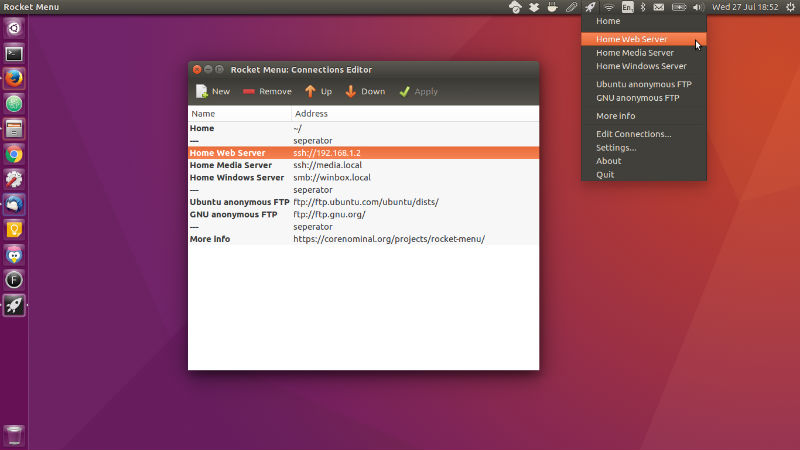
rocket-menu

Rocket Menu is specifically targeted at Ubuntu 16.04 running the default Unity desktop. To install Rocket Menu, add the PPA to your system with the following terminal command:

sudo add-apt-repository ppa:corenominal/rocket-menu
sudo apt-get update
sudo apt-get install rocket-menu

Once installed, you open the Rocket-Menu launcher app from Ubuntu Dash. Rocket Menu should automatically start when you login to Unity, just look for the rocket icon in your Unity bar.

Rocket Menu Settings

Rocket menu is a simple application and the settings are limited to changing the location of your “connections” file (the file that stores your menu items). This allows for syncing and sharing the same file across multiple systems via a service such as ownCloud or Dropbox.

https://github.com/corenominal/rocket-menu

Tags: Install Rocket Menu Application Indicator On Ubuntu 16.04, Install Rocket Menu Ubuntu 16.04, Rocket Menu Application Indicator, Rocket Menu Ubuntu, Rocket Menu Ubuntu 16.04, Rocket Menu Ubuntu PPA, Ubuntu 16.04 Rocket Menu, Ubuntu Rocket Menu

Primary Sidebar

Latest Posts

Delete Directory And Contents Recursively Without Prompt On Linux

Check User Login History In Ubuntu Linux Command Line

Use Locate Command To Find File In Linux Terminal By Name

How To Change Terminal Color In Ubuntu Command Line

How To Run Fsck Manually In Linux To Fix Unexpected Inconsistency

How To Fix Broken Packages On Ubuntu From Terminal

Re Execute The Previous Command In Linux Ubuntu Command Line

How Much RAM Is Needed For Ubuntu PC

How To Find Large Files And Directories In Linux Command Line

How To Use Clear Command History In Linux Terminal

© 2026 Source Digit • Linux, Ubuntu Tutorials & News, Technology, Gadgets & Gizmos

  • Home
  • About
  • Privacy Policy
  • Terms & Conditions
  • Contact Us
  • Sitemap