
• Skip to primary navigation
  • Skip to main content
  • Skip to primary sidebar
Source Digit

Source Digit

Linux, Ubuntu Tutorials & News, Technology, Gadgets & Gizmos

  • Home
  • How To
  • Ubuntu
  • Instagram
  • Blogging
  • Android
  • WordPress
  • +More
    • Cloud Computing
    • Gadgets
    • Social Media
    • Technology
  • Write for Us
Home / Ubuntu / Install Selene Audio-Video Converter On Ubuntu Linux

Install Selene Audio-Video Converter On Ubuntu Linux

By Sourabh / November 2, 2016 Category: How To, Ubuntu

Convert audio and video files on Linux Ubuntu Systems. Selene 2.6.1 Audio/Video Converting Tool for Linux Ubuntu Systems. Install Selene Audio & Video Converter on Ubuntu 16.04, Ubuntu 15.10, Ubuntu 14.04, Ubuntu 15.04, Ubuntu 14.10 and Ubuntu Derivatives.

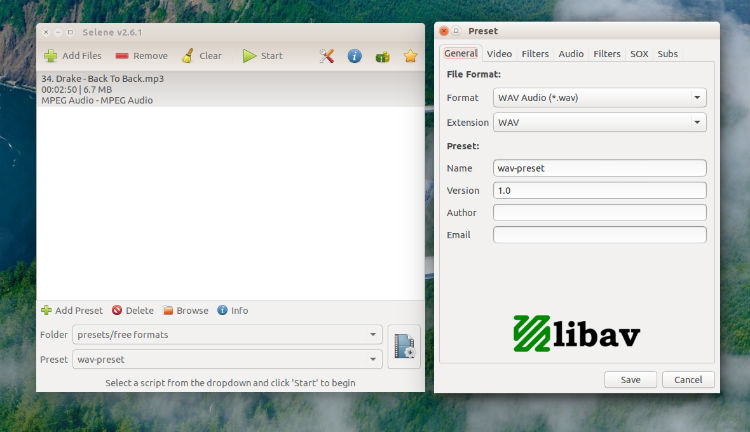
Selene Media Encoder is an audio/video converter for converting files to OGG/OGV/ MKV/MP4/WEBM/OPUS/AAC/FLAC/MP3/WAV formats. It aims to provide a simple GUI for converting files to popular formats along with powerful command-line options for automated/unattended encoding.
selene-002

Features of Selene Media Encoder

  • Encode videos to MKV/MP4/OGV/WEBM formats.
  • Encode music to MP3/AAC/OGG/OPUS/FLAC/WAV formats.
  • Option to pause/resume encoding
  • Option to run in background and shutdown PC after encoding
  • Bash scripts can be written to control the encoding process
  • Commandline interface for unattended/automated encoding

Selene can also crop, resize or resample videos or embed subtitles into videos. Besides supporting regular audio/video formats, Selene supports JSON presets and Bash script presets.

Install Selene Audio & Video Converter on Ubuntu
selene-001

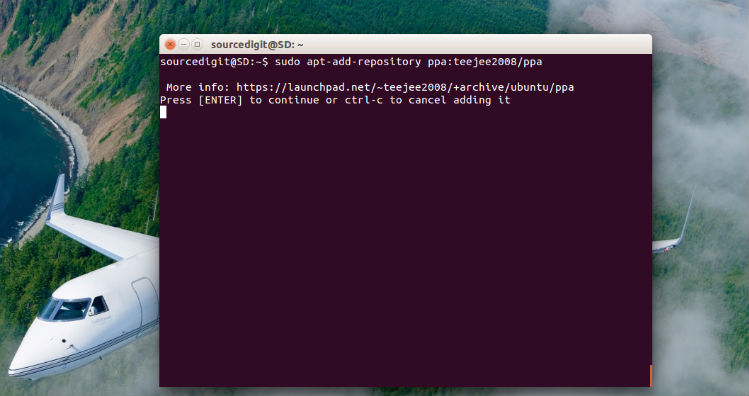
Selene Media Encoder 2.6.1 is the latest version of the Selene Audio & Video Converter application. The recently released Selene Media Encoder 2.6.1 has been released with various changes and improvements. Run the following commands in Terminal to download and install Selene Media Encoder 2.6.1 on Ubuntu Systems:

$ sudo apt-add-repository ppa:teejee2008/ppa
$ sudo apt-get update
$ sudo apt-get install selene

For encoding AAC/MP4 format, Selene needs NeroAAC encoder which you can install by using the following commands:

cd /tmp
wget http://ftp6.nero.com/tools/NeroAACCodec-1.5.1.zip
unzip -j NeroAACCodec-1.5.1.zip linux/neroAacEnc
sudo install -m 0755 neroAacEnc /usr/bin
sudo apt-get install gpac

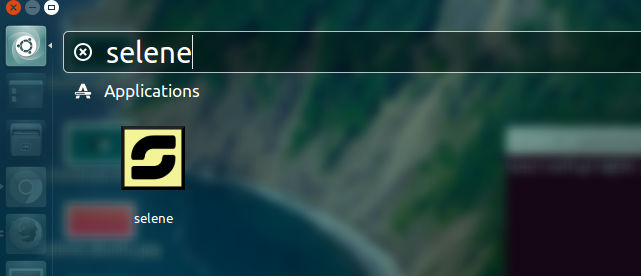
Once installed, open the Selene 2.6.1 Audio/Video Converting Tool from Ubuntu Dash or Menu.
open-selene

Uninstall Selene Audio & Video Converter From Ubuntu

If you want tn uninstall and remove Selene from Linux Ubuntu Systems, run the following command:

$ sudo apt-get remove selene

Tags: Convert Audio & Video in Ubuntu, How to Install Selene Media Encoder in Ubuntu, Install Selene Media Converter in Ubuntu, Install Selene Media Converter Ubuntu, Install Selene Media Encoder in Ubuntu, Install Selene Media Encoder Ubuntu, Selene Audio Video Converter On Ubuntu, Selene Media Converter Ubuntu, Selene Media Converter Ubuntu 16.04, Selene Media Converter Ubuntu 16.10, Selene Media Encoder Ubuntu, Selene Media Encoder Ubuntu 16.04, Selene Media Encoder Ubuntu 16.10, Ubuntu 16.04 Selene Media Converter, Ubuntu 16.04 Selene Media Encoder, Ubuntu 16.10 Selene Media Converter, Ubuntu 16.10 Selene Media Encoder, Ubuntu Convert Audio & Video, Ubuntu Install Selene Media Converter, Ubuntu Install Selene Media Encoder, Ubuntu Selene Audio Video Converter, Ubuntu Selene Media Converter, Ubuntu Selene Media Encoder, Uninstall Selene Audio & Video Converter From Ubuntu

Primary Sidebar

Latest Posts

Delete Directory And Contents Recursively Without Prompt On Linux

Check User Login History In Ubuntu Linux Command Line

Use Locate Command To Find File In Linux Terminal By Name

How To Change Terminal Color In Ubuntu Command Line

How To Run Fsck Manually In Linux To Fix Unexpected Inconsistency

How To Fix Broken Packages On Ubuntu From Terminal

Re Execute The Previous Command In Linux Ubuntu Command Line

How Much RAM Is Needed For Ubuntu PC

How To Find Large Files And Directories In Linux Command Line

How To Use Clear Command History In Linux Terminal

© 2026 Source Digit • Linux, Ubuntu Tutorials & News, Technology, Gadgets & Gizmos

  • Home
  • About
  • Privacy Policy
  • Terms & Conditions
  • Contact Us
  • Sitemap