
• Skip to primary navigation
  • Skip to main content
  • Skip to primary sidebar
Source Digit

Source Digit

Linux, Ubuntu Tutorials & News, Technology, Gadgets & Gizmos

  • Home
  • How To
  • Ubuntu
  • Instagram
  • Blogging
  • Android
  • WordPress
  • +More
    • Cloud Computing
    • Gadgets
    • Social Media
    • Technology
  • Write for Us
Home / Ubuntu / Install Harmony – An iTunes-Inspired Music Player for Linux Ubuntu

Install Harmony – An iTunes-Inspired Music Player for Linux Ubuntu

By Sourabh / December 2, 2016 Category: How To, Ubuntu

Harmony is an iTunes-Inspired Music Player with Spotify and SoundCloud integration. Harmony 0.3 is the latest release of the Harmony Music Player for Linux Ubuntu Systems. Harmony 0.3 is released with a number of improvements, such as dark mode; plugin system and playlist support. It also includes responsive design improvements.
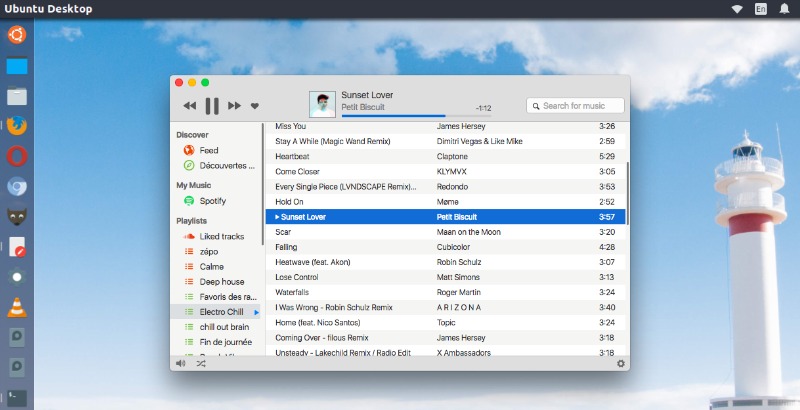
harmony

Harmony natively supports SoundCloud, Spotify, Google Play Music and even your disk files. Use the mini player in the system sound indicator to control your music without interrupting what you’re doing. Once you start using the Harmony music player you will notice that the music player has a sleek interface and cloud compatibility features.

Download Harmony

Harmony music player can be installed and used as an AppImage. Click on the link below to download the AppImage for Harmony, for both 32-bit and 64-bit Linux Ubuntu Systems. Simply download the AppImage and double-click to run the application:

Download Harmony .AppImage (64-bit)

Download Harmony .AppImage (32-bit)

Tags: Harmony Linux Ubuntu, Harmony Music Player Linux, Harmony Music Player Ubuntu, iTunes for Linux, iTunes for Linux Ubuntu, iTunes for Ubuntu, iTunes Music Player for Linux, iTunes Music Player for Ubuntu, Ubuntu Harmony Music Player

Primary Sidebar

Latest Posts

Delete Directory And Contents Recursively Without Prompt On Linux

Check User Login History In Ubuntu Linux Command Line

Use Locate Command To Find File In Linux Terminal By Name

How To Change Terminal Color In Ubuntu Command Line

How To Run Fsck Manually In Linux To Fix Unexpected Inconsistency

How To Fix Broken Packages On Ubuntu From Terminal

Re Execute The Previous Command In Linux Ubuntu Command Line

How Much RAM Is Needed For Ubuntu PC

How To Find Large Files And Directories In Linux Command Line

How To Use Clear Command History In Linux Terminal

© 2026 Source Digit • Linux, Ubuntu Tutorials & News, Technology, Gadgets & Gizmos

  • Home
  • About
  • Privacy Policy
  • Terms & Conditions
  • Contact Us
  • Sitemap