
Install Calibre eBook Reader on Ubuntu 16.10. Calibre is a free and open source e-book library management application developed by users of e-books for users of e-books. Calibre 2.X version is the most powerful release of the Calibre ebook software. The e-book editor supports Android phones, tablets on OS X and support for touchscreen windows tablets. It uses Qt 5.
Calibre 2.69 eBook Features
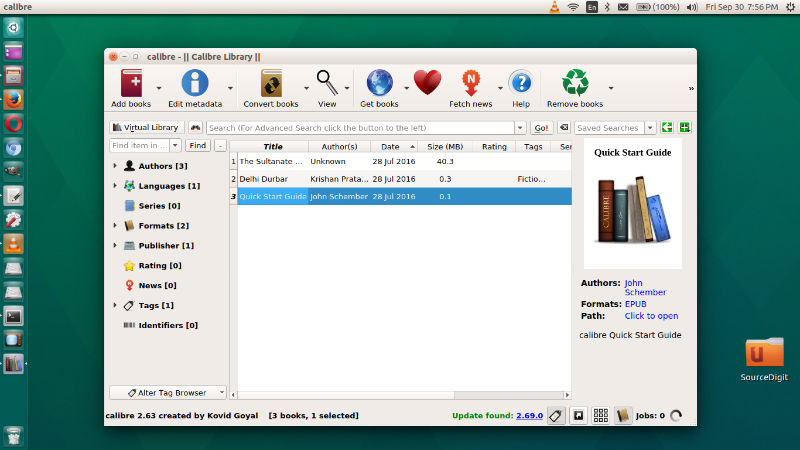
Calibre 2.69 is the latest release of the Calibre eBook Reader. It comes with Kobo driver support, editing features and bulk metadata edit dialog. Other features are:
New Features
- Kobo driver: Support for firmware version 4.1 and Overdrive books on the device
- Edit Book: Highlight class names inside HTML tags
- Bulk metadata edit dialog: Allow search & replace to work for ratings columns as well.
Bug Fixes
- Fix downloading of metadata from ozon.ru, which broke due to website changes
- Kobo driver: Fix delete of empty collections
- Kobo driver: Fix book previews being sometimes detected as actual books
- Cover Browser: Fix setting an empty template for the title causes an error
- Edit Book: On windows do not trigger shortcuts when using the right Alt (AltGr) key. This allows it to be used for entering special characters instead.
- Edit Book: Auto-add file extension when using the Save a Copy dialog if it is missing.
- Linux: Fix calibre not launching when used with some old VNC server implementations
- Windows: Run library restore in a separate process as on some windows machines, running it in the main process causes something in the system to lock the db file.
- Fix some news downloads in east asian languages not working because the truncation of article descriptions could cause invalid UTF-16 bytes in the string
- Fix incorrect timezone when editing custom date columns directly in the book list
New news sources
- Various Danish news sources by Allan Simonsen
Improved news sources
- New York Times
- Independent
- El tribuno de Salta
Install Calibre 2.69 on Ubuntu
Run the following commands in Terminal to install Calibre 2.69 on Ubuntu 16.04, Ubuntu 15.10, Ubuntu 15.04, Ubuntu 14.04 and Ubuntu Derivatives:
sudo -v && wget -nv -O- https://raw.githubusercontent.com/kovidgoyal/calibre/master/setup/linux-installer.py | sudo python -c "import sys; main=lambda:sys.stderr.write('Download failedn'); exec(sys.stdin.read()); main()"
Once installed, open Calibre from Ubuntu Dash .