
WMail is a Linux desktop client for Gmail and Google Inbox. WMail Gmail client for Linux Ubuntu Systems is designed to work with multiple accounts. It allows you to switch instantly and easily between any amount of accounts. There are no limits, no waiting, no losing your tabs or getting lost between which account you’re using. Spellchecking and corrections features are pretty strong as it supports more than 43 dictionaries.
For quick users, it supports all the default keyboard shortcuts of Gmail. Other features include desktop notifications, unread badges and tray access.
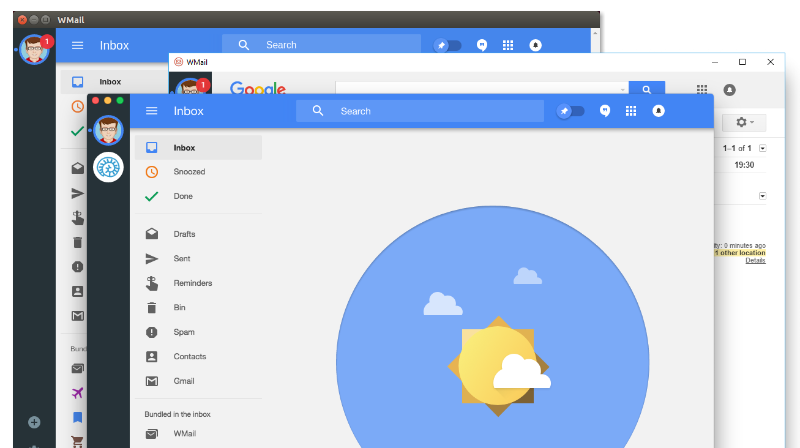
WMail version 2
WMail version 2 is the latest stable release. It is one of the most powerful release of the application as all the core libraries WMail uses have been upgraded:
- Updated to chrome 53
- Updated to electron 1.4.4
- Updated to React 15.3.2
User Interface Changes
- Detecting when you launch WMail in an offline state and showing a splash screen rather than a broken WMail
- Consistent Windows app icon (no more pixelation! Woo!)
- Changed the layout of the settings screen to use the available screen space
- Moved Google icon for users who have sidebar disabled and embedded titlebar
- Removed excess top space from side-menu on linux, windows and when the toolbar is enabled
- Added Restart button when you change a setting that requires an app restart
- Added preview of hovered link address
- Add option to set your own CSS and JavaScript on a per mailbox basis. So if you want everything red… you can have everything red
- Unread count over app icon for Ubuntu users using Unity
- Better update dialog and a more robust backend so I can stage the releases
- Update check always happens daily now. Option to disable this
Tray Changes
- Tray icon designer in the settings screen
- Better tray icon on Windows to improve legibility
- Option to change the background colour of the tray icon
- Auto-theming of tray depending on OS theme
- Fixed tray icon needlessly redrawing updates when there were no updates to draw
- DPI Multiplier for tray icon for users with 4K monitors
- Changed Tray menu to have submenus for each mailbox
Other Features
- Support for 38+ dictionary languages! Bonjour, Hola, Hallo!
- Added Mailbox Search
- Added Primary Inbox support for GMail
- Added option to remove custom account avatar
- Option to open at startup on OS X & windows
- Fixed incorrect unread count being shown in some circumstances
- Option to persist cookies for accounts using SAML authentication & option to nuke data when cookies have expired
- Added ignore-gpu-blacklist flag under advanced for linux users having rendering issues
- Added –hidden command line switch so you can launch WMail in the background
- Downloads now download to a temporary file before completion
Download WMail
Visit the link given below to download and install the latest release of the WMail application.
https://thomas101.github.io/wmail/
WMail supports multiple platforms. It is built upon a tech stack that works across all major platforms. It can be used easily on OSX, Windows or Linux.