
Here is how to install Sublime Text 3 in Ubuntu using terminal. This post explains to install Sublime Text Linux Ubuntu and also how to use Sublime Text.
Sublime Text is a powerful text editor built from custom components, providing for unmatched responsiveness. From a powerful, custom cross-platform UI toolkit, to an unmatched syntax highlighting engine, Sublime Text sets the bar for performance.
Sublime Text has a powerful, Python API that allows plugins to augment built-in functionality. Package Control can be installed via the command palette, providing simple access to thousands of packages built by the community. Sublime Text is built from custom components, providing for unmatched responsiveness. From a powerful, custom cross-platform UI toolkit, to an unmatched syntax highlighting engine, Sublime Text sets the bar for performance. Sublime Text uses a custom UI toolkit, optimized for speed and beauty, while taking advantage of native functionality on each platform.
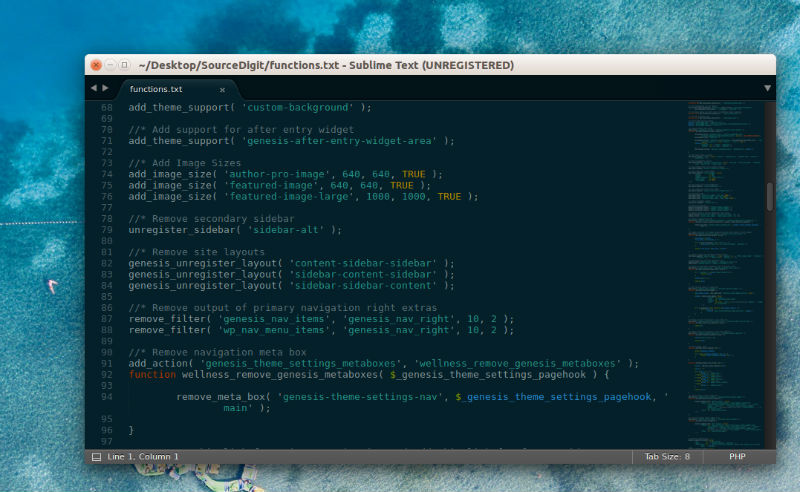
Sublime Text 3.2.1 (Build 3207)
- Various syntax highlighting improvements
- Git: Git repositories at the top level of a users home directory are ignored for performance reasons. This can be changed via the allow_git_home_dir setting.
- Git: Improved performance with a large number of git repositories in the side bar
- Git: Fixed UTF8 BOMs not being handled correctly in .gitignore files
- Fixed a crash in the Git repository handling
- Improved file indexing behavior in some scenarios
- Improved scrolling logic in some scenarios
- Fixed block carets changing the way text selection works
- Fixed swap_line_up and swap_line_down transforming tabs into spaces
- Mac: Added a workaround for a MacOS issue with DisplayLink adapters
- Lixed: Fixed compatibility with old Linux distributions
- Linux: Improved high dpi handling under KDE
- Linux: Tweaked the way text scaling is handled
- Linux: Fixed incorrect file ownership in the deb packages
- API: Fixed an incompatibility with SublimeREPL
- API: Fixed regression with phantoms interfering with home/end behavior
Download Sublime Text
Linux repos – also 64 bit or 32 bit tarball
Install Sublime Text 3.2.1
Run the following commands in terminal to install Sublime Text 3.2.1 in Ubuntu
sudo apt-get upgrade

sudo apt-get update

sudo apt install snapd

sudo apt-get update

sudo snap install sublime-text
You can also install Sublime Text 3.2.1 via PPA (Stable):
sudo apt-get upgrade

sudo apt-get update

wget -qO - https://download.sublimetext.com/sublimehq-pub.gpg | sudo apt-key add -

sudo apt-get install apt-transport-https

echo "deb https://download.sublimetext.com/ apt/stable/" | sudo tee /etc/apt/sources.list.d/sublime-text.list

sudo apt update

sudo apt install sublime-text
You can also install the development non stable version using the following lines of code:
wget -qO - https://download.sublimetext.com/sublimehq-pub.gpg | sudo apt-key add -

sudo apt-get install apt-transport-https

echo "deb https://download.sublimetext.com/ apt/dev/" | sudo tee /etc/apt/sources.list.d/sublime-text.list

sudo apt-get update

sudo apt-get install sublime-text
Once installed, open Sublime Text 3.2.1 from Ubuntu Dash.