
How to install Telegram on Ubuntu Linux. Telegram is a WhatsApp alternative for Linux Ubuntu Systems. Telegram is a messaging app with a focus on speed and security, it’s super fast, simple and free.
You can use Telegram on all your devices at the same time — your messages sync seamlessly across any of your phones, tablets or computers. Unlike WhatsApp, Telegram is cloud-based and heavily encrypted. As a result, you can access your messages from several devices at once, including tablets and computers, and share an unlimited number of photos, videos and files (doc, zip, mp3, etc) of up to 1,5 GB.
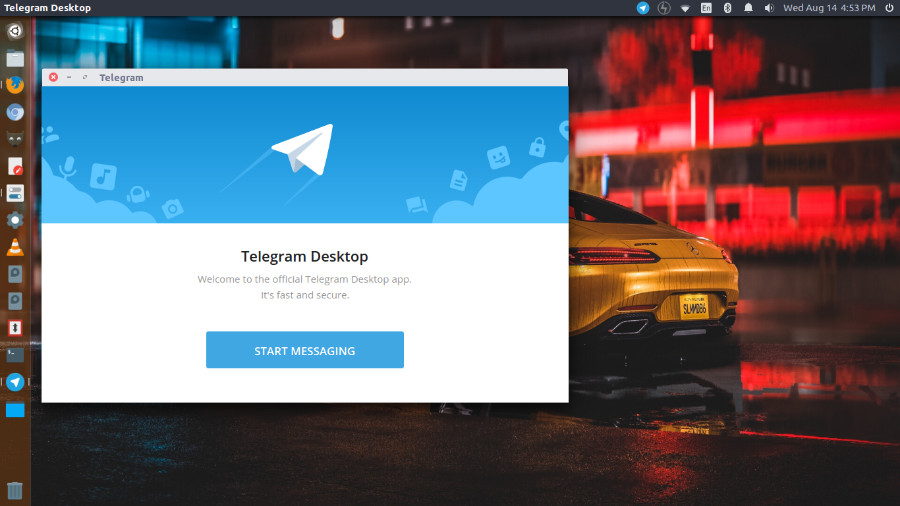
Latest Telegram Update for Ubuntu
The latest update of Telegram brings “Silent Messages, Slow Mode, Admin Titles and More”.
Silent Messages
You can now message friends freely when you know they are sleeping, studying or attending a meeting. Simply hold the Send button to have any message or media delivered without sound. Your recipient will get a notification as usual, but their phone won’t make a sound – even if they forgot to enable the Do Not Disturb mode. This also works in groups, should you get an urgent idea at five in the morning – but not urgent enough to wake up everyone in your work chat.
Slow Mode
In case a group you manage is getting hard to follow, the Group Permissions section now features a Slow Mode switch. When an admin enables Slow Mode in a group, you will only be able to send one message per the interval they choose. A timer will show how long you have to wait before sending your next message. Slow Mode can make conversations in the group more orderly, while raising the value of each individual message. Keep it on permanently, or toggle as necessary to throttle rush hour traffic.
Admin Titles
If new time-lord powers aren’t enough, group owners can now set custom titles for admins like ‘Meme Queen’, ‘Spam Hammer’ or ‘El Duderino’.
Custom title section on the admin rights screen As with the default admin labels, custom titles are shown with every message in the group so members know that they‘re talking to the designated ’Myth Buster’. To add a custom title, edit the admin’s rights in Group Settings.
Timestamps and Improved Scrubbing
Videos now display thumbnail previews as you scrub through, to help you find the moment you were looking for. If you add a timestamp like 0:45 to a video caption, it will be automatically highlighted as a link. Tapping on a timestamp will play the video from the right spot. This also works if you mention a timestamp when replying to a video.
Timestamps are also supported for YouTube videos, in case you want to mark your favorite moments when sharing a Kurzgesagt episode.
Animated Emoji
When you have animated stickers, why not go one step further and get animated emoji? To check them out, send a single ❤️, ????, ????, ???? or ???? to any chat. If your life feels a little too animated recently, Sticker Settings now offer a toggle for looped playback. When disabled, animated stickers will play just once then stay still.
Install Telegram on Ubuntu
Linux Ubuntu users can download and install Telegram from the official website https://desktop.telegram.org/
https://telegram.org/dl/desktop/linux32 – Telegram for Linux Ubuntu 32 Bit
https://telegram.org/dl/desktop/linux – Telegram for Linux Ubuntu 64 Bit