
Learn how to open application from terminal Ubuntu. How to open installed software in Ubuntu from terminal. If you are wondering where are applications in Ubuntu, read more to find about.
Find Commands To Run Applications In Ubuntu Linux
Method 1
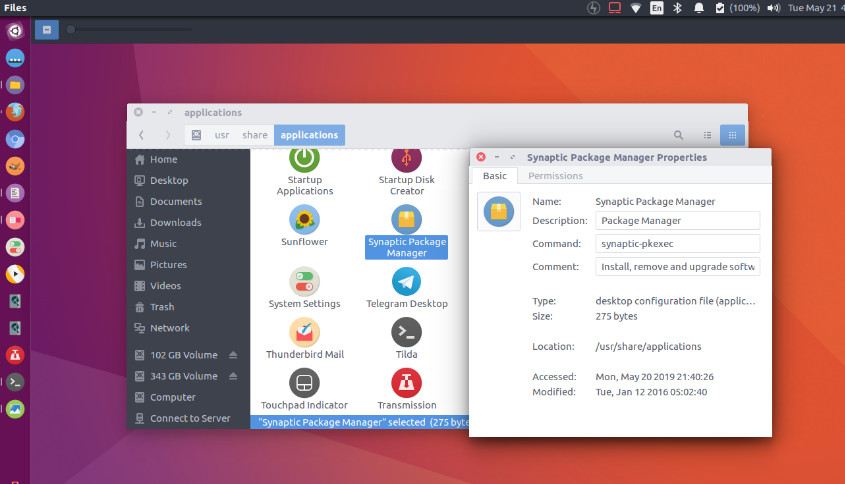
In Ubuntu Linux Systems, most default applications will have a .desktop file located in /usr/share/applications folder. You can find the corresponding terminal command {of a specific application} that will be used to open/run to launch the said application.
1. Navigae to /usr/share/applications
2. Right click on the application’s icon
3. Select Properties in the menu option
4. See the command tab and you see the command that will run the application
Method 2
In Ubuntu Linux, some programs or applications simply run by a binary. By using whereis command you can find out where binary is located for a specific application.
whereis application-name
Usage example:
sourcedigit@SD:~$ whereis audacity

audacity: /usr/bin/audacity /usr/share/audacity /usr/share/man/man1/audacity.1.gz
You can simply run /usr/bin/audacity to open the application.
sourcedigit@SD:~$ /usr/bin/audacity
whereis
whereis command is used to locate the binary, source, and manual page files for a command. whereis locates the binary, source and manual files for the specified command names. The supplied names are first stripped of leading pathname components and any (single) trailing extension of the form .ext (for example: .c) Prefixes of s. resulting from use of source code control are also dealt with. whereis then attempts to locate the desired program in the standard Linux places, and in the places specified by $PATH and $MANPATH.
Syntax of the command is:
whereis [options] [-BMS directory... -f] filename
The search restrictions (options -b, -m and -s) are cumulative and apply to the subsequent name patterns on the command line. Any new search restriction resets the search mask. For example:
whereis -bm ls tr -m gcc
searches for “ls” and “tr” binaries and man pages, and for “gcc” man pages only. The options -B, -M and -S reset search paths for the subsequent name patterns. For example:
whereis -m ls -M /usr/share/man/man1 -f cal
searches for “ls” man pages in all default paths, but for “cal” in the /usr/share/man/man1 directory only.