
Download and install Mark Text Markdown Editor on Ubuntu Linux. This tutorial explains how to install Markdown Editor on Ubuntu 19.10, Ubuntu 19.04, Ubuntu 18.10, Ubuntu 18.04 and other Ubuntu Derivatives.
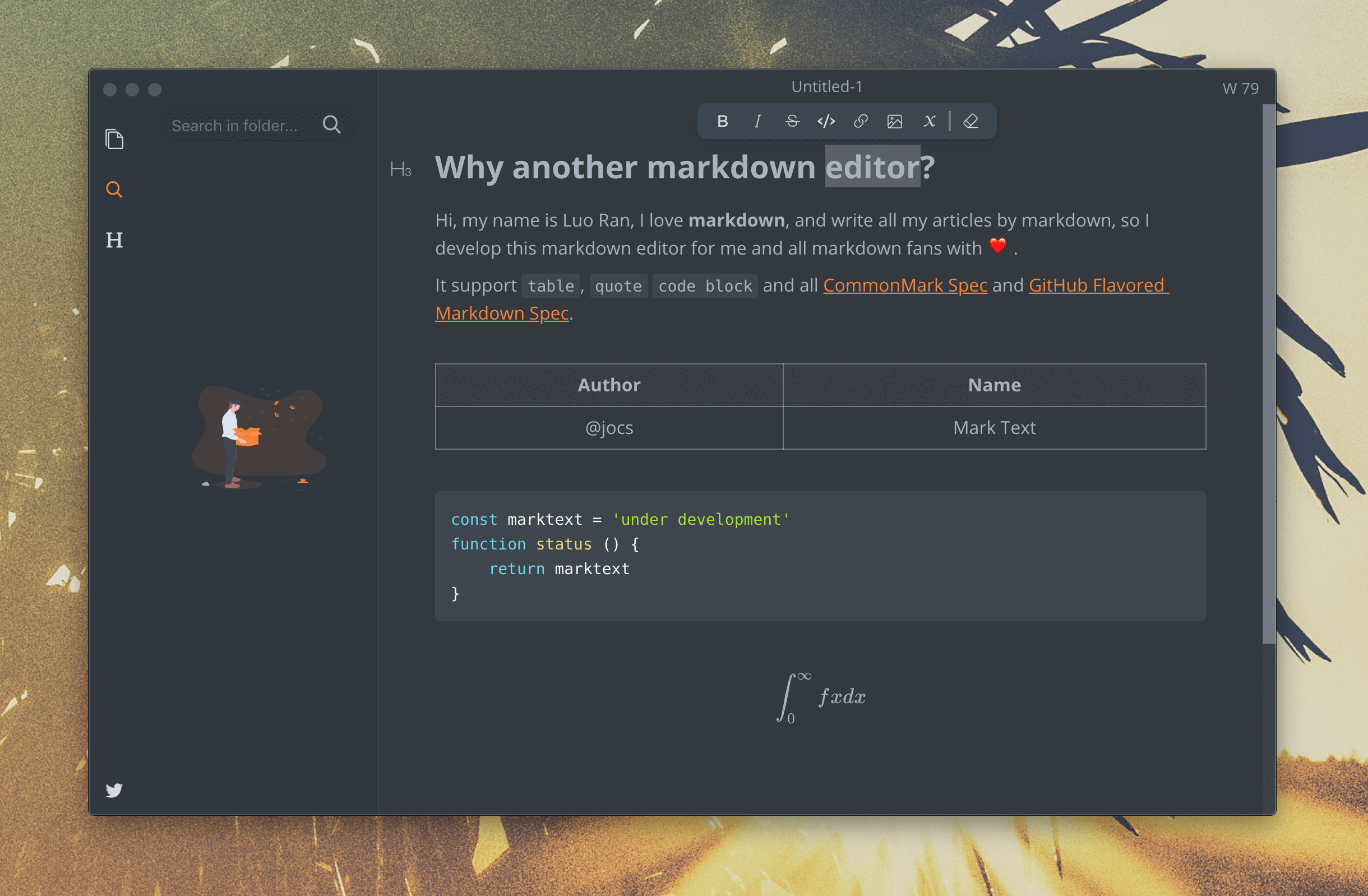
Features
- Realtime preview (WYSIWYG) and a clean and simple interface to get a distraction-free writing experience.
- Support CommonMark Spec, GitHub Flavored Markdown Spec and selective support Pandoc markdown.
- Markdown extensions such as math expressions (KaTeX), front matter and emojis.
- Support paragraphs and inline style shortcuts to improve your writing efficiency.
- Output HTML and PDF files.
- Various themes: Cadmium Light, Material Dark etc.
- Various editing modes: Source Code mode, Typewriter mode, Focus mode.
Why write another editor?
- You don’t like to be disturbed when I write by some unbearable bug. Mark Text uses virtual DOM to render pages which has the added benefits of being highly efficient and being open source. That way anyone who loves markdown and writing can use Mark Text.
- As mentioned above, Mark Text is completely free and open source and will be open source forever. We hope that all markdown lovers will contribute their own code and help develop Mark Text into a popular markdown editor.
- There are many markdown editors and all have their own merits, some have features which others don’t. It’s difficult to satisfy each markdown users’ needs but we hope Mark Text will be able to satisfy each markdown user as much as possible. Although the latest Mark Text is still not perfect, we will try to make it as best as we possibly can.
Download and Install Mark Text
AppImage
Download the AppImage and type the following:
chmod +x marktext-%version%-x86_64.AppImage./marktext-%version%-x86_64.AppImage- Now you can execute Mark Text.
Installation
You cannot really install an AppImage. It’s a file which can run directly after getting executable permission. To integrate it into desktop environment, you can either create desktop entry manually or use AppImageLauncher.
You can integrate the AppImage into the system via AppImageLauncher. It will handle the desktop entry automatically.
Uninstallation
- Delete AppImage file.
- Delete your desktop file if exists.
- Delete your user settings:
~/.config/marktext