
How to install KeePassXC 2.6.1 on Ubuntu Linux. KeePassXC is the best free password manager for Linux Ubuntu. KeePass 2.46 is released with TLS 1.3 Support on .NET 4.8+
KeePassXC stores and manages all kinds of sensitive information and personal data, such as usernames, passwords, URLs, attachments, and notes in an offline, encrypted file that can be stored in any location, including private and public cloud solutions.
KeePassXC has numerous features for novice and power users alike. Our goal is to create an application that can be used by anyone while still offering advanced features to those that need them.
Basic Features – KeePassXC
- Create, open, and save databases in the KDBX format (KeePass compatible to KDBX4 and KDBX3)
- Store sensitive information in entries that are organized by groups
- Search for entries
- Password generator
- Auto-Type passwords into applications
- Browser integration with Google Chrome, Mozilla Firefox, Microsoft Edge, Chromium, Vivaldi, Brave, and Tor-Browser
- Entry icon download
- Import databases from CSV, 1Password, and KeePass1 formats
Advanced Features – KeePassXC
- Database reports (password health, HIBP, and statistics)
- Database export to CSV and HTML formats
- TOTP storage and generation
- Field references between entries
- File attachments and custom attributes
- Entry history and data restoration
- YubiKey/OnlyKey challenge-response support
- Command line interface (keepassxc-cli)
- Auto-Open databases
- KeeShare shared databases (import, export, and synchronize)
- SSH Agent
- FreeDesktop.org Secret Service (replace Gnome keyring, etc.)
- Additional encryption choices: Twofish and ChaCha20
KeePassXC 2.46 New Features
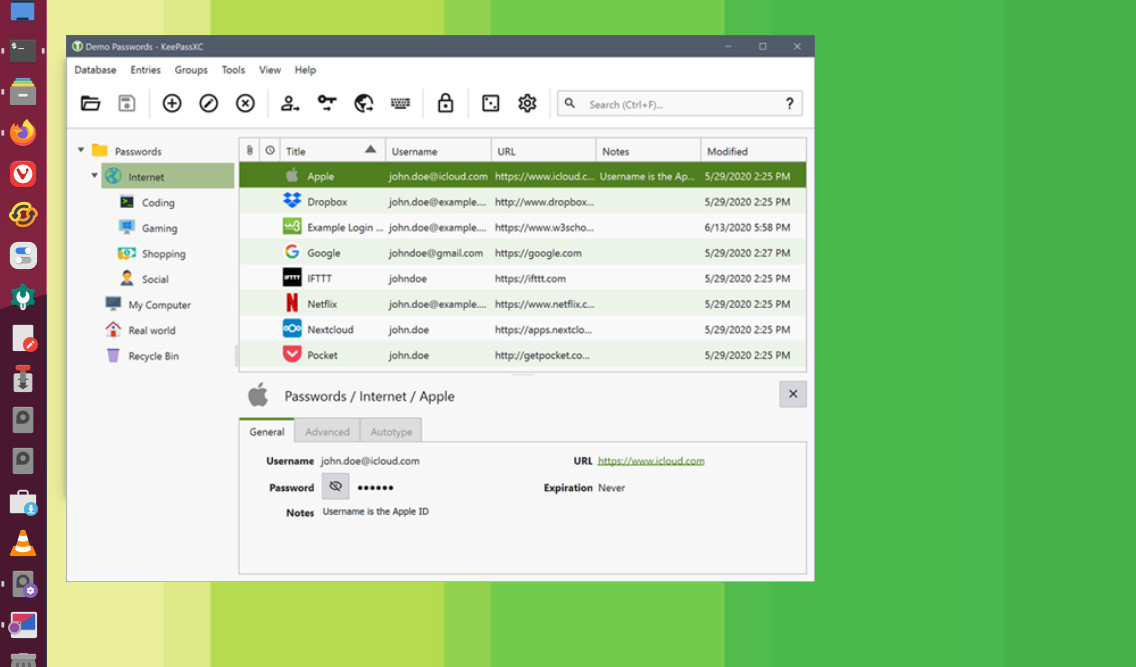
- The entry editing dialog can now edit all currently selected entries at once.
- As entry attachment icons, the icons associated with the respective file types (in the system settings) are used now.
- When running on .NET 4.8 or higher, secure connections (e.g. for WebDAV) now support TLS 1.3.
- Added keyboard shortcut Ctrl+* (numeric keypad) for the ‘Expand Recursively’ group command.
- Added keyboard shortcut Ctrl+/ (numeric keypad) for the ‘Collapse Recursively’ group command.
- Right-clicking on the header of the main entry list now shows the ‘Configure Columns’ command.
- The {VKEY …} command now supports some flags (for specifying whether to send a key down or up event only and/or whether to send an extended key).
- Added configuration option for protecting KeePass windows against certain screen capture operations.
- Added command line parameter ‘-wa-enable:’ for enabling specific Mono workarounds.
- On Unix-like systems with a Wayland compositor, KeePass (with the KPUInput plugin) can now auto-type the default sequence and manually selected sequences of the currently selected entry.
Install KeePass Password Manager
Run the following commands in terminal to install the KeePass password manager on Linux Ubuntu:
sudo apt-get update

sudo add-apt-repository ppa:phoerious/keepassxc

sudo apt-get update

sudo apt install keepassxc