
How to install fonts in Ubuntu. Install FontManager 0.8 and install Google Fonts in Ubuntu. Using Font Manager on Ubuntu, users can install fonts in GIMP Ubuntu and install fonts in LibreOffice Ubuntu.
FontManager 0.8
FontManager 0.8 is released with Google Fonts integration. FontManager is a simple font management application for GTK Desktop Environments.
Font Manager is intended to provide a way for average users to easily manage desktop fonts, without having to resort to command line tools or editing configuration files by hand. While designed primarily with the Gnome Desktop Environment in mind, it should work well with other GTK desktop environments.
Features: Font Manager
- Preview and compare font files
- Activate or deactivate installed font families
- Automatic categorization based on font properties
- Google Fonts Catalog integration
- Integrated character map
- User font collections
- User font installation and removal
- User font directory settings
- User font substitution settings
- Desktop font settings (GNOME Desktop or compatible environments)
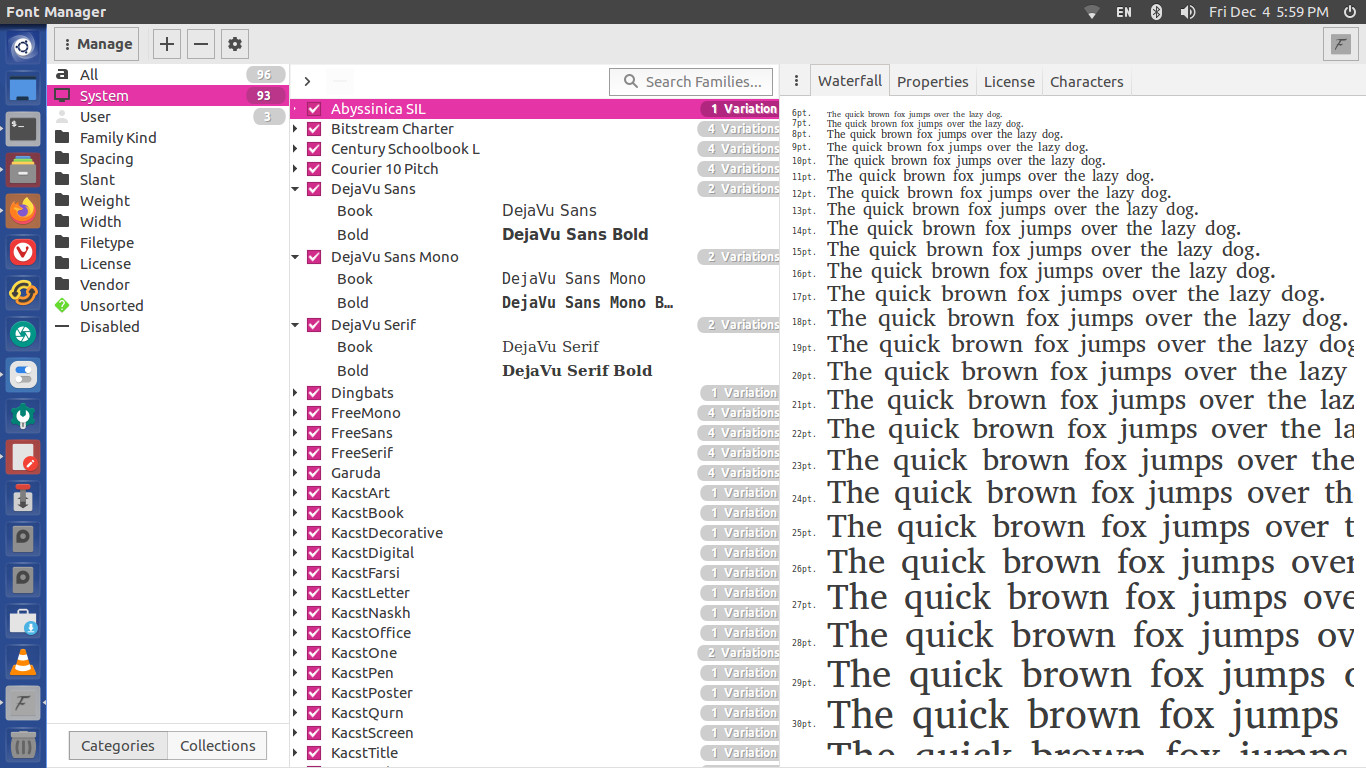
Install FontManager 0.8 on Ubuntu
Run the following commands in terminal to install FontManager 0.8 in Ubuntu:
sudo add-apt-repository ppa:font-manager/staging sudo apt-get update sudo apt install font-manager
Once installed, open the Font Manager from Ubuntu Dash.