
How to check total hard disk size in Ubuntu terminal. Here is a Linux hard disk info command to check hard drive in Ubuntu terminal.
Command to Check Hard Disk Size in Linux Ubuntu
Two most popular commands to check hard disk size in Linux Ubuntu are:
- df command – Shows the amount of disk space used and available on Linux file systems. If no file name is given, the space available on all currently mounted file systems is shown. Disk space is shown in 1K blocks by default.
- du command – ‘du’ reports the amount of disk space used by the set of specified files and for each subdirectory (of directory arguments).
df Command
The “df” command is for “disk filesystem” and is a great tool to know about the disk space usage on Linux Systems. The df command displays the amount of disk space available on the file system.
If no file name is given, the space available on all currently mounted file systems is shown. Disk space is shown in 1K blocks by default, unless the environment variable POSIXLY_CORRECT is set, in which case 512-byte blocks are used.
If an argument is the absolute file name of a disk device node containing a mounted file system, df shows the space available on that file system rather than on the file system containing the device node (which is always the root file system).
Using df Command
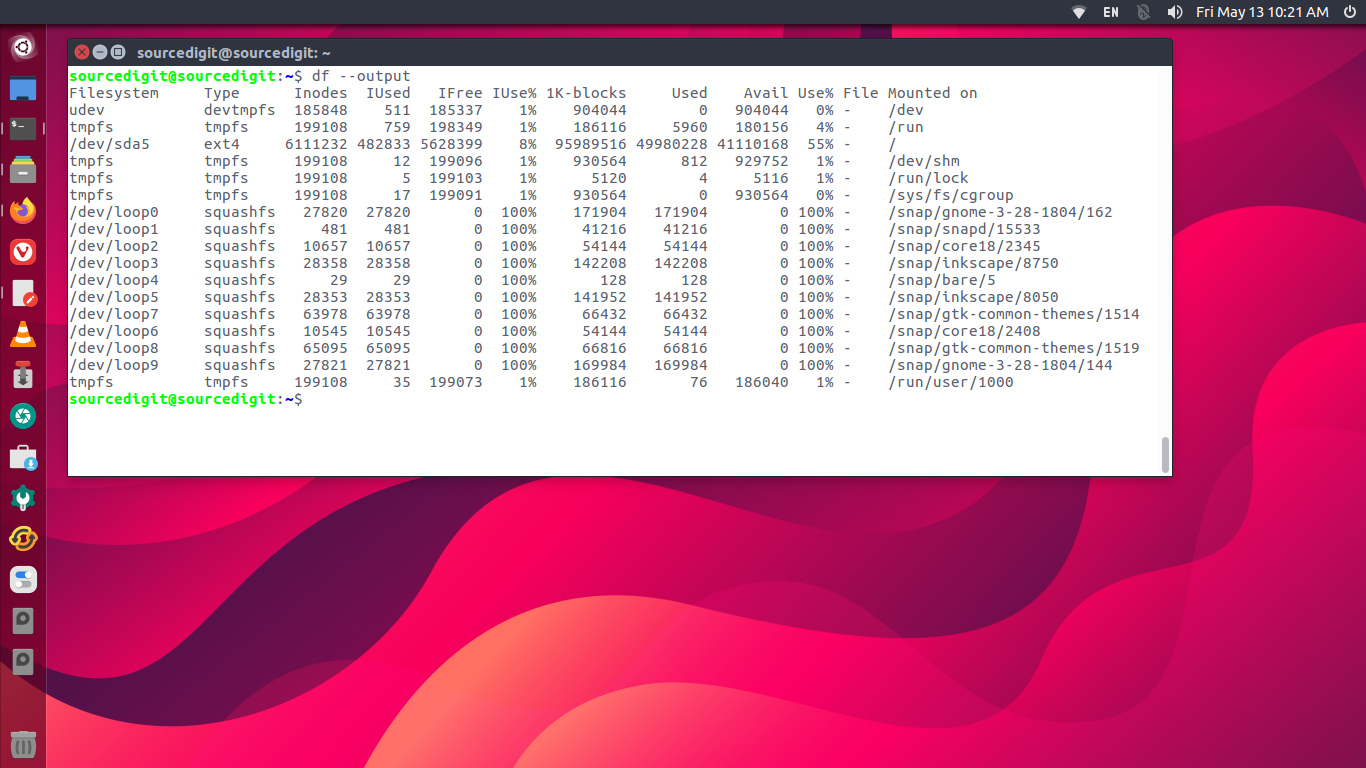
The simplest df command is by itself. Without any command parameters. When executed the df command displays the information about the file system disk space usage. It shows the device name, total blocks, total disk space, used disk space, free disk space and mount points.
df
Using the df command with -a or –all it shows dummy file systems information along with all the basic file system disk usage info:
df -a
Linux Command To Check Hard Disk Size in GB
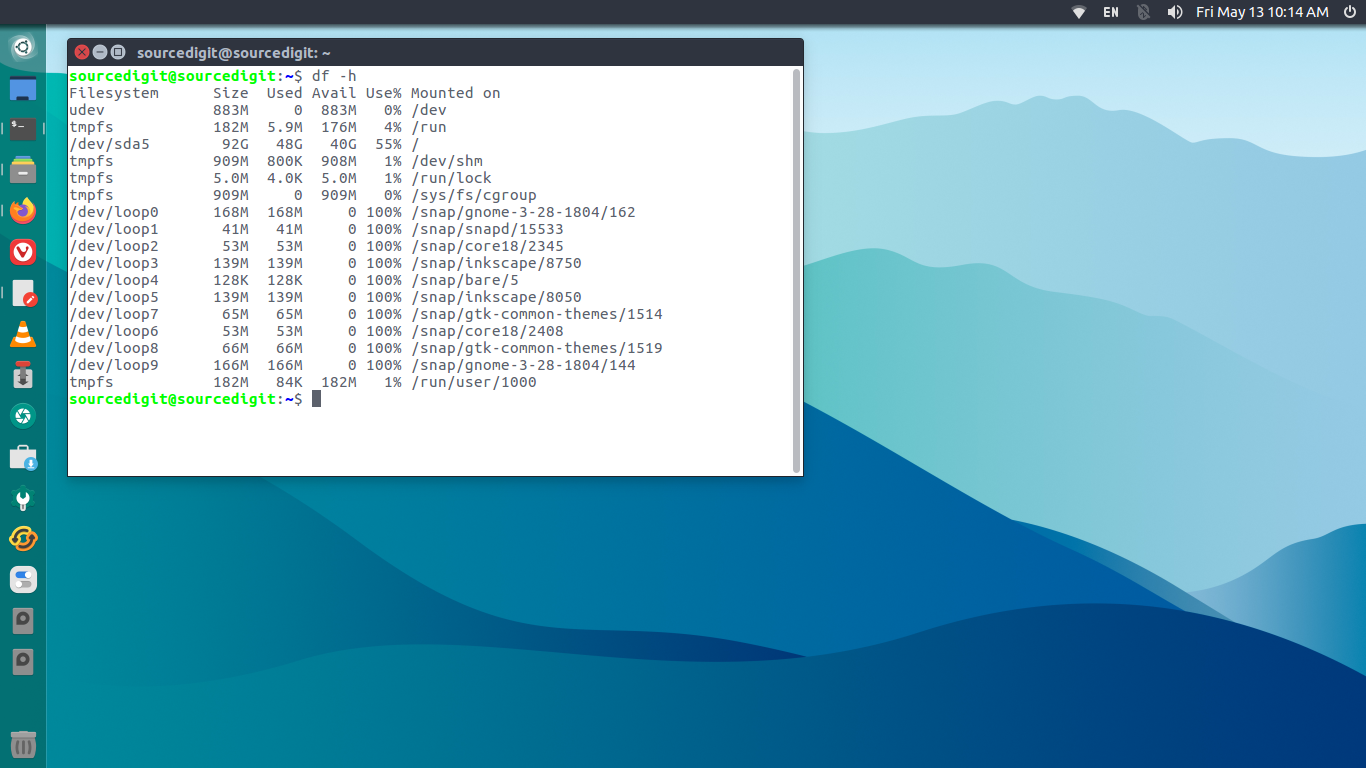
As the disk space is shown in 1K blocks by default, users can use “-h” command parameter to show the file system disk space usage data in “human readable” format.
df -h
Command to Display the Total Disk Usage of the Current Directory
‘du’ reports the amount of disk space used by the set of specified files and for each subdirectory (of directory arguments).
With no arguments, ‘du’ reports the disk space for the current directory. Normally the disk space is printed in units of 1024 bytes, but this can be overridden.