
How to check battery status using Linux commandline. Here is the terminal command to check battery health in Linux and check battery status in Linux server.
Using upower command and acpi command in Linux one can easily view the information about the system battery in terminal.
upower
upower is a command line tool to get information about the system power source (battery). The command is very easy to use and can display all the available information about the battery connected to the laptop o power source to PC.
Two of the most used command options are:
- –monitor: Connect to the UPower daemon and print a line every time a power source is added, removed or changed.
- –monitor-detail: Like –monitor but prints the full details of the power source whenever an event happens.
Using upower Command
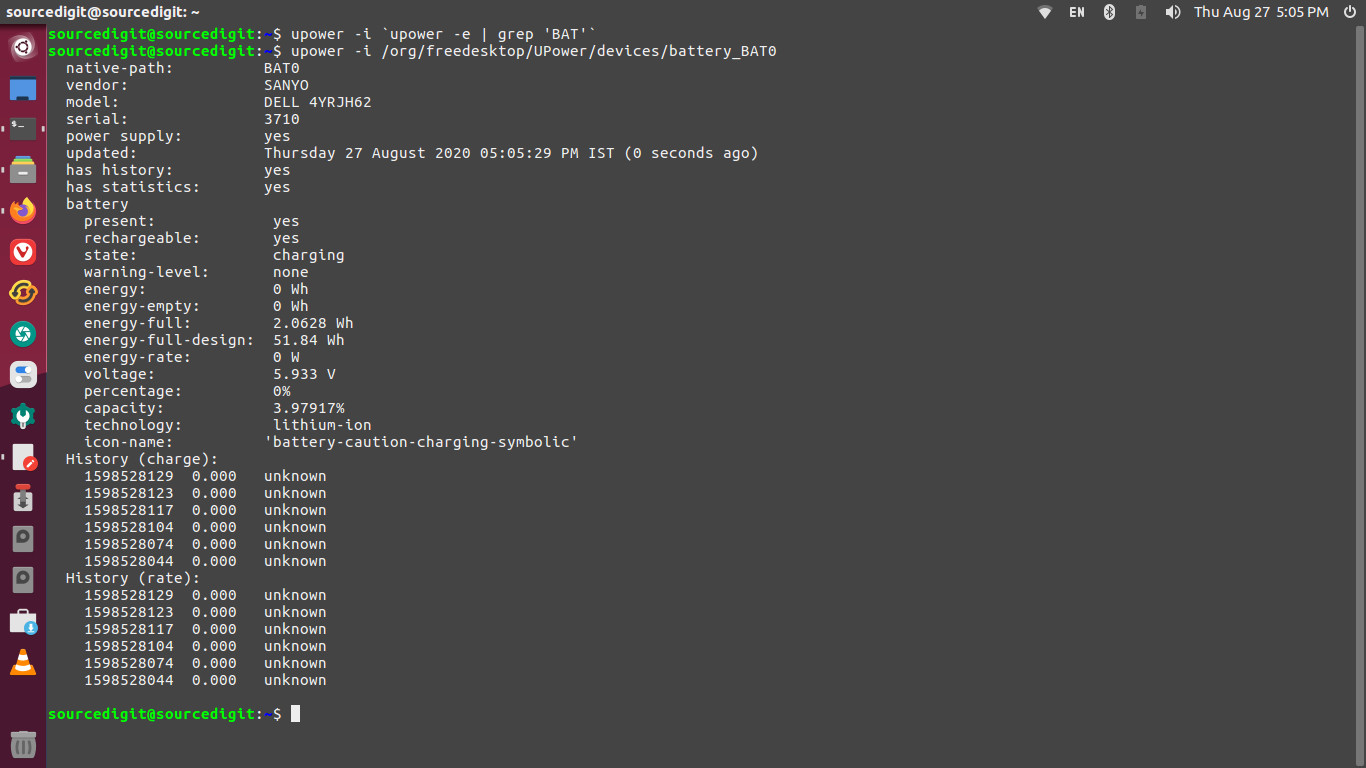
Here is how to use upower command to get information about the battery in terminal.
$ upower -i /org/freedesktop/UPower/devices/battery_BAT0
$ upower -i `upower -e | grep 'BAT'`
$ upower -i $(upower -e | grep BAT) | grep --color=never -E "state|to\ full|to\ empty|percentage"
acpi
acpi – Shows battery status and other ACPI information. acpi Shows information from the /proc or the /sys filesystem, such as battery status or thermal information.
acpi Command Options
There most frequently used acpi command options are:
- -b | –battery show battery information
- -a | –ac-adapter show ac adapter information
- -t | –thermal show thermal information
- -c | –cooling show cooling device information
- -V | –everything show every device, overrides above options
- -s | –show-empty show non-operational devices
- -i | –details show additional details if available such as battery capacity information and temperature trip points
- -f | –fahrenheit use fahrenheit as the temperature unit instead of default celsius
Using acpi Command
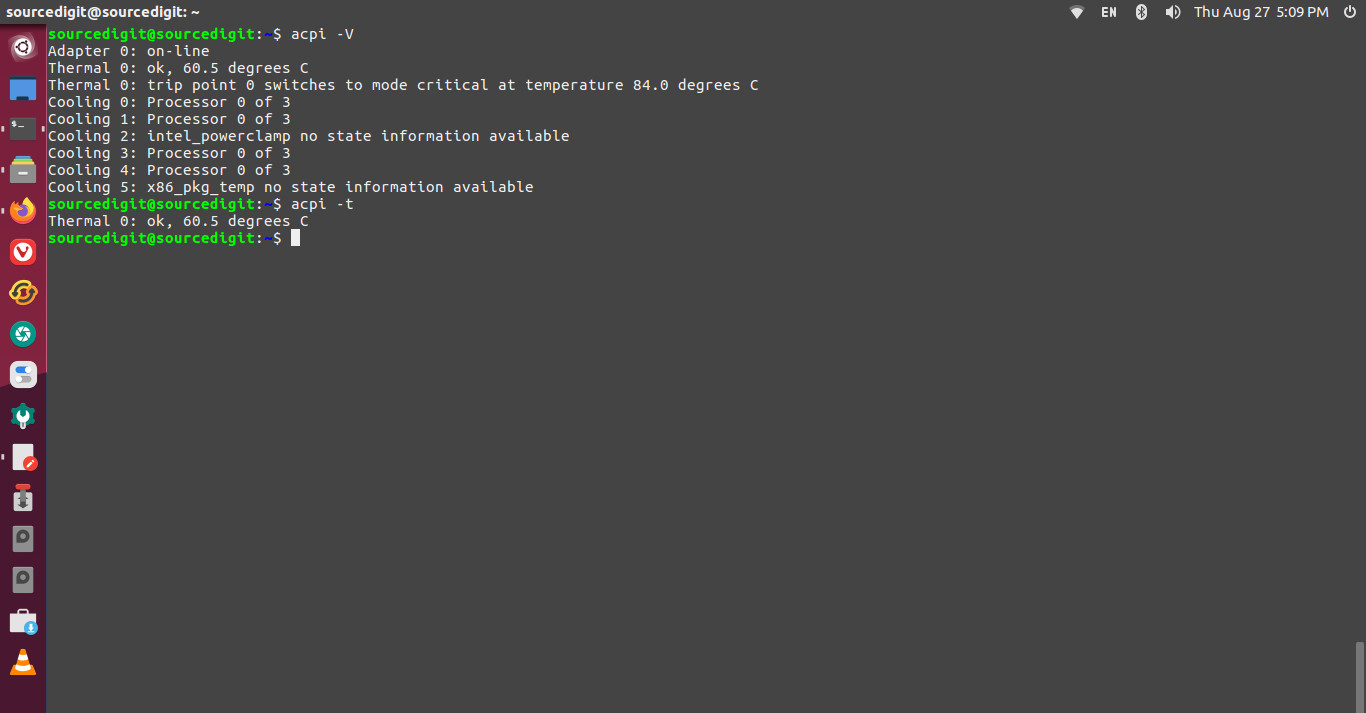
Use the acpi command standalone or using one of the above listed command options.
$ acpi -V
$ acpi -t
You can also use GUI method t