
This tutorial explains how to rename a file in Ubuntu Terminal or how to rename a file in Linux in same directory.
Using Re mane Command
The “rename” command renames the filenames supplied according to the rule specified as the first argument.
If a given filename is not modified by the expression, it will not be renamed. If no filenames are given on the command line, filenames will be read via standard input.
On many Linux distributions, the rename command is not available by default. If your system is missing the rename command on Ubuntu and Debian Systems, use sudo apt install rename command to install the rename command.
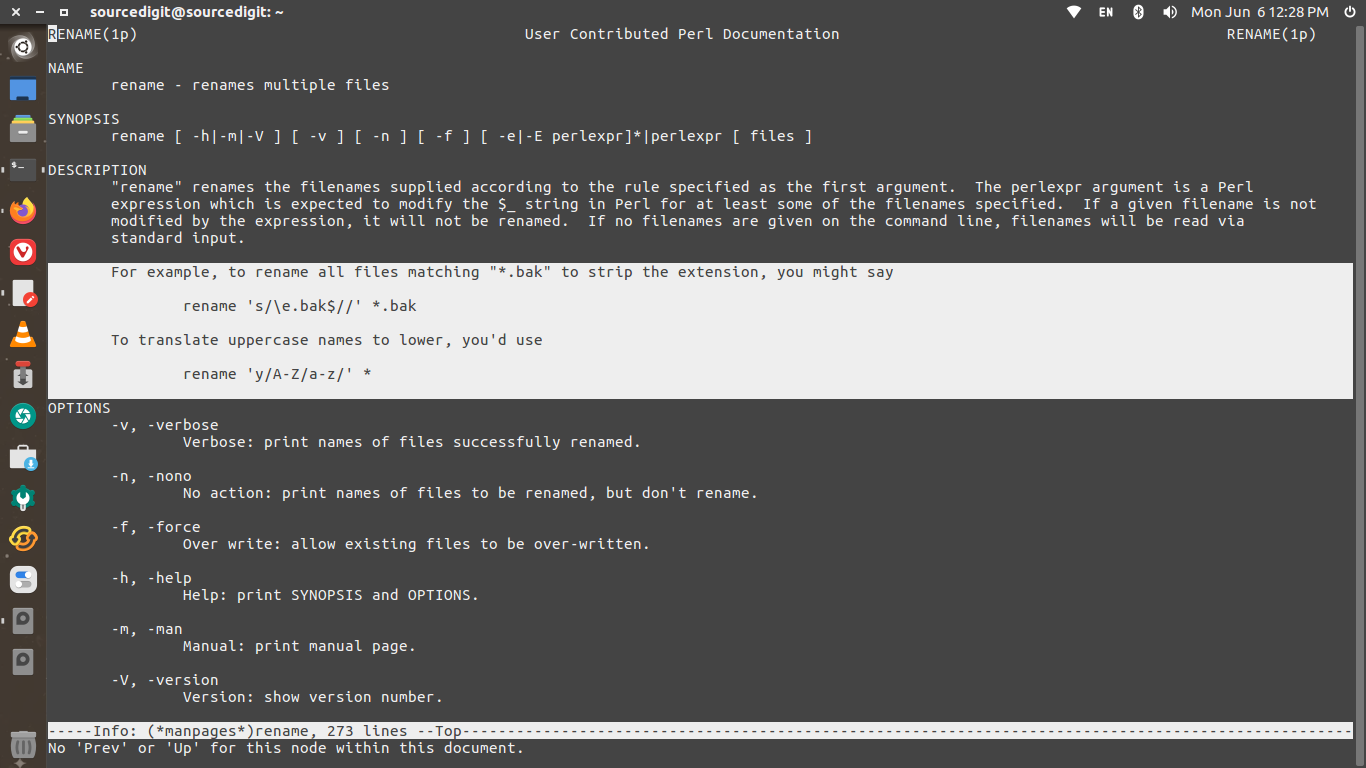
The syntax of the command is rename [options] ‘s/[filename element]/[replacement]/’ [filename] Using this command one can rename the file by replacing the first occurrence of the filename element with the replacement. The various command arguments for the rename command are:
- rename: Invokes the rename command.
- [options]: Provides an optional argument that changes the way the command executes.
- s: Indicates a substitute expression.
- [filename element]: Specifies the part of the filename you want to replace.
- [replacement]: Specifies a replacement for the part of the current filename.
- [filename]: Defines the file you want to rename.
For example, to rename all files matching “*.bak” to strip the extension, you might say
rename 's/\e.bak$//' *.bak
Similarly to change the file extension from .txt to .pdf, use:
rename -v 's/.txt/.pdf/' *.txt
To translate uppercase names to lower, you’d use
rename 'y/A-Z/a-z/' *
To translate lowercase names to uppercase, you’d use
rename -v 'y/A-Z/a-z/' *.TXT
To rename and replacing the filename with a new filename you can use the following command. Note that in this example, we will rename example1.txt, example2.txt, and example3.txt to name1.txt, name2.txt, and name3.txt, use:
rename -v 's/example/name/' *.txt
Rename Files with Similar Names
To rename files with similar names. For example, if we want to rename files with example and sample in their name to test:
rename -v ‘s/(ex|s)ample/test/’ *.txt
Capitalize First Letter of Filename
To capitalize only first letter of each filename:
rename 's/\b(\w)/\U$1/g' *.ext
Remove Blank Spaces From All File Names
To remove blank spaces from all file names using rename command:
rename "s/ *//g" *
Note: The command argument -v shows a verbose version of the output. Whereas the argument -V will display the command version (capital letter V).
-f, -force is used to over write the execution and allow existing files to be over-written.