
If you want to check difference between two files in Linux or compare 2 files in Linux and print difference, here is the blog post for you.
After reading this tutorial you can easily compare two directories in Linux recursively.
See The Diff Between Two Directories in Linux
Meld is a tool for comparing two or more than two files and directories, and for checking differences between them on screen.
Meld shows differences between two or three files (or two or three directories) and allows you to edit the content – you can move content between them, or edit the files manually.
It is very useful for comparing changes by version control systems.
To install meld on Debian, Ubuntu and Mint system, run the following command:
$ sudo apt install meld
Once installed open the meld application from terminal (use meld command) or from Ubuntu app dash. Once opened, you can start a new file comparison by selecting the File ▸ New… menu item.
When you compare two files or directories, the application lets you compare two or three text files side-by-side. Differences between the files will be highlighted so that it is easier to see the changes.
On the left and right-hand sides of the meld window, there are various coloured blocks showing the differences between your two files.
Note that each coloured block represents a section that is inserted, deleted, changed or in conflict between your files, depending on the block’s colour used.
When comparing folder or directories, the Meld application uses various colour and text formats telling you how it differed from its corresponding files/folders.
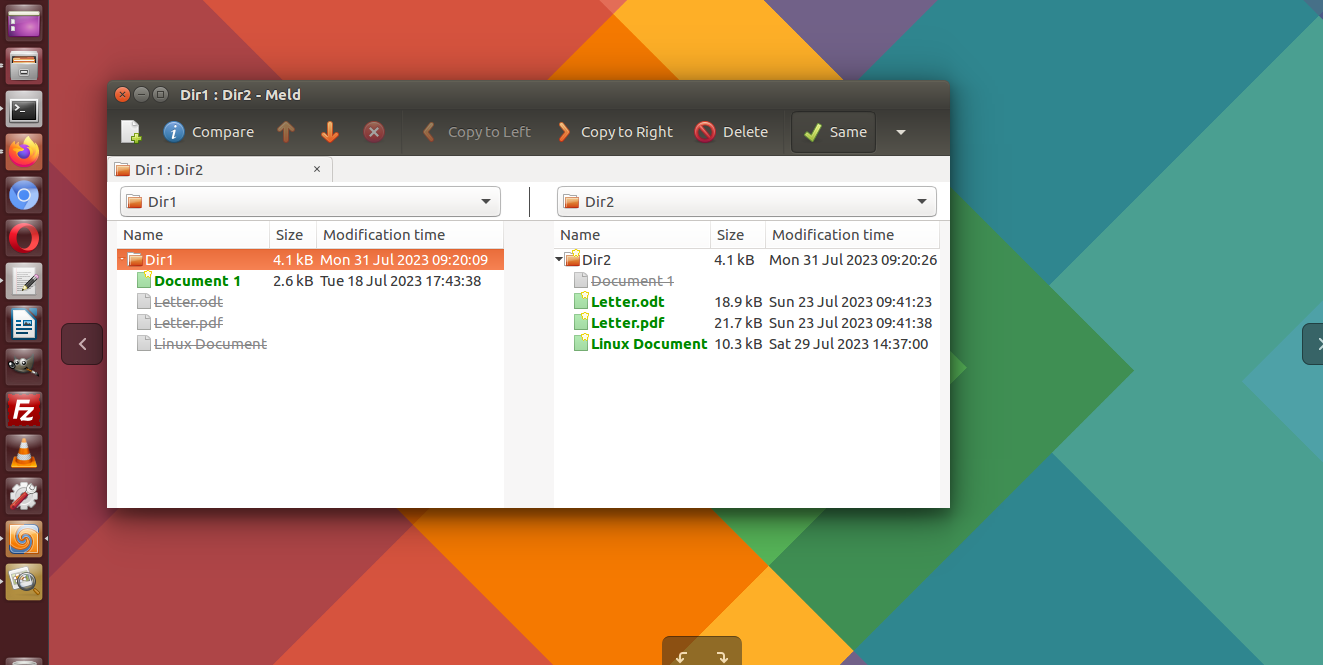
For example when you see normal font, it means that the file/folder is the same across all compared folders.
Similarly, other folder comparison formats used are:
- Italics: These files are different across folders, but once text filters are applied, these files become identical.
- Blue and bold: It shows modified ones. These files differ between the folders being compared.
- Green and bold: New folder or files. This file/folder exists in this folder, but not in the others.
- Greyed out text with a line through the middle: Missing ones. This file/folder doesn’t exist in this folder, but does in one of the others.
- Bright red with a yellow background and bold: When comparing this file, an error occurred.
You can also use the meld via command line or terminal.
- For a two- or three-way file comparison, start Meld with meld file1 file2 or meld file1 file2 file3 respectively.
- For a two- or three-way directory comparison, start Meld with meld dir1 dir2 or meld dir1 dir2 dir3.
For more help, use meld –help.