
How to enable edge/horizontal scrolling on Ubuntu 14.10/14.04. How to fix the mouse-touchpad horizontal scrolling not working in Ubuntu 14.10/14.04. By default, in Ubuntu 14.04 (Ubuntu 13.10 also), the mouse-touchpad is set to scroll vertically instead of horizontal scrolling.
Luckily, there is a way to tweak this setting and enable horizontal scrolling on your laptop.
How to enable edge/horizontal scrolling on Ubuntu 14.04
To enable horizontal scrolling, first you will have to install Unity and Gnome Tool. Type the following command in the terminal to install Unity and Gnome on your laptop:
sudo apt-get install unity-tweak-tool

sudo apt-get install gnome-tweak-tool
1. Once installed, launch Unity Tweak Tool (open Dash and type “Unity” (without quotes))
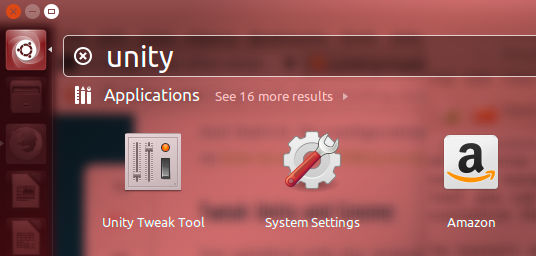
2. Now you can see Unity Tweak Tool icon, click to access it. Under “Scrolling” Tab, select “Horizontal Scrolling.” It’s done. Now you should be able to scroll using the old method – horizontal scrolling.
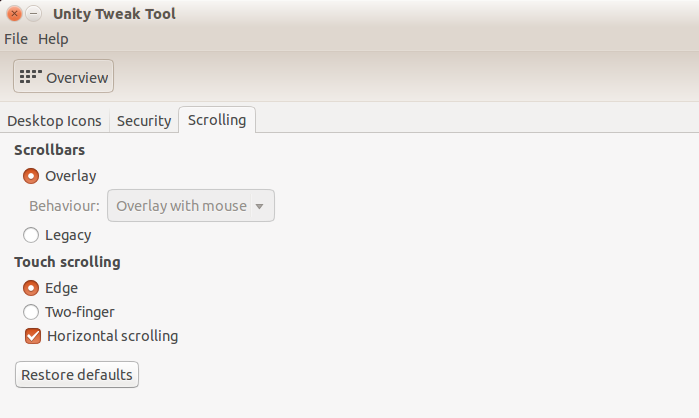
- This method cannot be accessed using System Setting > Mouse & Touchpad. But, here you only get “Two finger scrolling” and “Natural scrolling” options in “Mouse and Touchpad” settings box. You cannot enable horizontal scrolling from here. The only way to do is by installing Unity Tweak Tool.
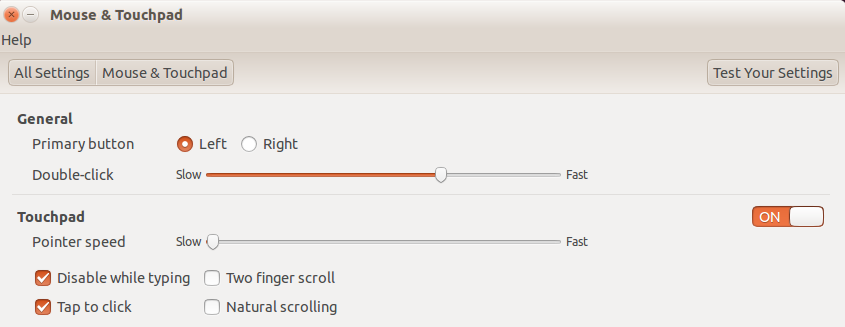
Enable Natural Scrolling on Ubuntu
To enable natural scrolling, type the following command in the Terminal:
dconf-editor
If the editor is not installed, please install it first – type the following command to install dconf-editor:
sudo apt-get install dconf-editor
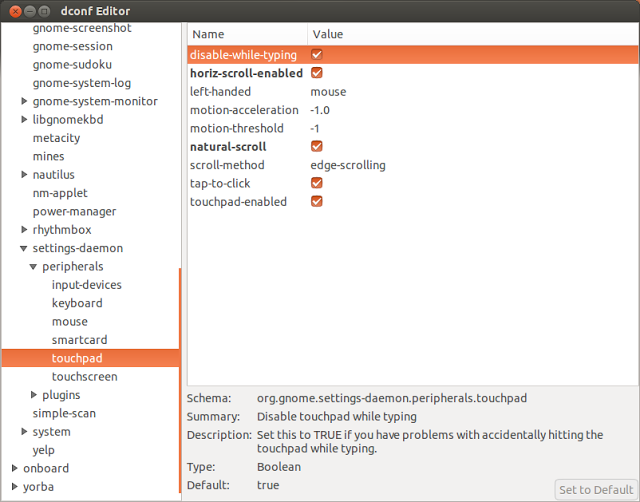
You can use dconf editor tool to enable both, Natural Scrolling and Horizontal Scrolling. Once you have installed and opened the dconf editor. (to open dconf editor: press Alt + F2, type dconf-editor and press Enter key)
- In the left side of the dconf editor go to org > gnome > settings-daemon > peripherals > touchpad
- In the right side of the dconf editor window, find and tick “horiz-scroll-enabled” and “natural-scroll.”
- See the screenshot below:
There is an alternate way to enable natural and horizontal scrolling without using dconf editor tool. For this method, you have to install the natural scrolling package which is distributed additionally as third party support.
sudo add-apt-repository ppa:zedtux/naturalscrolling

sudo apt-get update

sudo apt-get install naturalscrolling
Once installed, you can enable the scrolling options from the Unity dash or applications menu.